The Time Spent and Estimation feature (in version 24) provides a clear way to understand how logged time compares to planned effort. It allows users to quickly see whether work is progressing within the expected estimate or exceeding it, helping improve time tracking accuracy and decision-making.
This feature is available in both Timesheets and the Record Time Callout (from the item), with slightly different interactions in each area.
Note
Before using this feature, make sure the Estimation field is set up in the Time Tracking (Hours) app. See Configure Estimation Field for step-by-step instructions.
Viewing Time Details in Timesheets
In Timesheets, users can access time details by clicking the row icon next to a Project, Job, or Task. This action opens a popover displaying a breakdown of time information.
This interaction uses a click-based popover, not a hover tooltip. This ensures a more stable and interactive experience when reviewing time data.
The popover displays the total time spent by all users, including any work logged on related subitems. Since the Timesheets table only shows the current user’s entries, additional data is fetched when the popover opens. A loading indicator may appear briefly while this information is retrieved.
.png)
Image displaying Time Spent vs. Estimation popover in Timesheets
.png)
Image displaying Time Spent vs. Estimation popover in Timesheets with overtime
Viewing Time Details in the Log Time Callout
In the Log Time Callout panel, time details are accessed by hovering over the progress indicator. This displays a tooltip with a breakdown of Time Spent and Estimation values.
The progress indicator provides a visual comparison between logged time and estimated time. As users log time, this indicator updates automatically, helping users quickly understand whether they are within the estimate, approaching the limit, or exceeding it.
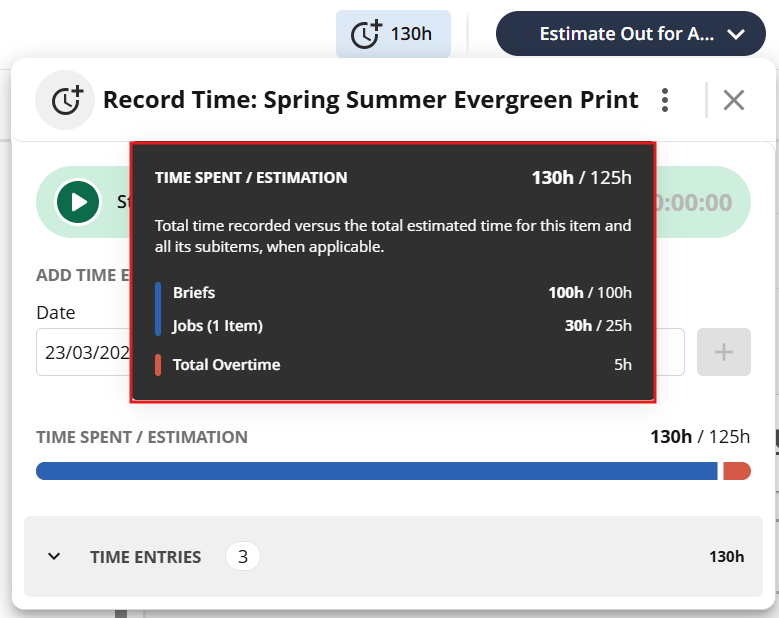
Image displaying Time Spent vs. Estimation pop-up in Log Time Callout panel
Understanding Time Spent and Estimation
The Time Spent value represents the total time logged by all users on the selected item. When applicable, it also includes time logged on any related sub-items.
The Estimation value represents the planned effort for the item. If configured, it includes both the current item’s estimate and any estimates from related subitems, providing a complete view of expected work.
Together, these values allow users to compare actual progress against initial expectations.
When Estimation Is Not Configured
The Estimation feature depends on configuration within the Time Tracking (fka. Hours) app.
If no Estimation field is configured, the system continues to function normally with limited display:
In Timesheets, the popover will display only the Total Time Spent
In the Record Time callout, the tooltip will not be shown
.png)
Image displaying Timesheets popover when the Estimation field is not configured