Record time callout panel overview (Version 23.21)
The enhanced Time Logging Experience provides a more intuitive, streamlined, and flexible way to record and manage your work hours. Whether you are entering time manually, reviewing previous entries, or using the built-in timer, the updated interface is designed to help you track your work more efficiently and with less friction.
You’ll notice a clearer layout, improved navigation, consistent timer controls across all views, and new configuration options that let your workspace define how time entry actions behave. These improvements ensure that logging time is faster, more accurate, and easier to manage.
The table below provides a quick overview of the Record Time callout:
Action | Visual Guide |
In the Project, Job, or Task modules, you can open the Record Time callout by clicking the Record Time icon in Item Info Sheet.
| .png)
|
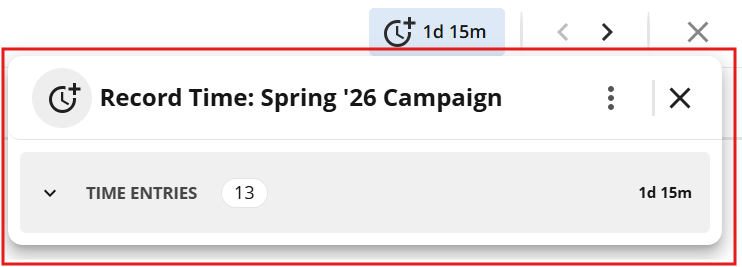
When Start Timer and Add Time Entry are disabled in the Hours App configuration, only existing time entries are displayed in the callout, with the Time Entries section collapsed by default.
| 
|
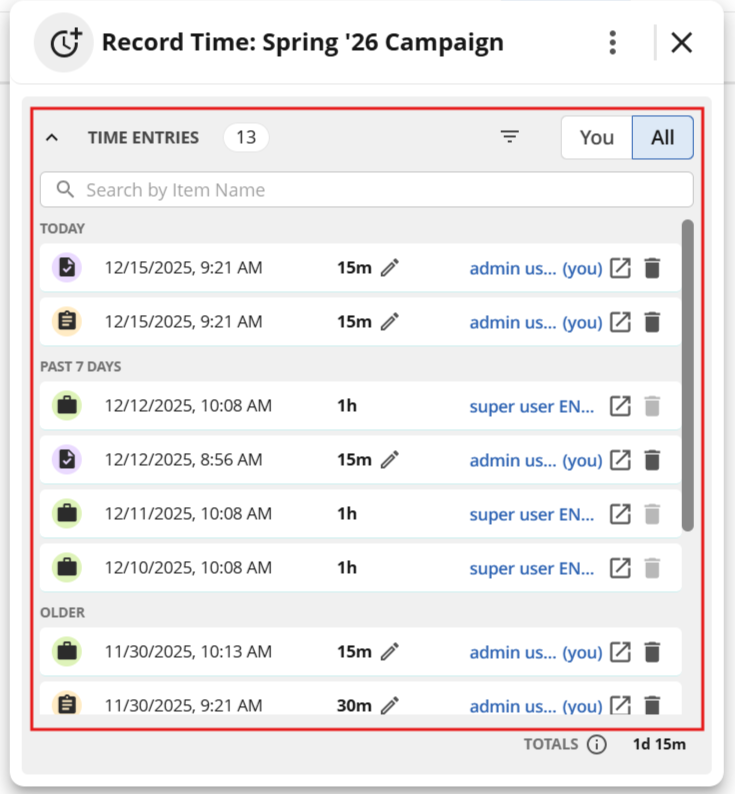
In the Record Time callout, you can expand the Time Entries section by clicking the Time Entries header.
| 
|
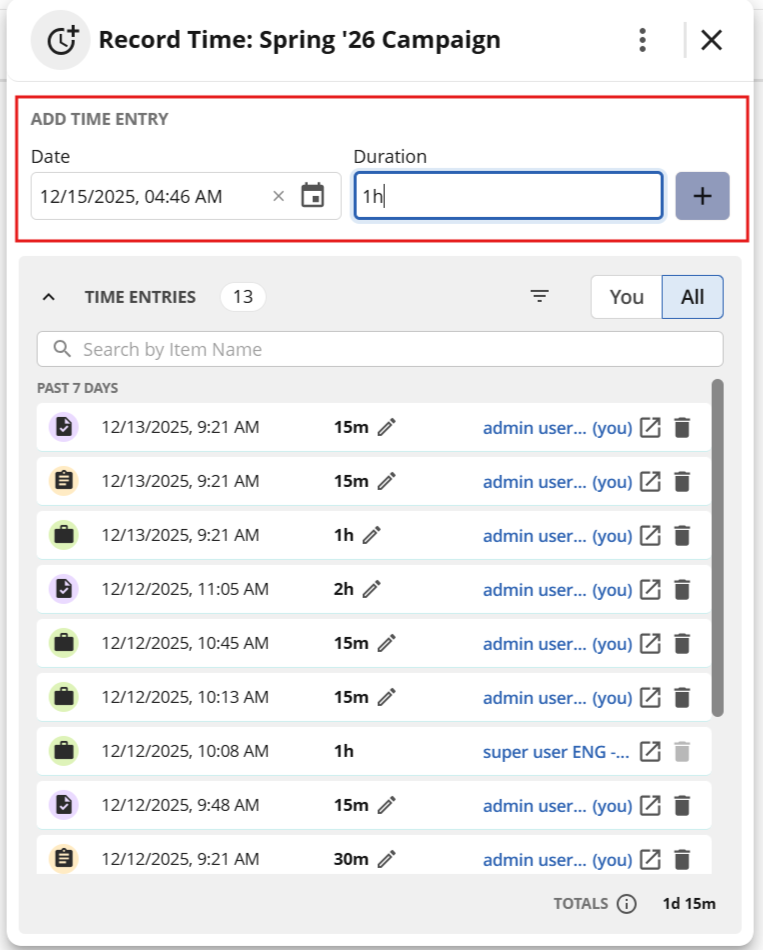
With Add New Time Entry enabled, you can add a new time entry by selecting a date, entering a duration, and clicking the Add icon; newly added entries appear in the Time Entries section below.
| 
|
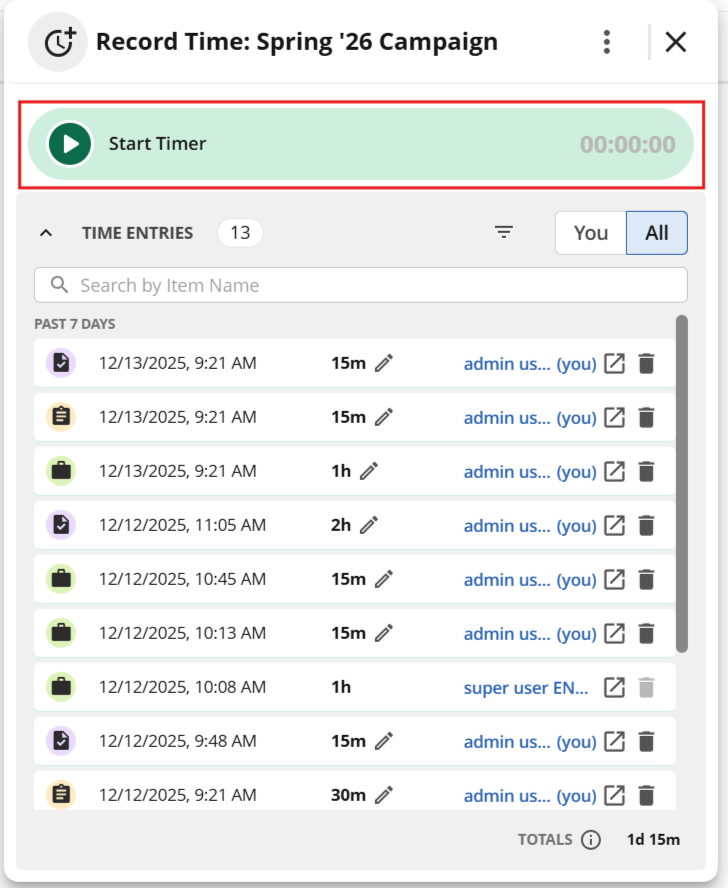
With Start Timer enabled, you can start a new time recording by clicking the Start Timer button.
| 
|
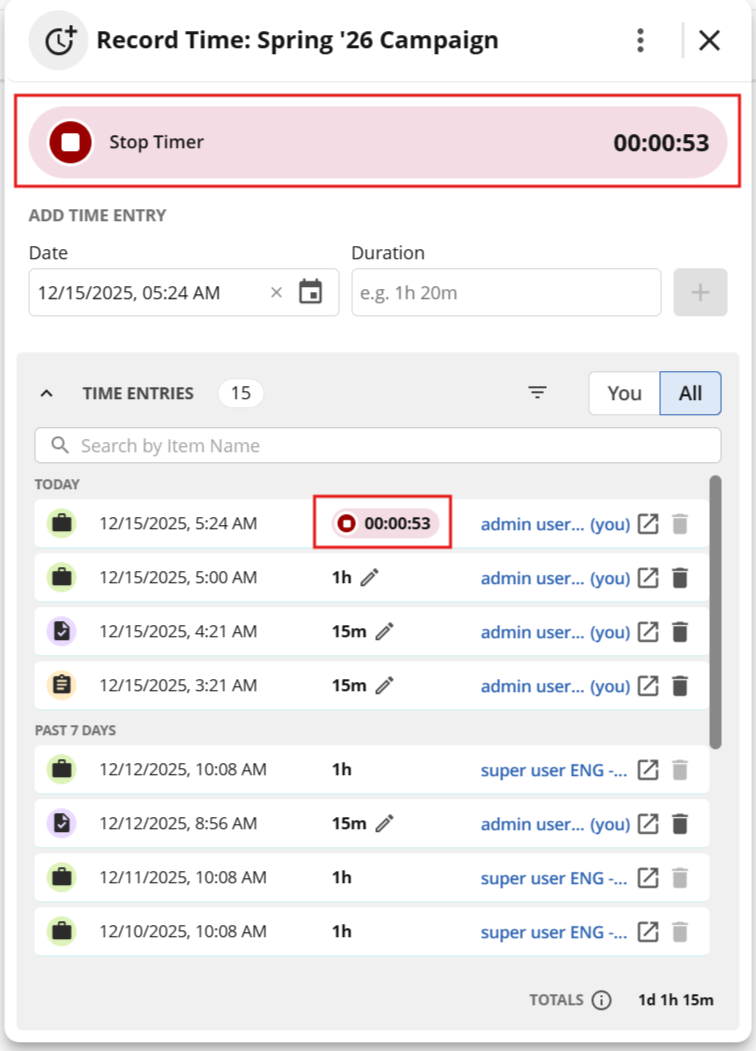
When a timer is running, you can stop it from the Record Time callout by clicking the Stop Timer icon at the top or from the corresponding time entry.
| 
|
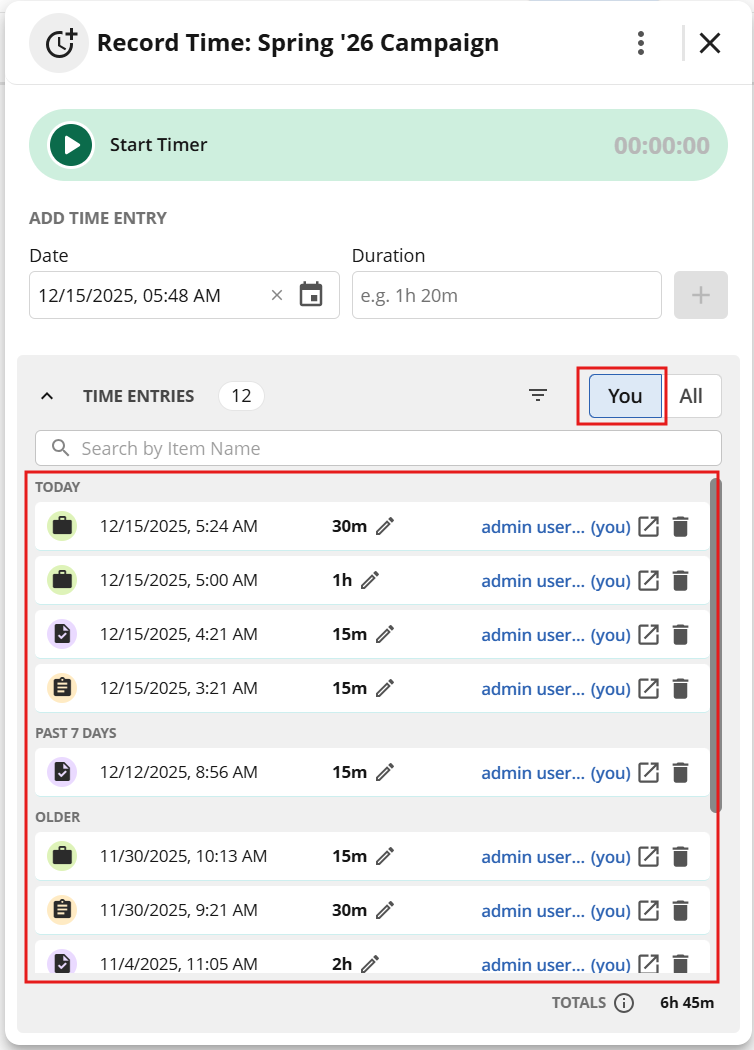
Using the YOU filter toggle displays all recorded time entries for the current user on the selected item.
| 
|
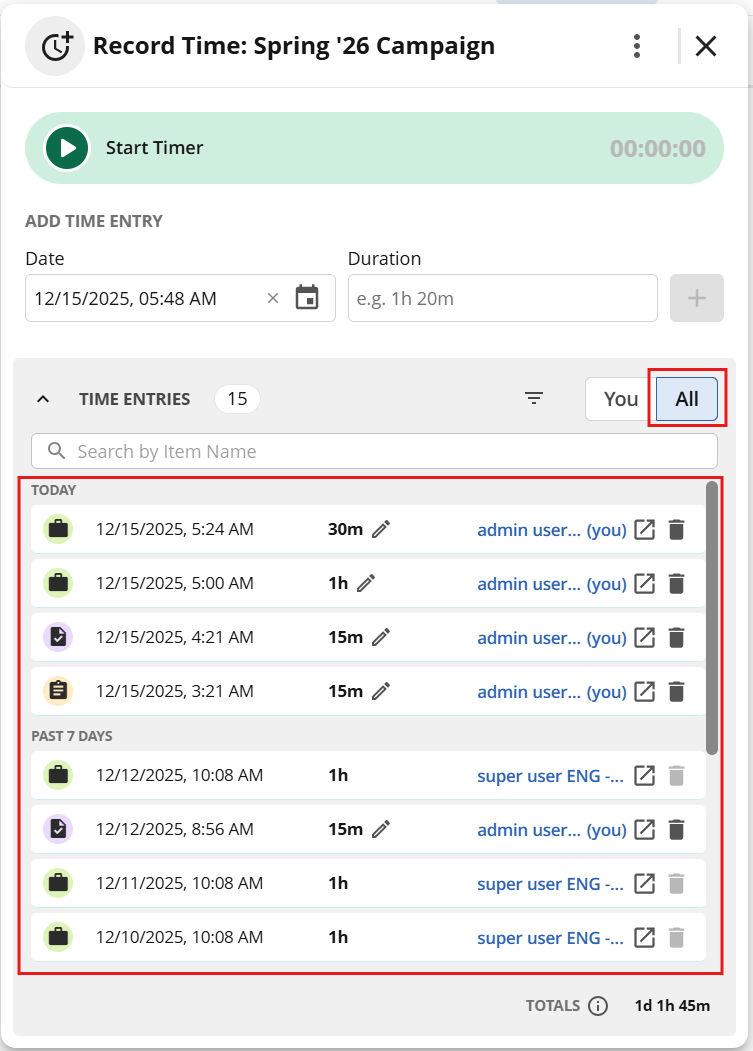
Using the ALL filter toggle displays all recorded time entries for all users on the selected item.
| 
|
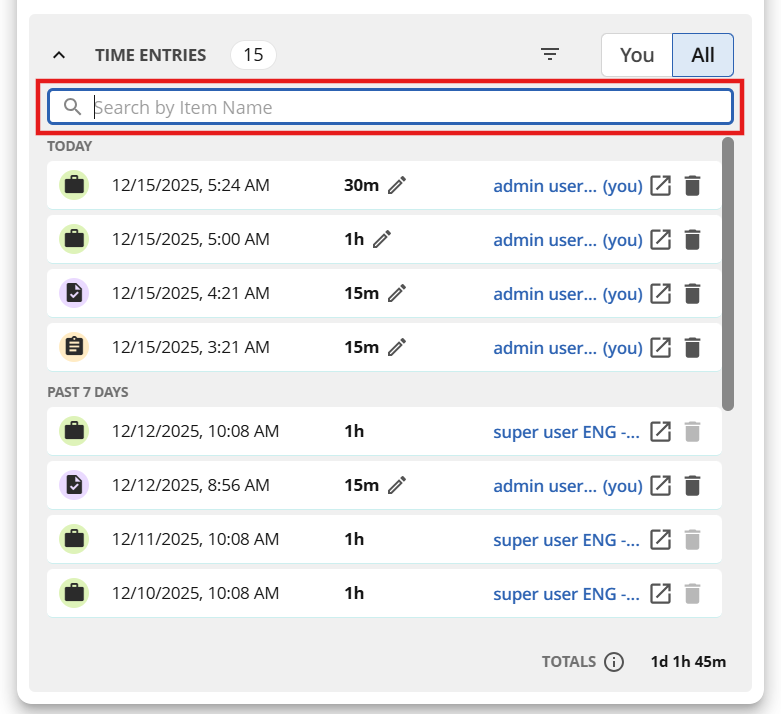
Using the Search field, you can search time entries by item name.
| 
|
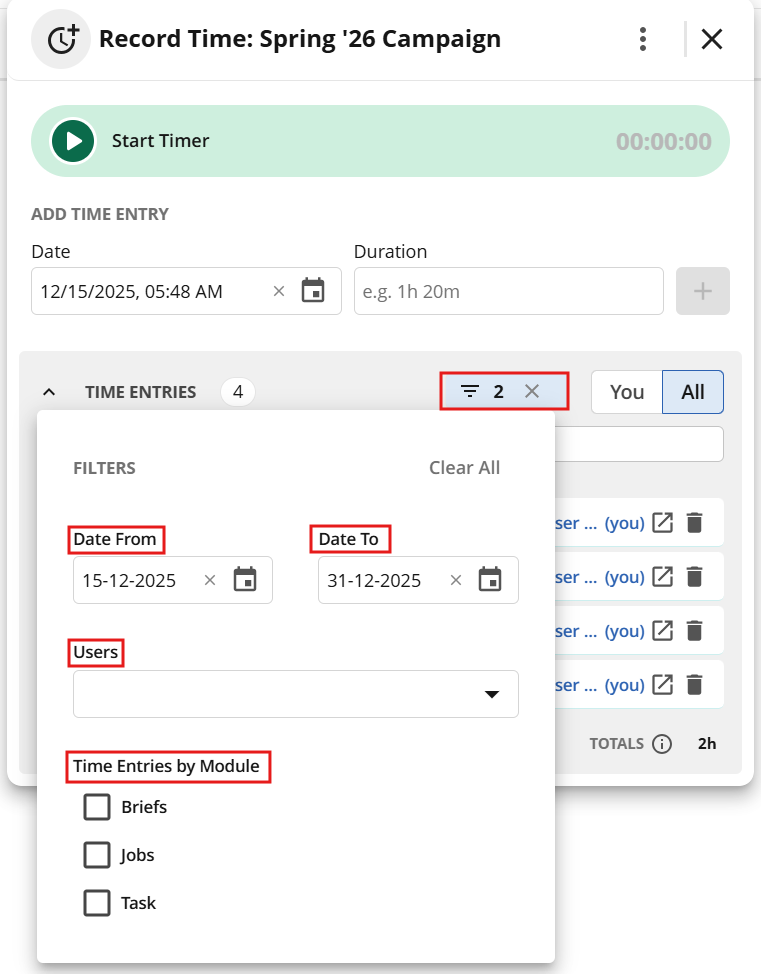
Filtering by date, user, and module allows you to narrow down the displayed time entries further.
| 
|
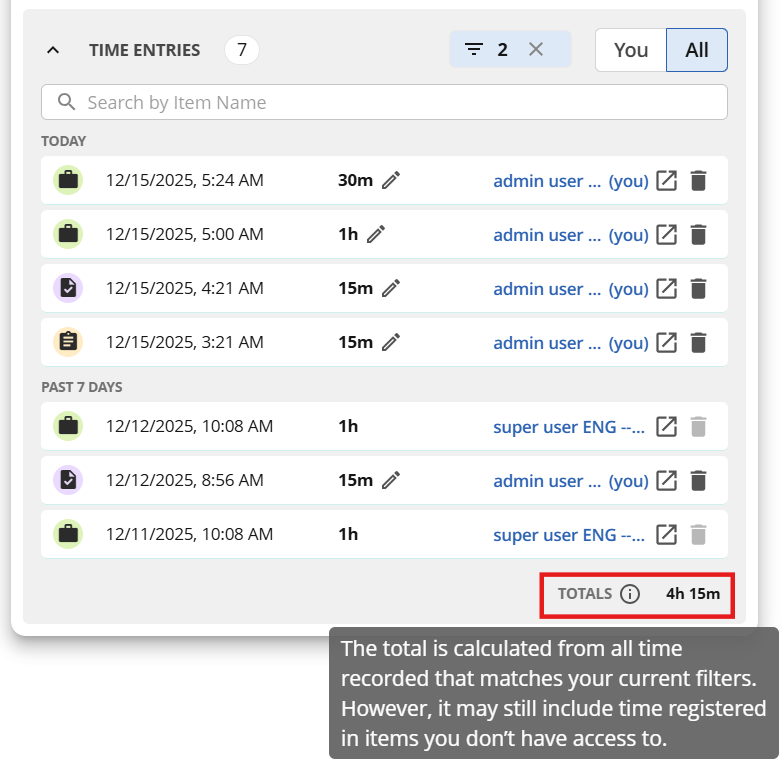
The Totals section displays the total time spent on the item, taking into account applied filters and search criteria.
| 
|
A Project icon is displayed in front of each time entry related to a Project item.
| .png)
|
A Job icon is displayed in front of each time entry related to a Job item.
| .png)
|
A Task icon is displayed in front of each time entry related to a Task item.
| .png)
|
The Pen icon indicates which time entries are available for editing; users can only edit their own entries.)
| .png)
|
The Open icon allows you to open the corresponding work log for a time entry.
| .png)
|
The Delete icon allows you to delete a time entry; users can only delete their own entries.
| .png)
|
You can open Timesheets directly from the Record Time callout by clicking the Open Timesheets option in the ellipsis menu.
| .png)
|
Known behaviour