Overview
The Time Tracking app, formerly known as Hours App, provides organised time tracking through projects, jobs, tasks, work logs, users and teams. Its flexible configuration can be adapted to different time management requirements.
Configuring Modules & Fields
In order to configure the app, certain modules must be in place. Create the required modules—Projects, Jobs, Tasks, Worklog, Teams and Users—from Manage Modules → Modules.
For each module, go to {Module} → Field Definition, and create the fields required for the app to properly function.
Use the following field configuration:
Projects (or equivalent 1st-level module)
Text field with “Project Name”
Optional fields with “Project Assignee” (user field) and “Project Estimation” (duration field)
Jobs (or equivalent 2nd-level module)
Module field linking to Projects (“Job Project Name”)
Text field for “Job Name”
Add a field in “Always Visible” to determine which Jobs will be considered Administrative Time; this field must be a select box with the option Yes.
Optional fields with “Job Assignee” (user field) and “Job Estimation” (duration field)
Tasks (or equivalent 3rd-level module)
Module fields linking to Projects and Jobs.
Create a text field such as “Task Name”
Optional fields with “Task Assignee” (user field) and “Task Estimation” (duration field)
Work Log
Module field links for Projects, Jobs, Tasks and Users
Optional text field with description “Work Log Description”
Date fields for time recording (“Start Date”, “Timer Started At”, and “Timer Ended At”)
An integer “Duration” field with duration enabled
An integer “Is running” field, for the running timer
Users
Field with user’s name (“User Name”)
“Line Manager” module field, to map the user’s manager (the one that can see the user’s time in Team Time)
“Team” module field
“Is Line Manager” select box with Yes and No, which determines if that user is a manager and can see Team Time
Note: The optional Calendar field is required only when using Office Calendar. Create the Calendar module first, as described in Working Schedules and Office Calendar. Working Schedules have replaced the previous Working Hours field. See Migration from Working Hours.
Teams
Configuring the Time Tracking App
Go to Configuration → Apps Library.
Open Time Tracking App.
Confirm or edit the app Name.
Enable Name Concatenation if required.
Select the fields created for each configuration option.
Click Create.
Record Time tab
Use this tab to configure Add Time Entry and Start Timer. Choose whether the form opens or time is recorded immediately, and specify the module levels where each action is available. The default settings open the form, show Add Time Entry at all levels and show Start Timer at the Task level. The option Open if there are required field refers to required fields in the Work Log module.
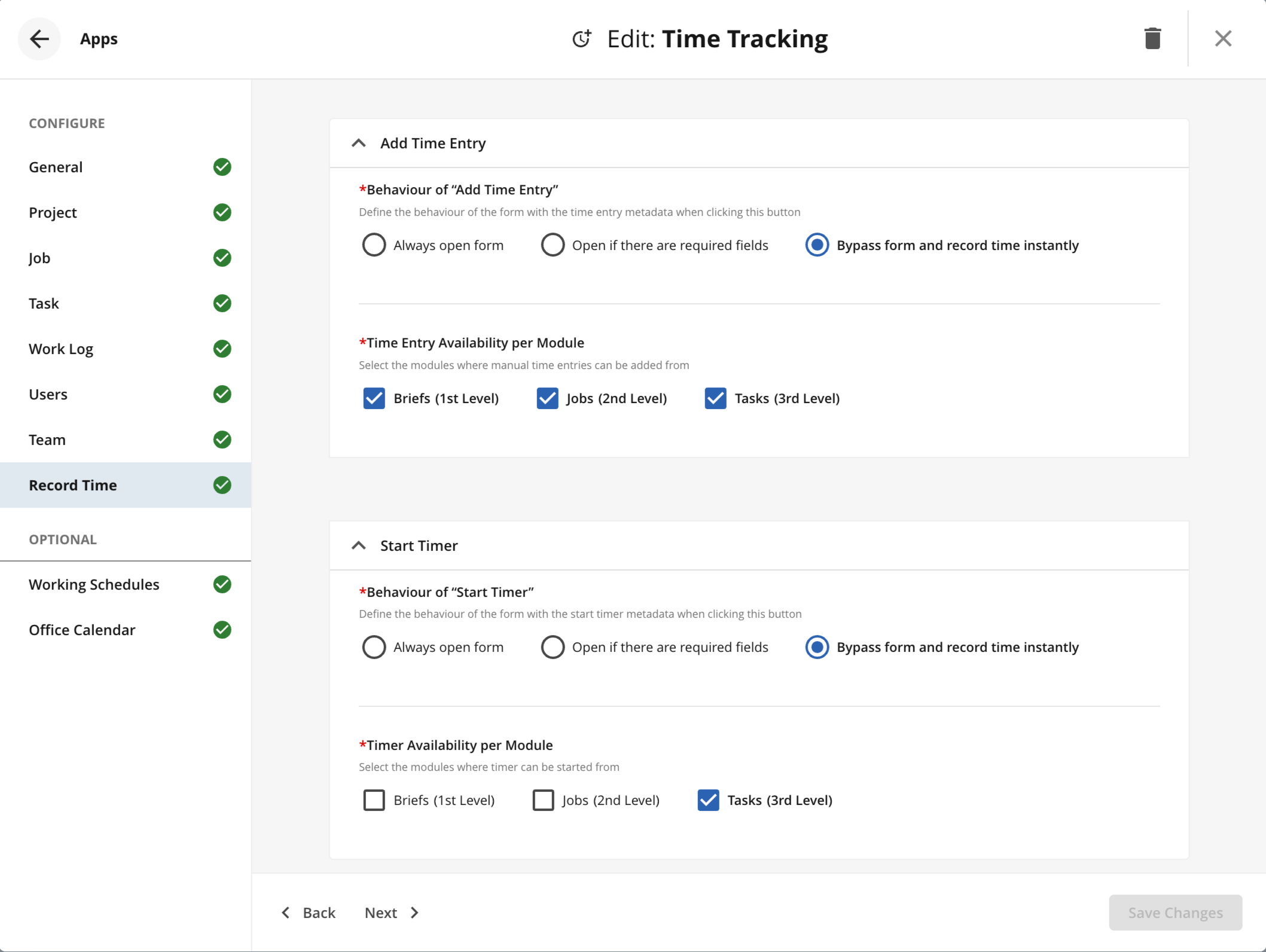
Working Schedules and Office Calendar tabs
These optional tabs define expected working time and non-business days for daily targets, overtime, and the Duration Exceeds Working Hours dialogue. See Working Schedules and Office Calendar for details.
Configuring Estimation Field
The Estimation field records expected effort and supports comparison with Time Spent. It can be enabled for Projects, Jobs and Tasks.
Part 1: Create the Estimation Field
Go to the relevant module's Field Definition.
Click New Field and enter Estimation.
Set Field Content to Integer.
Enable Duration Enabled, select Hour under Duration View As and configure rounding and working hours.
Click OK. Repeat for the other modules if required.
Part 2: Add the Field to Views
Add Estimation to the relevant module and item views. See how to configure Module and Item views.
Part 3: Add the Field to the App
In the relevant module section of the Time Tracking (Hours) app configuration, select the Estimation field under the optional settings and save.
Part 4: Set Values
Open a Project, Job or Task.
Enter an estimate, such as 40h, in the Estimation field.
Save the item.
The estimated hours will appear in the Timesheets popover and Log Time Callout. For comparisons, see Time Spent and Estimation.
Known behaviour
Users need at least Read access to the configured Project, Job, Task and Work Log modules.
Users need Read and Upload access to add time entries.
Users without Delete access can delete existing work log entries.
Status restrictions are ignored in the Work Log module.
The date picker follows the browser locale.
Timer Started At, Timer Ended At and Is running must be displayed on the form for timer functionality to work.
Duration Hours in Day and Duration Days in Week are not currently supported when entering work logs.