Understanding Preview Files
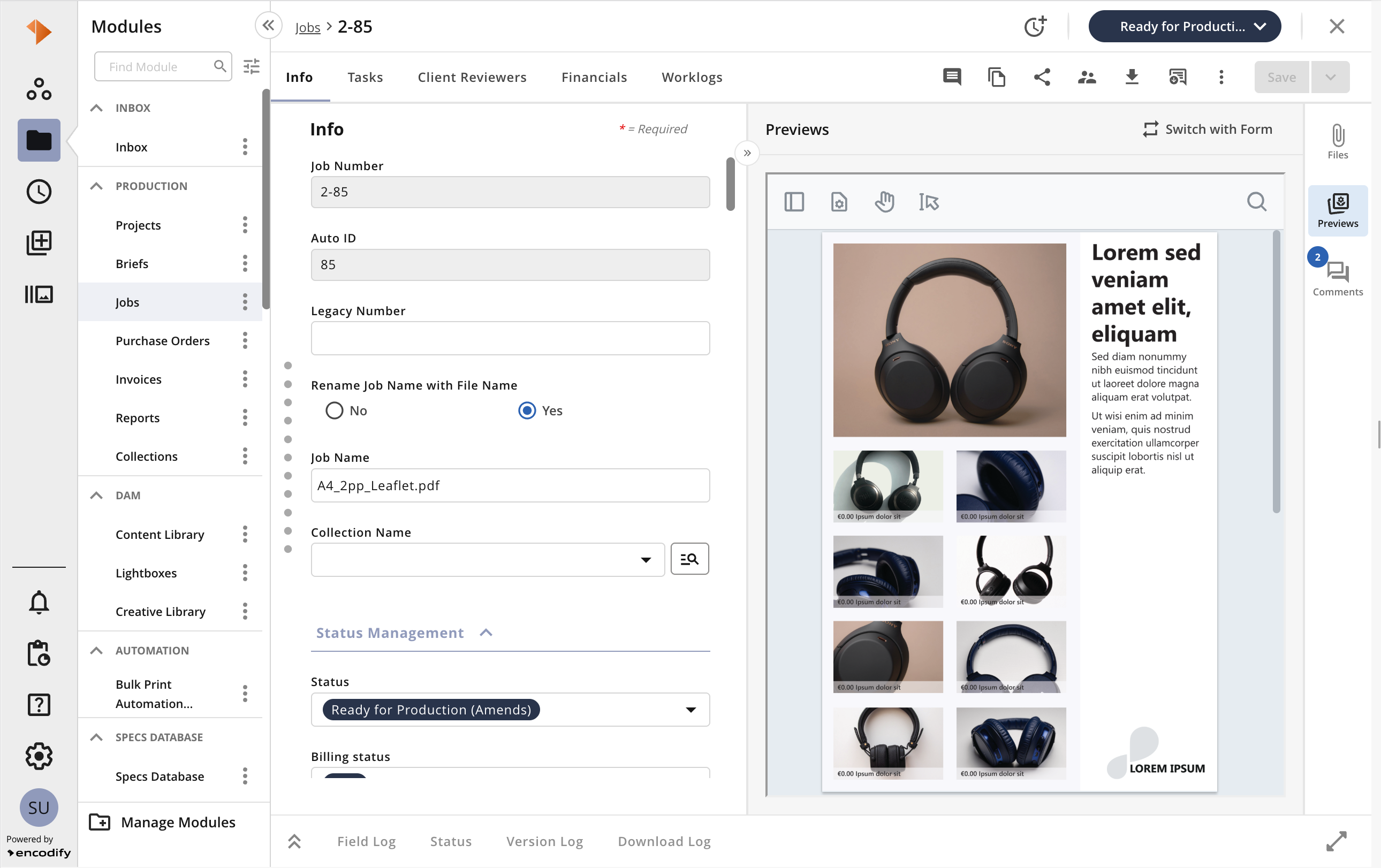
The Previews tab appears alongside the item, enabling users to observe a preview of files linked to specific modules. It becomes visible when the module includes uploaded either a File or Multiple Files, the corresponding Media Converter for file preview is configured, and the user has the necessary access permissions.
To access the Previews tab, the user must possess Download access rights to the module. Additionally, at least one associated Media Holder must have the Download function enabled, and the user must also have Download access to that Media Holder.
How to Enable the Preview Tab
To enable Preview:
Allow "Download" permission to the module in Access Rights.
Enable "Download" for the Media Holder used as a preview for a particular user's Access Right.
Configure the Media Converter to transform the original file to a previewable format and store it in the Media Holder for Preview. The preview section will also be available for the original files (if configured), provided the file has a supported version.
.png)
Note: Menu Elements are decommissioned for New UI in version 15 and replaced by Item Views
Previews Section
Preview is shown in the separate Previews tab and generated by a pre-configured media converter, depending on its settings and uploaded file type. See more about files and converters.
Play File
If the Media Holder mapped for Preview has "Play File" function enabled, clicking the Preview will open the main file in the dedicated viewer depending on the file type. "Play File" function is supported for such files:
PDF;
Image (JPG, PNG, GIF);
Video (MP4);
Audio (WAV, MP3, OGG)
Single HTML;
HTML, which includes external styles and linked images (as a Zip package).
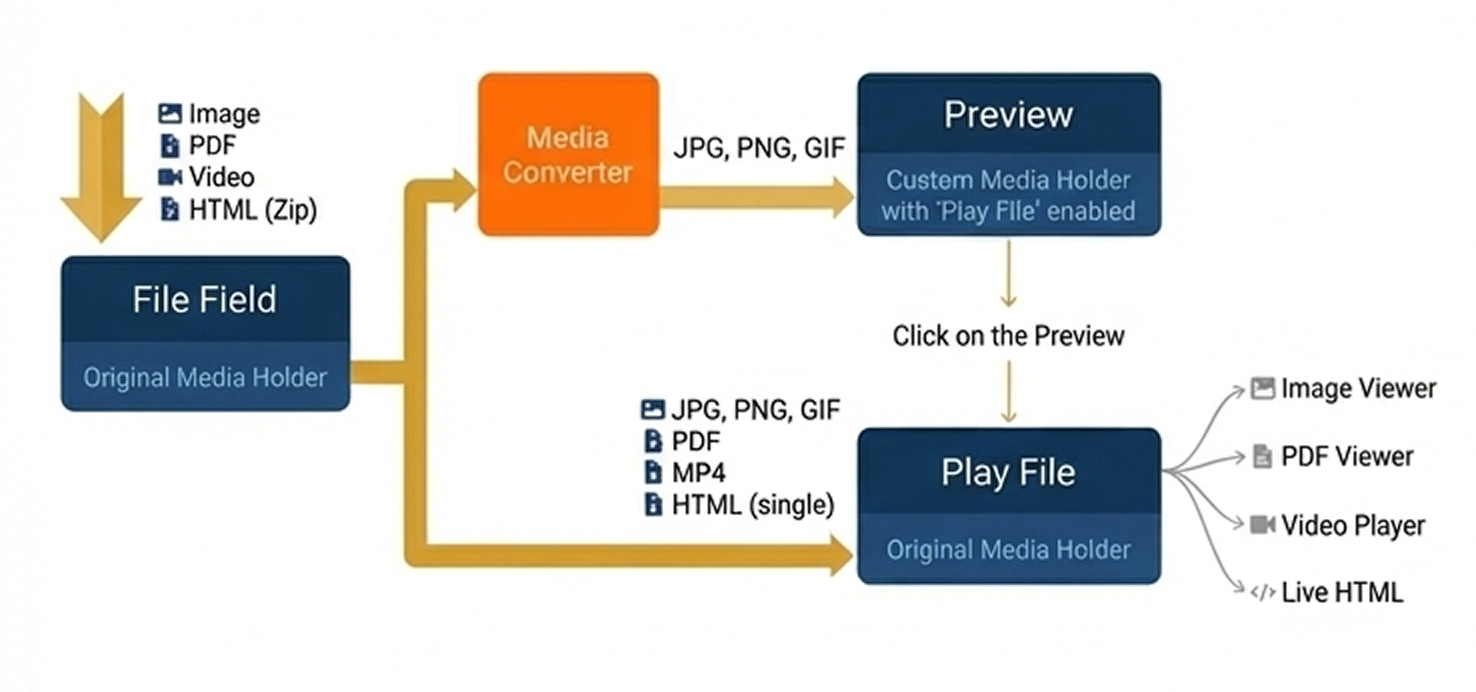
The simplest way to configure "Play File" is to map the Original Media Holder as "Play File" in the module settings. In this case, only files of such formats will be played directly: PDF, JPG, PNG, GIF, MP4, HTML (simple).
The diagram illustrates how the file can be played:
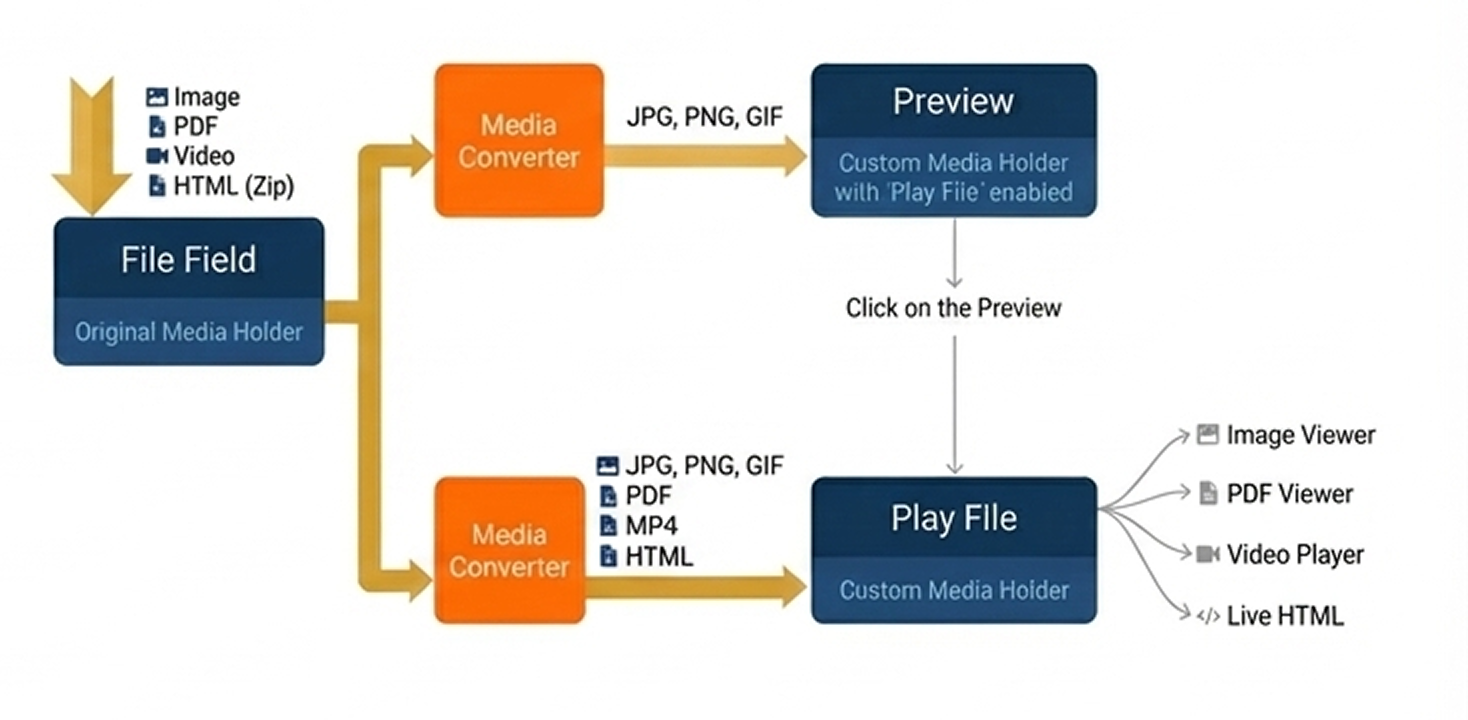
If you need a more versatile solution, use a dedicated custom Media Holder for "Play File" and media converters for different file formats. So that you will be able to also play various image and video formats and archived HTML pages as they will be processed and transformed into formats that can be previewed.
The diagram illustrates how the file can be played using the additional converter:
More about media converters.
How to configure "Play File" for HTML archived via Zip.
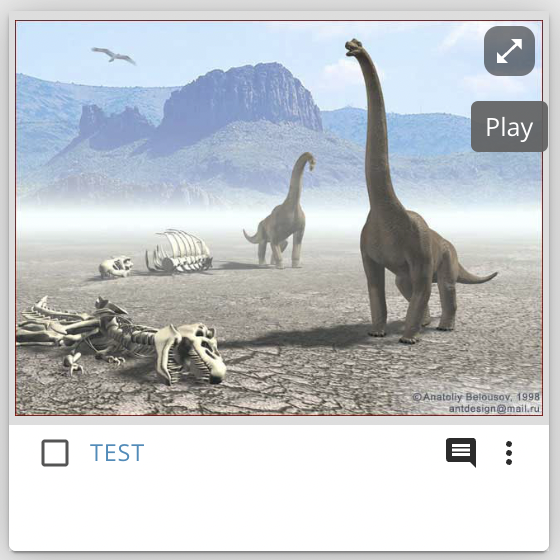
"Play File" can also be called by clicking the "Play" button (available on hovering the preview) in Gallery View.
(Please note: "Play" button will be replaced by expanding icon in the right top corner of item card in Gallery/Kanban View with a tooltip (tooltip text is the same text that was previously used as button label)
Preview Office documents
There is a possibility to preview Microsoft Office documents (.docx, .pptx, xlsx, .doc, .ppt, .xls, .vsd, .vsdx) uploaded to a media holder or multi-file field. Such Preview becomes available once the file field is visible, and it does not require "Play File" to be enabled in Media Holder settings.
Preview can be opened:
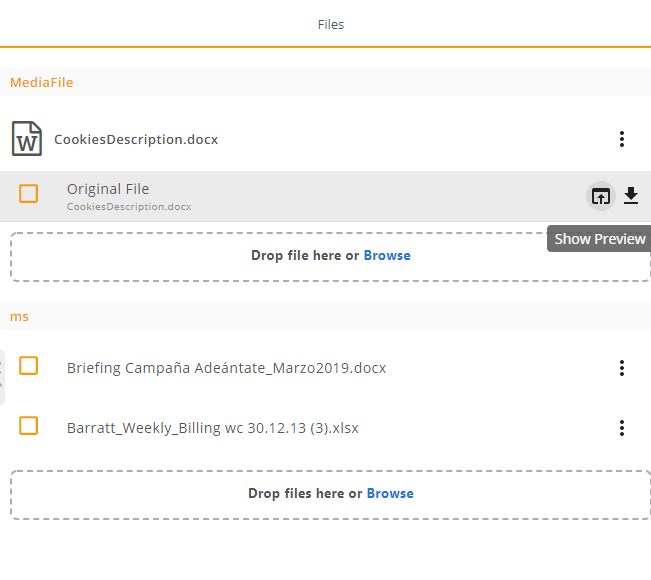
[DEPRECATED IN V15] from “Files” panel by clicking in the "Show Preview" icon next to the file name;
from the item form “Previews” tab by clicking on the preview icon;
from the “Files” tab by clicking on the file’s icon
from the Gallery view, by clicking on the "Preview" button (if Office document was uploaded to the Play File media holder);
from the search results list by clicking on the thumbnail icon (if an Office document was uploaded to the Play File media holder).
While previewing office documents, it is possible to use a toolbar located at the top of the viewer window. It is possible to zoom, rotate the document, change the layout, navigate between pages, search, etc.
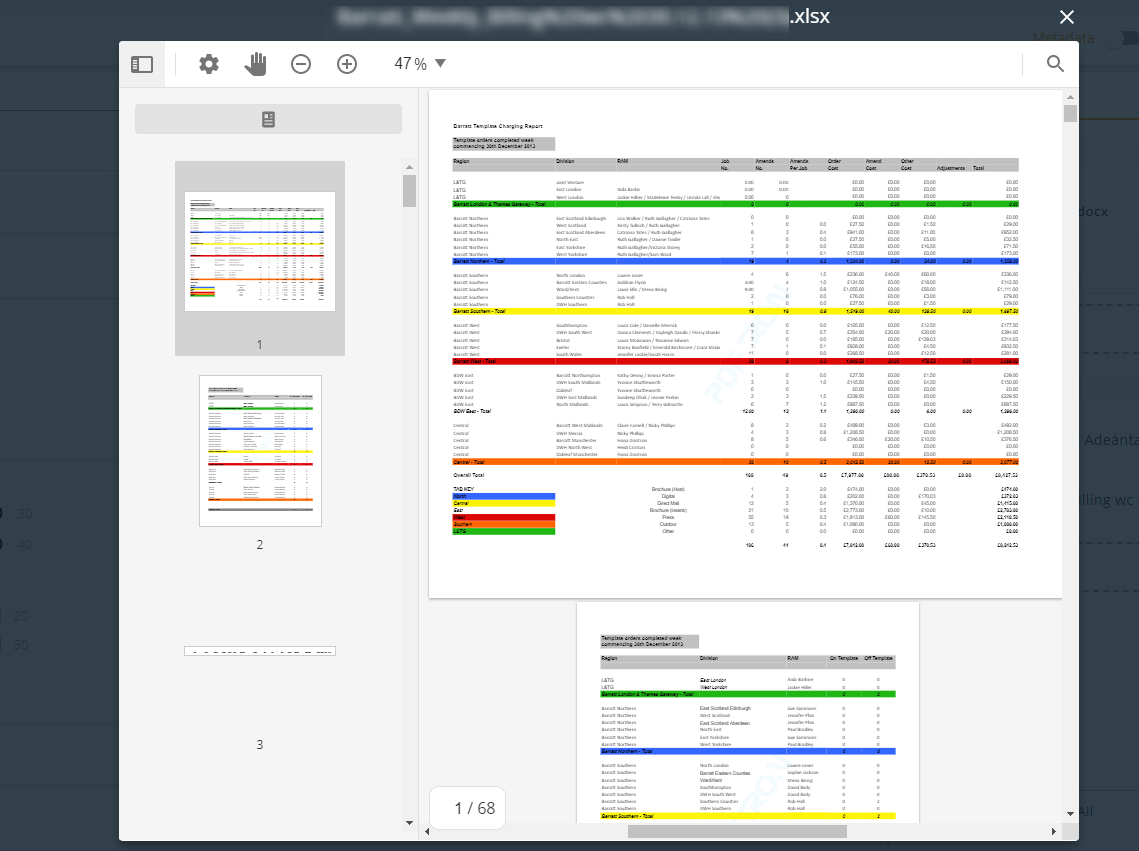
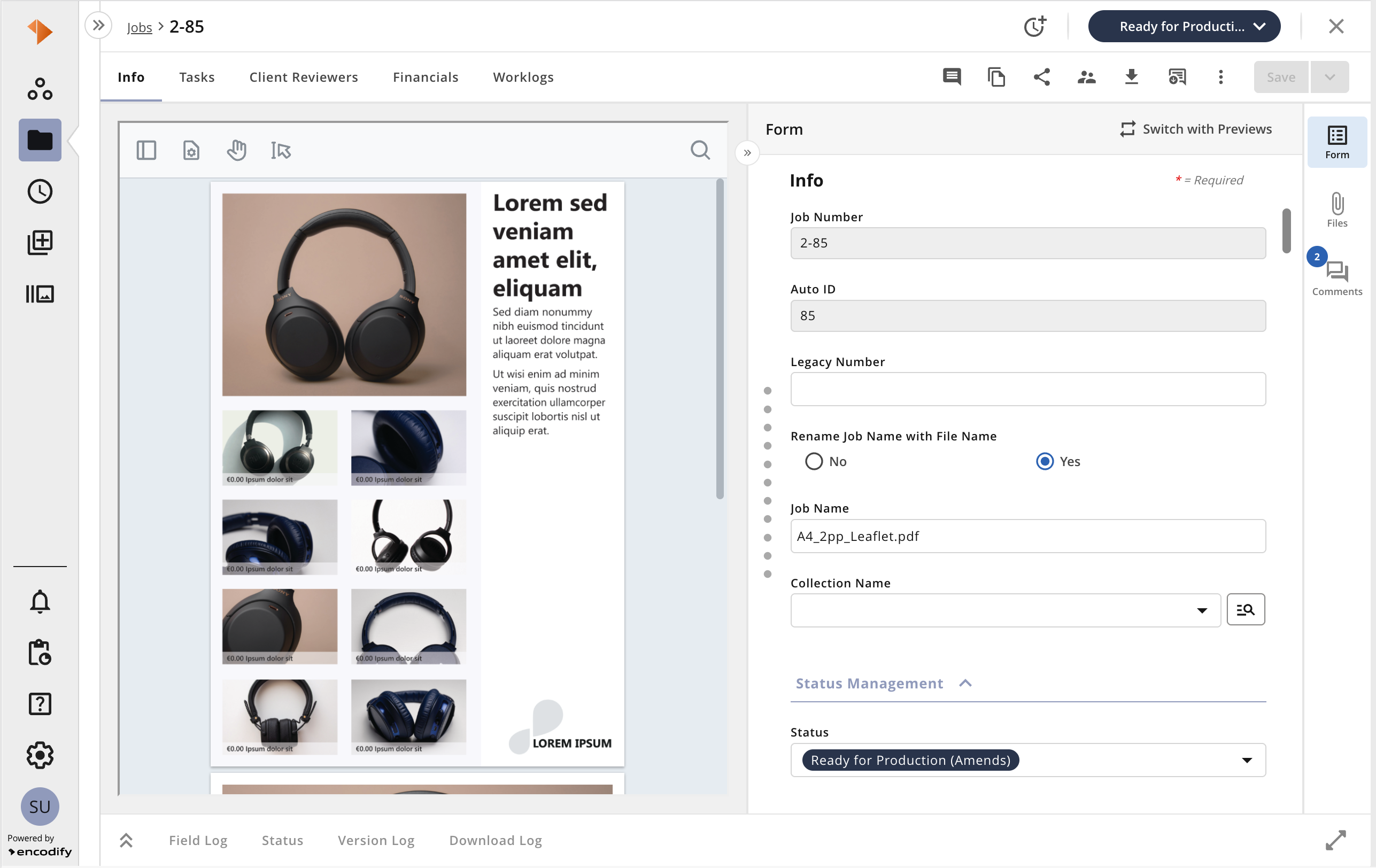
Preview of Office Documents renders automatically on the item form after clicking on the “Switch with Form” button in the “Previews” tab in the item side panel.
.png)
Note: Translation on the Preview form depends on the browser locale.
Limitations:
Videos are not playing;
Pivot tables are displayed but not interactive;
Diagrams are not displayed;
Incorrect fonts in most menus for OfficeDocuments viewer.