New Capabilities & Feature Improvements
Automation Rules
AI-based Rules
Ability to include data from modules via reverse links: AI rules can now use data from modules linked upstream through reference fields. For example, Client details can be included when analysing a Brief. This improvement allows for expanding the data included for analysis when running the Multimodal AI Rules (Assessment and Data Extraction).
Briefing System
Visual Updates: The Briefing System, the foundation of Retail-oriented solutions, is receiving a redesign. The pages used to manage Campaigns, Products and others have been visually refreshed and aligned with other platform pages. When opening Briefing, the user no longer leaves the current page. Consequently, access to side navigation remains available, allowing users to review Notifications, Background Jobs, and move to other pages, such as Workspaces and Modules. The toolbar has been reorganised, with Search functionality relocated there. Besides visual and navigation updates, Briefing functionality remains fully preserved.
Manage Modules
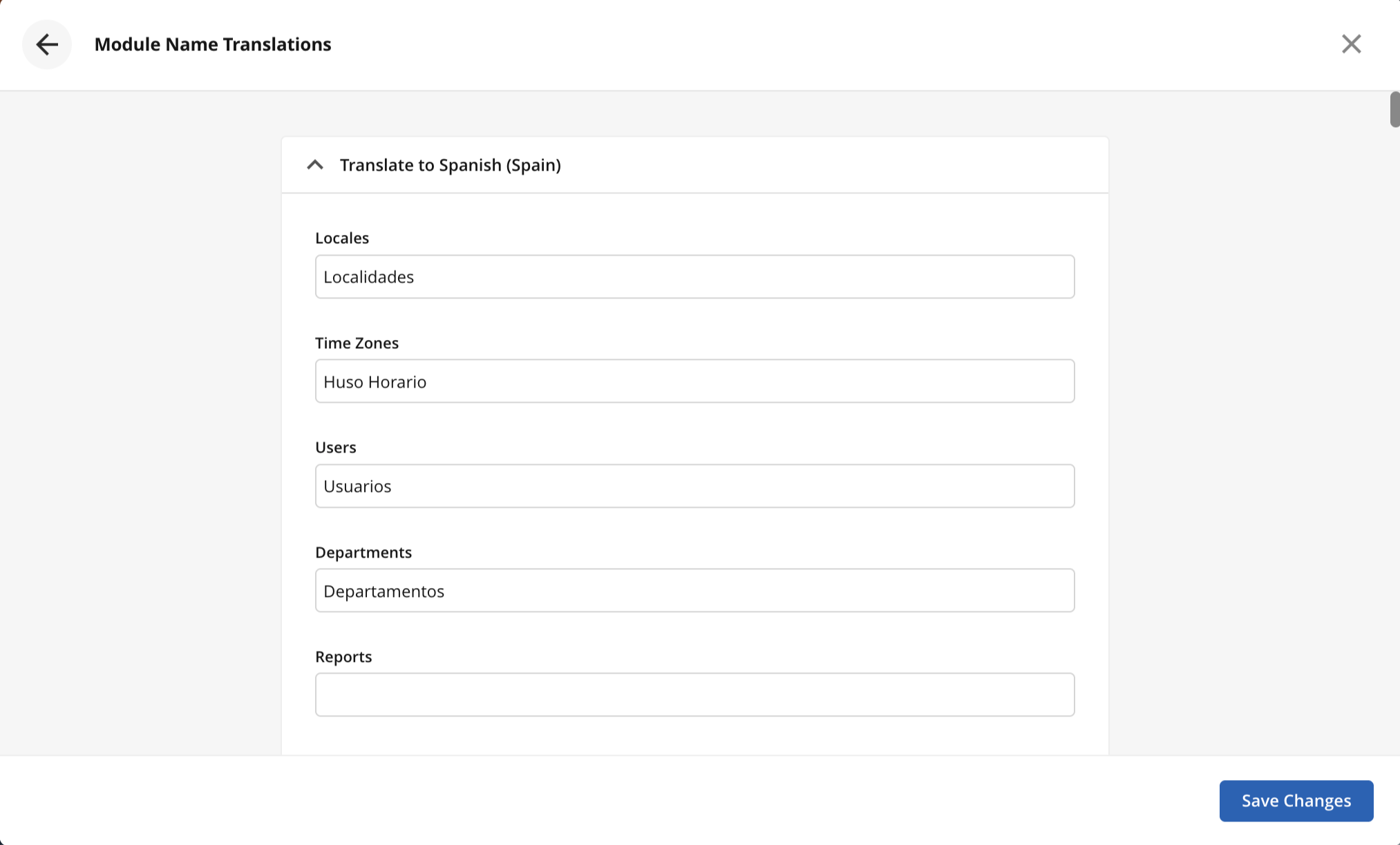
Module Name Translation
Following the recent updates that are bringing module configuration to the main interface of the Encodify Platform, the experience of translating module labels has also been repositioned and redesigned. This feature can now be found in the toolbar of the Manage Modules overview pages and allows for the customisation of module names according to the languages required. It has been migrated to a more modern technology, but the functionality is maintained, ensuring a smooth transition.
Time Management
Team Time
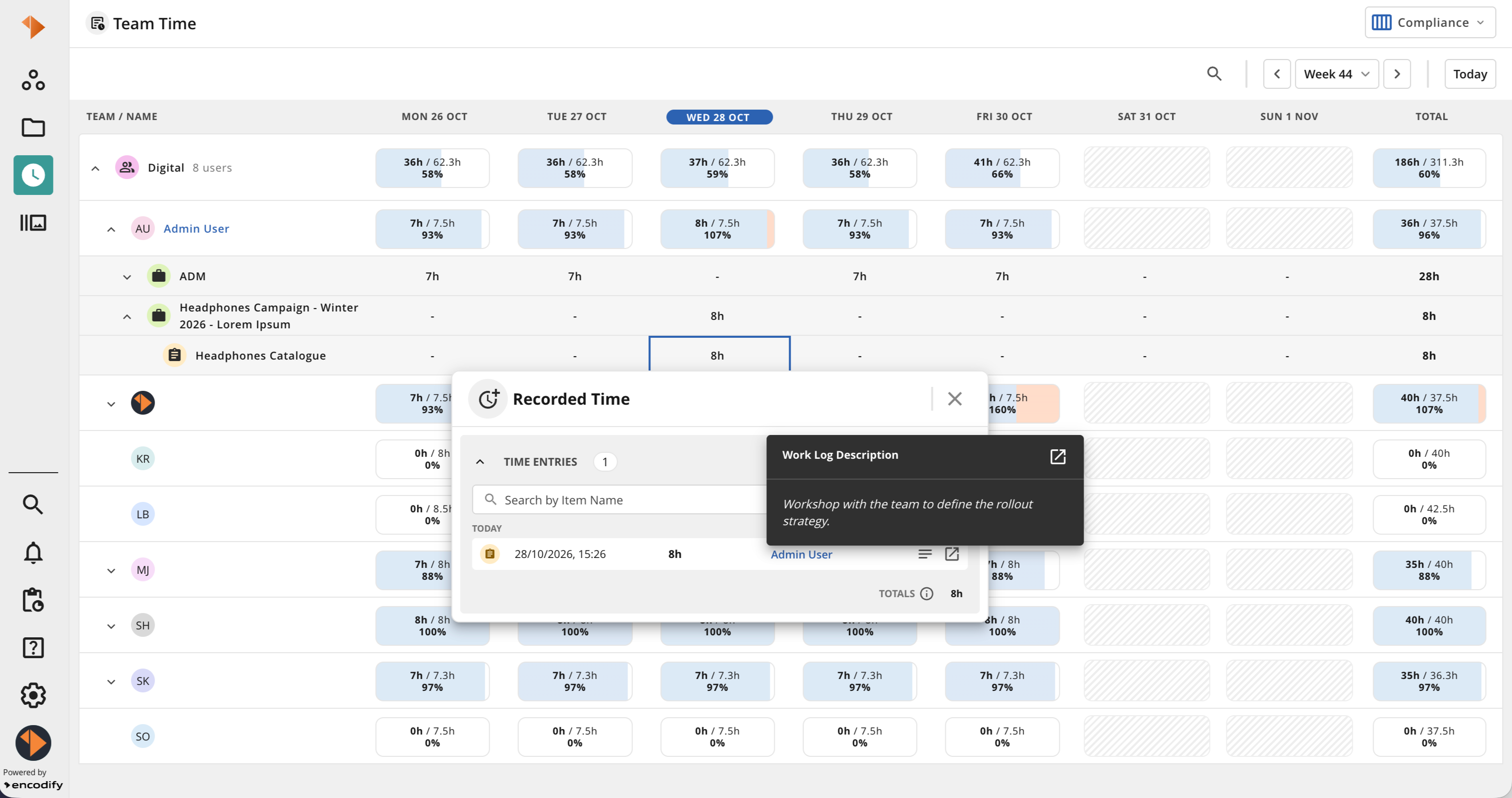
Access to Work Logs: Line Managers can now inspect the time logged by their team with greater accuracy, enabling them to confirm the actual Work Logs for a work item directly from the Team Time page. By expanding users’ rows and selecting the recorded time, the manager can now view the precise time entry representing that work. Among other details, they can see when it was logged, the length of an individual time entry, review related comments or descriptions and open that item when necessary.
Working Schedules & Office Calendar
When team members operate remotely, spread across various time zones and working under different contracts, ensuring smooth operations requires understanding when they are expected to work, their available capacity and when they can accept tasks. To support this, Encodify now adds Working Schedules and Office Calendar to the Time Tracking app. The platform now logs Office closure days for each local employee, including applicable closures affecting particular locations or individual employees; Working patterns and the dates they take effect; Daily capacity and each employee’s available working hours.
Working Schedules define each user's working days and hours, including part-time patterns, shifts and rotations. (They replace the Working Hours field previously configured in the Users module.)
Office Calendar defines non-business days, such as public holidays or office closures, for groups of users (e.g. all users based in Denmark).
Migration from Working Hours to Working Schedules
In previous versions, each user's daily target, overtime and the Duration Exceeds Working Hours dialogue, were based on a single Working Hours value in their profile. After the upgrade, they are based on the user's Working Schedule and Office Calendar:
What Changes?
Before the upgrade to Working Schedules
After the upgrade to Working Schedules
Source of the daily target
Working Hours field in the user's profile
The user's working schedule, reduced by any non-business days in their office calendar
Users tab in the app configuration
Working Hours field
Calendar field
Varying hours, shifts and rotations
Not possible: one value for every working day
Supported
Public holidays and office closures
Not reflected in targets
Defined in Office Calendar
Effect of editing the Working Hours field
Changes the user's target
None
When the site is upgraded, a working schedule is created automatically from the Working Hours value in each user's profile. Both active and inactive users are migrated.Each user's working hours are rounded to the nearest quarter hour.
One schedule is created per rounded value and shared by all users with that value. The schedule name shows the hours as a decimal number, e.g. Auto-migrated from working hours: 8.
Each schedule runs Monday to Friday, with Start of Week Day set to 1, Schedule Length set to 7 and Business Days at positions 0–4. The From time of every migrated Business Day is always set to 09:00, as the previous Working Hours field only stored a number of hours, not a start time. The To time is calculated by adding the rounded working hours to 09:00 (e.g. 7.5 hours gives 09:00–16:30).
Each user is assigned to their schedule with an Effective Date one year before the upgrade, so that previous weeks keep their targets.
Examples:
Working Hours in profile
Rounded to
Schedule name
Business Days
7h
7h
Auto-migrated from working hours: 7
09:00–16:00
7h 20min
7h 15min
Auto-migrated from working hours: 7.25
09:00–16:15
7h 30min
7h 30min
Auto-migrated from working hours: 7.5
09:00–16:30
7h 54min
8h
Auto-migrated from working hours: 8
09:00–17:00
Note: If users start work at a different time, edit the From and To times of the migrated Business Days, keeping the same number of hours (e.g. 08:00–15:30 instead of 09:00–16:30).
Which users are migrated: Only users with working hours between 1 and 10 hours are migrated. Users with no Working Hours value or a value of 0 are not migrated either. Create and assign their schedules manually if required.
Inactive and anonymised users: Inactive users are migrated in the same way as active users and keep their schedule while they are inactive. If an inactive user is reactivated, their schedule applies immediately. This also includes anonymised users.
Editing migrated schedules: Migrated schedules are shared, so editing one changes the working hours of every user assigned to it. To change the working hours of a single user, create a new schedule and assign it to that user.
The Working Hours field after the upgrade: The Working Hours field is no longer used by the Time Tracking app. Daily working hours now come from each user's working schedule.
Other Improvements
Activity Logs: Now all Item Logs timestamps contain seconds. Displaying seconds in item logs preserves the correct order in the UI.
Connected Services > Byggebasen: Enhance the Byggebasen integration to support additional filtering when bringing data into the platform.
Support for the "Gyldig" (Valid) flag - The ByggeBasen integration now reads the Gyldig (Valid) flag that ByggeBasen returns for each file. In the Connector settings, you can map this flag to a field in your mapped files module. Once it's mapped, the integration updates the field with ByggeBasen's current value on every sync, even when the file itself hasn't changed, so each file's valid status stays accurate for as long as it's on the platform. A new setting also lets you block files marked as not valid (Gyldig = false), so they aren't brought in as new items.
Workspaces > Widget > Conditional Formatting: Colours renamed to what they are formatting. “Colour 1” is now “Text Colour” and “Colour 2” is now “Background”.
Important Changes & Retired Features
Important Changes
Automation rules: It can no longer save a condition whose values or operator don't match the selected field.
Existing rules: "Less than" and "greater than" are still allowed on text fields so older rules keep working. Rules that already use operators that no longer pass the check will still run, but they'll need fixing before they can be saved again.
Retired Features
Decomissioned
The “User field conversion” tool, in Health, has been decommissioned in favour of the newer “Field Convert” tool, which covers that functionality.
Deprecated
Custom translations: In upcoming releases, using a custom translation through Translator will no longer be possible, and alternative translation files will not be supported either. These features will be replaced with more standard, contemporary, and precise translations. If you presently depend on either option and have additional questions, contact your Engagement Manager.
Bug Fixes
Fixed an issue where Quick Search returned all items unfiltered when a long or multi-word search term was used in a module with many items.
Fixed an issue in EFS File Utility so a missing EFS file no longer stops the job when populating full paths during EFS volume migration work.
Fixed an issue where previews weren't generated for some very large master images because the image converter ran out of memory while applying the colour profile. The converter's memory limits have been increased so these files now convert and show previews.
Fixed an issue where Bulk Edit did not display editable fields when the first tab contained only inline modules without form fields. Bulk Edit now uses the next available tab containing form fields.
Fixed search in the Briefings tab of the Find Products dialogue, which no longer displays an “Oops” error. Search now returns results as expected.
Fixed an issue where PDFs saved with the "Save File to Current Item" action showed "System Account" as the author, both on the file and in the Activity Log, instead of the user who ran the action.
Fixed an issue where SSO users with long-running identity provider sessions were blocked from logging in with an unclear authentication age error.
Fixed an issue where the API Documentation page loaded blank due to an incompatible update.