What are Conditional Workflows
Conditional workflows adjust the path an item takes based on specific criteria set within a designated field. This creates a more flexible, dynamic process where the system automatically routes items through different stages according to predefined rules.
How to configure a Conditional Workflow
Before you enable Conditional Workflows, make sure a single- or multi-select field exists in the module's Field Definitions to control the routing.
To enable Conditional Workflow, follow these steps:
Navigate to Sidebar → Configuration → Workflows to open the Workflow Overview page.
Open Workflow Settings for the workflow you want to configure.
Locate the Workflow Filter Field dropdown and select the field that will be used to control the routing based on the value saved against an item.
Click Save Settings to apply the changes.
.png)
An image displaying the Workflow Settings window opened from the Workflow Overview page, with a field selected in the Workflow Filter Field dropdown
After saving the Workflow Settings, the following will be created:
Default – the default condition, used when the Workflow Filter Field is empty in the item.
One condition for each value in the Workflow Filter Field. These start empty, with no transitions assigned.
Assigning transitions to Conditions
Once a Workflow Filter Field is set, you can assign transitions, new or existing, to one or more of these conditions.
When creating or editing a transition
Open the Create Workflow Transition window (or the Edit Workflow Transition window, for an existing transition).
Use the Condition field to select which condition(s) the transition applies to. Choose Default, a specific condition value, or more than one at once.
Configure the remaining transition options and click OK to save.
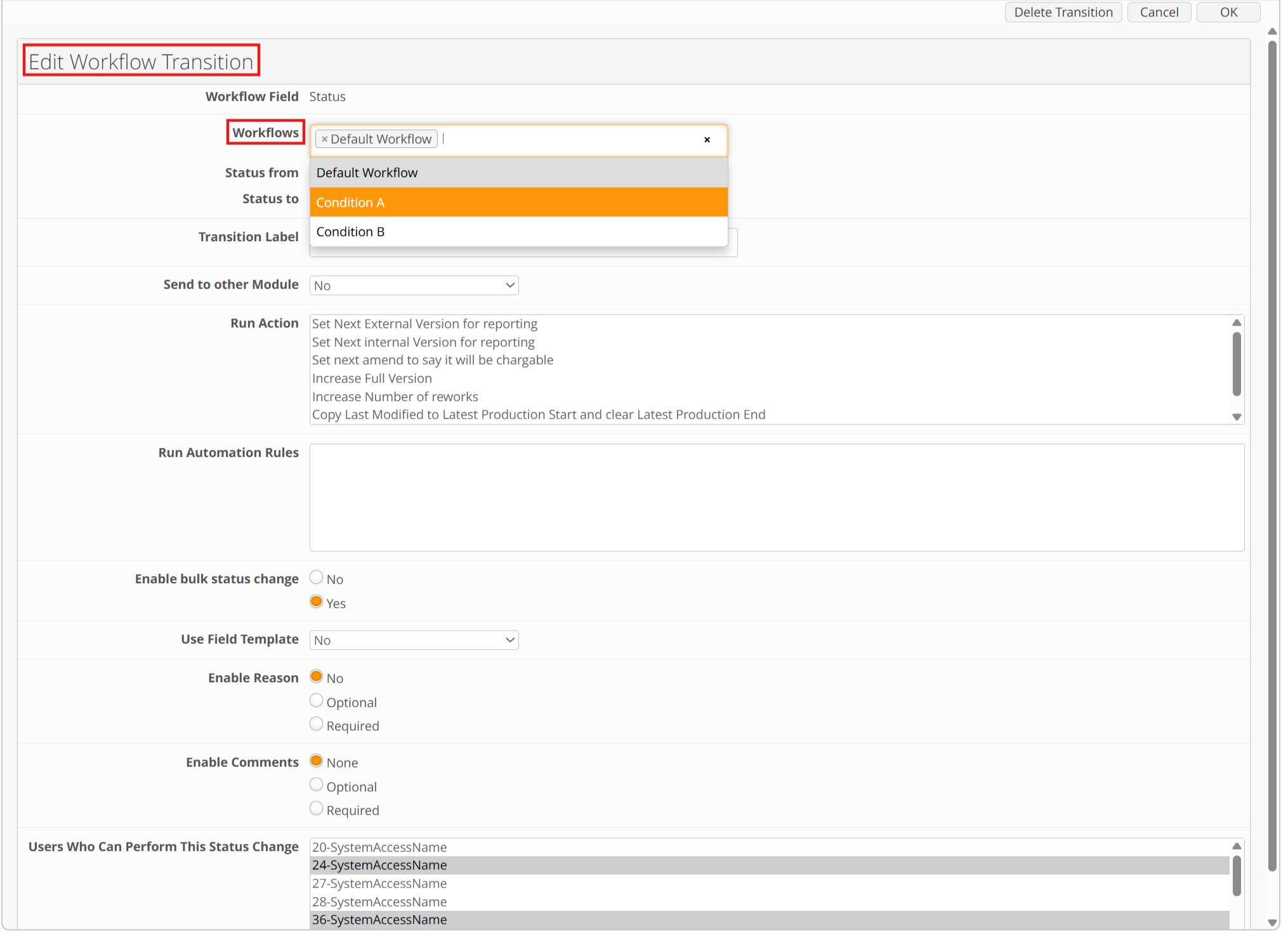
An image displaying the Edit Workflow Transition window with the Workflows field
For more details on creating and editing transitions, refer to Edit Workflows.
Assigning conditions to multiple transitions at once
Open the Workflow Status View and switch to List view.
Select the transitions you want to update.
Select the Change Conditions icon from the header.
Choose one or more values in the Condition field.
Select Assign to Conditions to add the selected transitions to those conditions, or Unassign from Conditions to remove them.
For the full steps, refer to Edit Workflows.
.png)
An image displaying List view with the Change Conditions window open
Each transition's assigned condition(s) are shown in the Condition column in List view.
Use the Condition filter to view only the transitions for a specific condition. Refer to View Workflows for more on filtering.
.png)
An image displaying List view with the Condition column populated for each transition