Where to View a Workflow
To access the Workflows, follow these steps:
Navigate to  Configuration from the side navigation
Click 
Understanding the Workflow Overview
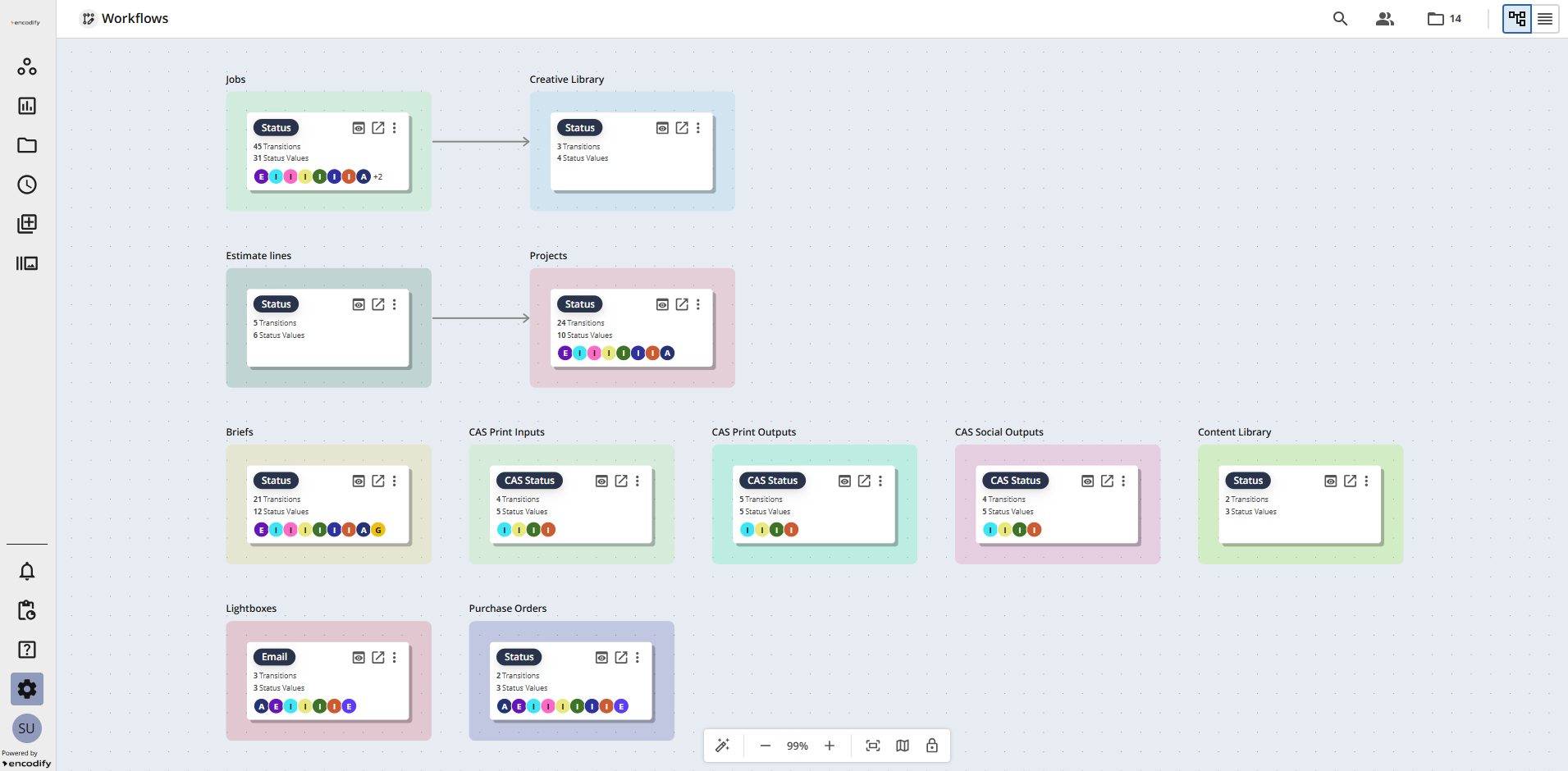
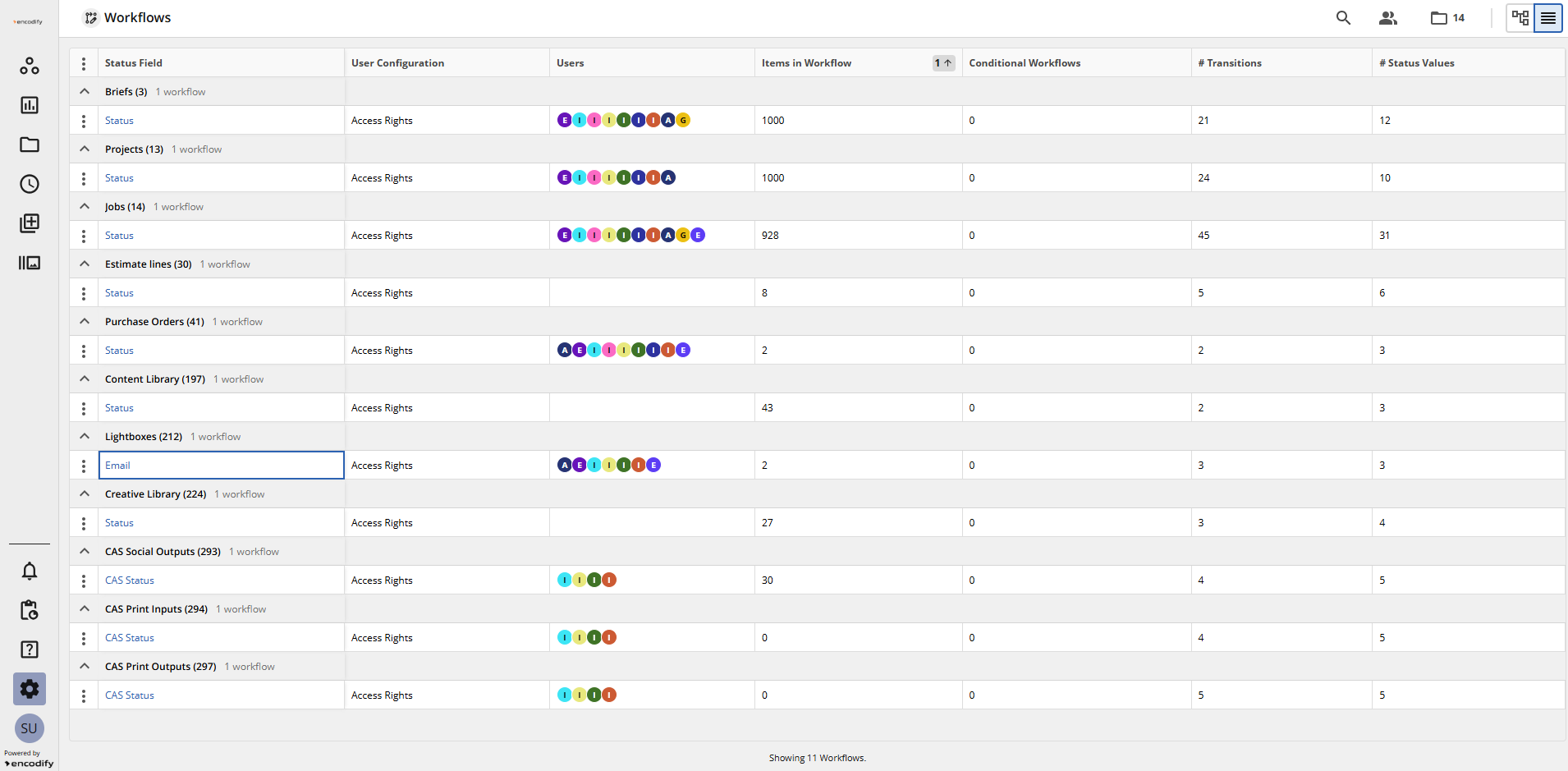
The Workflow Overview allows you to gain a comprehensive view of how processes flow across different modules. You can view the Overview screen in either Diagram or List view.
The table below provides a quick overview of the Workflow Overview.
Action | Visual Guide |
Search provides the ability to search workflows by status field name
| .png)
|
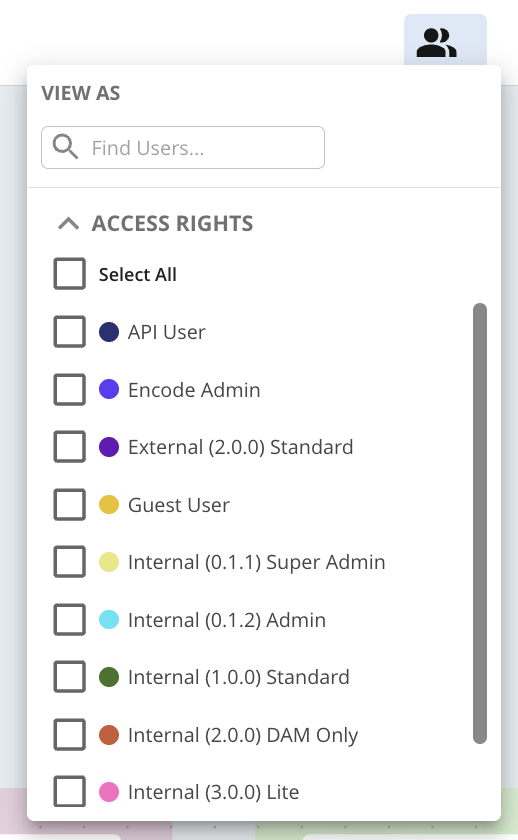
View As provides the ability to filter workflows by specific access rights or user groups, allowing for a more targeted view.
| 
|
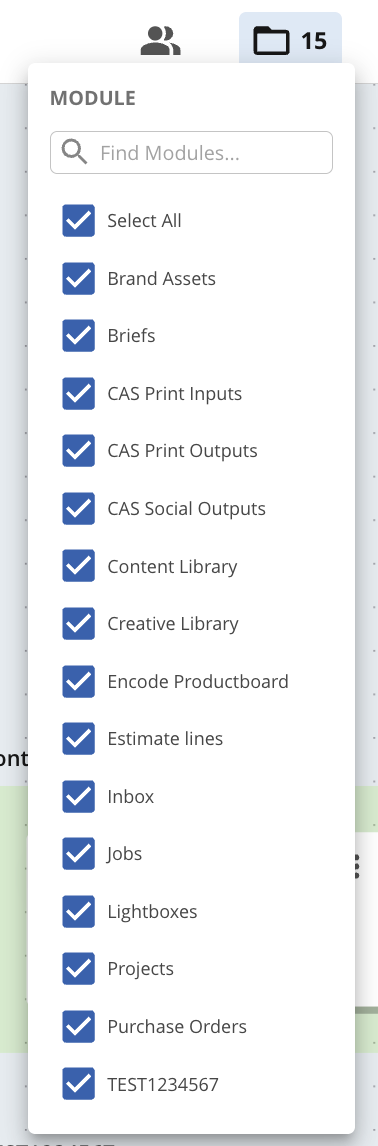
Modules provides the ability to filter workflows by specific modules for a more targeted view
| 
|
Switch between Diagram View and List View
| 
|
Preview Workflow opens a modal displaying a more detailed breakdown of Workflow Status View
| 
|
Open Workflow navigates to view a more detailed breakdown within Workflow Status View
| 
|
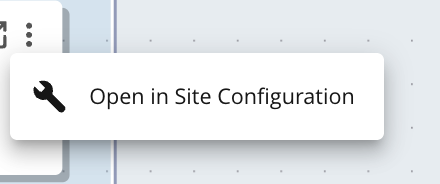
Actions menu with option to Open in Site Configuration allows for navigation to site configuration to directly configure any workflow adjustments.
| 
|
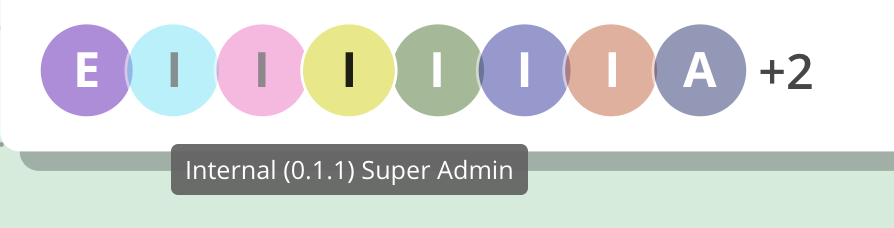
View Access Rights displaying which access rights are involved in the workflow, ensuring clarity on permissions
| 
|
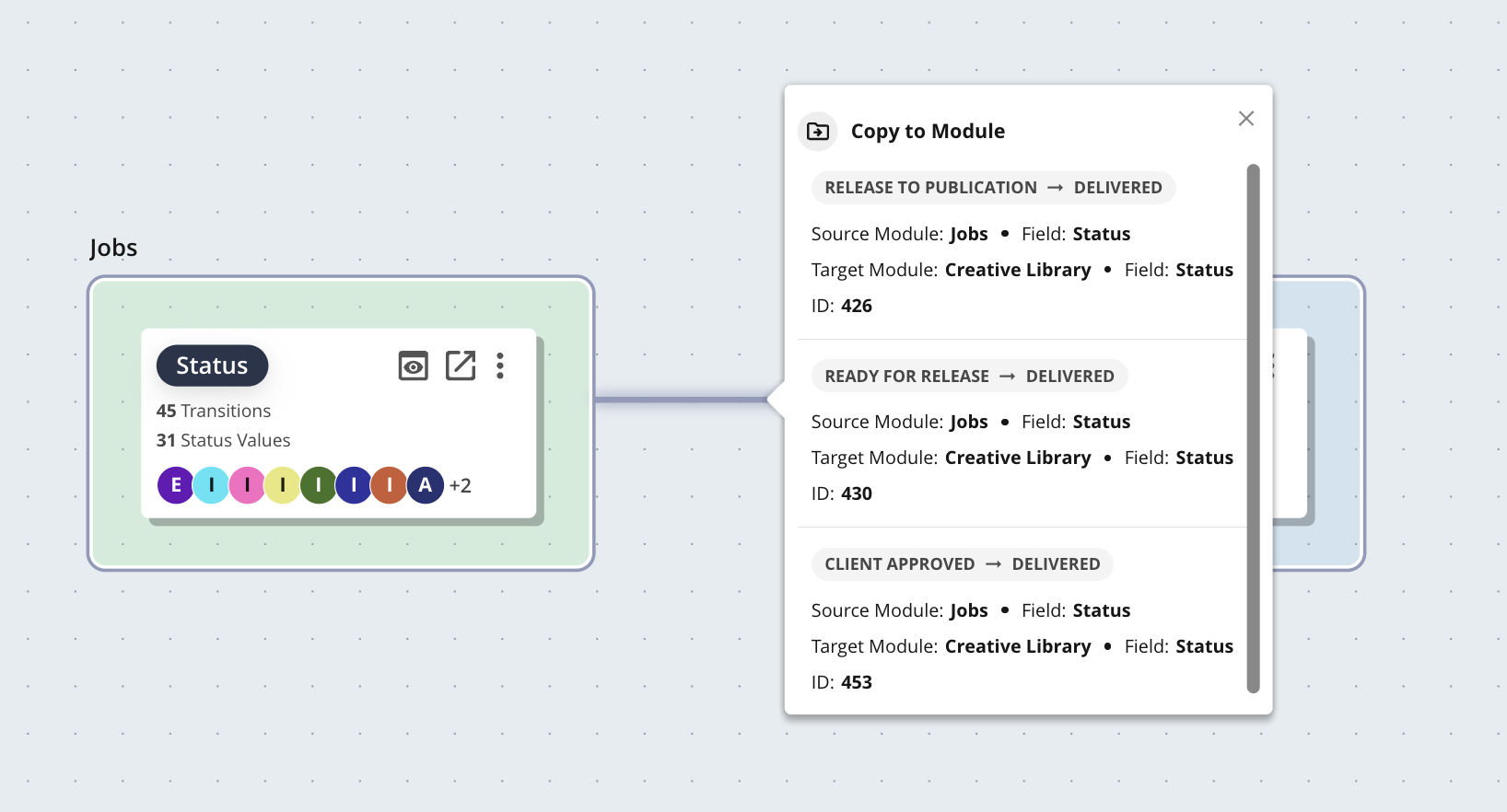
When two modules are connected by an arrow, it visually indicates where Copy to Module has been configured.
| 
|
Auto Layout automatically arranges workflow elements for a clear and organised display
| 
|
Zoom controls allowing the ability to zoom in and zoom out
| 
|
Fit to Page adjusts the workflow view to fit within the available screen space
| 
|
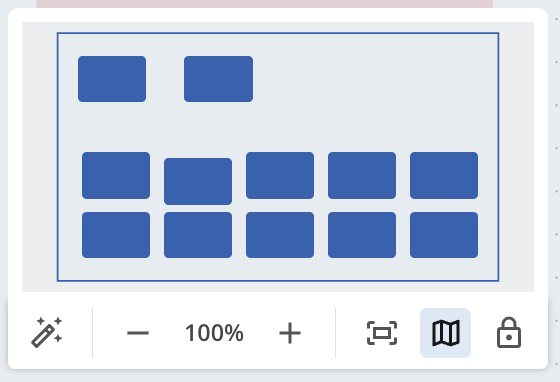
Show Flow Map provides a visual representation of the entire workflow, enhancing navigation and clarity.
| 
|
Lock Flow prevents any accidental modifications by locking the workflow structure in place
| 
|
Sort Column provides the ability to sort data in List view within module groups, in ascending or descending order from the column headers, enabling easier organisation and comparison.
| .png)
|
Filter lets you narrow the transitions shown by source status, target status, or condition, with support for selecting multiple values in each.
Status From filters transitions by their source status value. Supports selecting multiple values at once. Status To filters transitions by their target status value. Supports selecting multiple values at once. Condition filters transitions by their configured filter field condition. Supports selecting multiple values at once. This filter is only shown if the workflow has at least one condition configured.
Note: When a filter is applied, nodes in Diagram view that do not match the selected filters are dimmed rather than hidden, so you can still see them in the context of the full workflow.
| .png)
|
Understanding the Workflow Status View
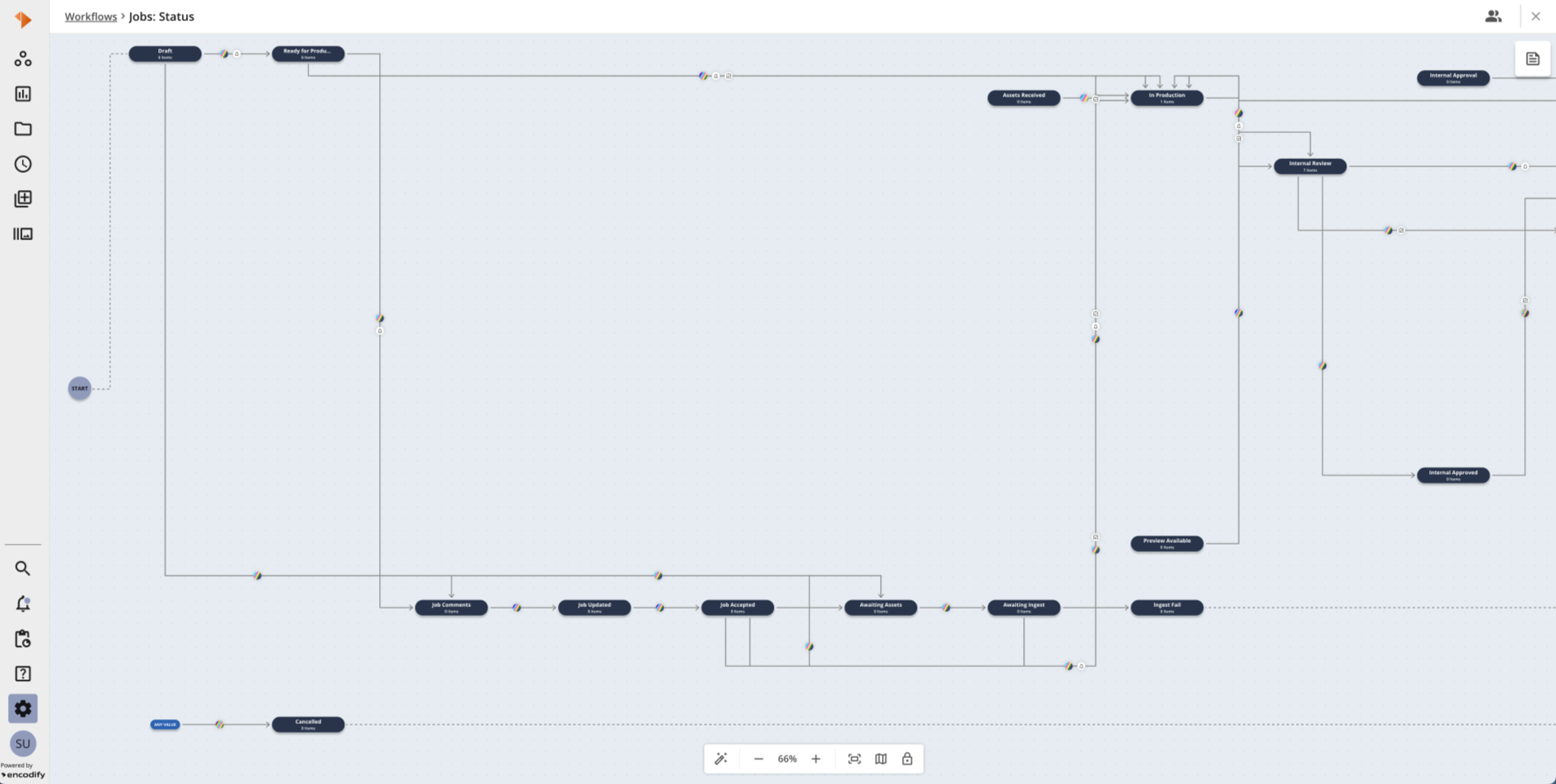
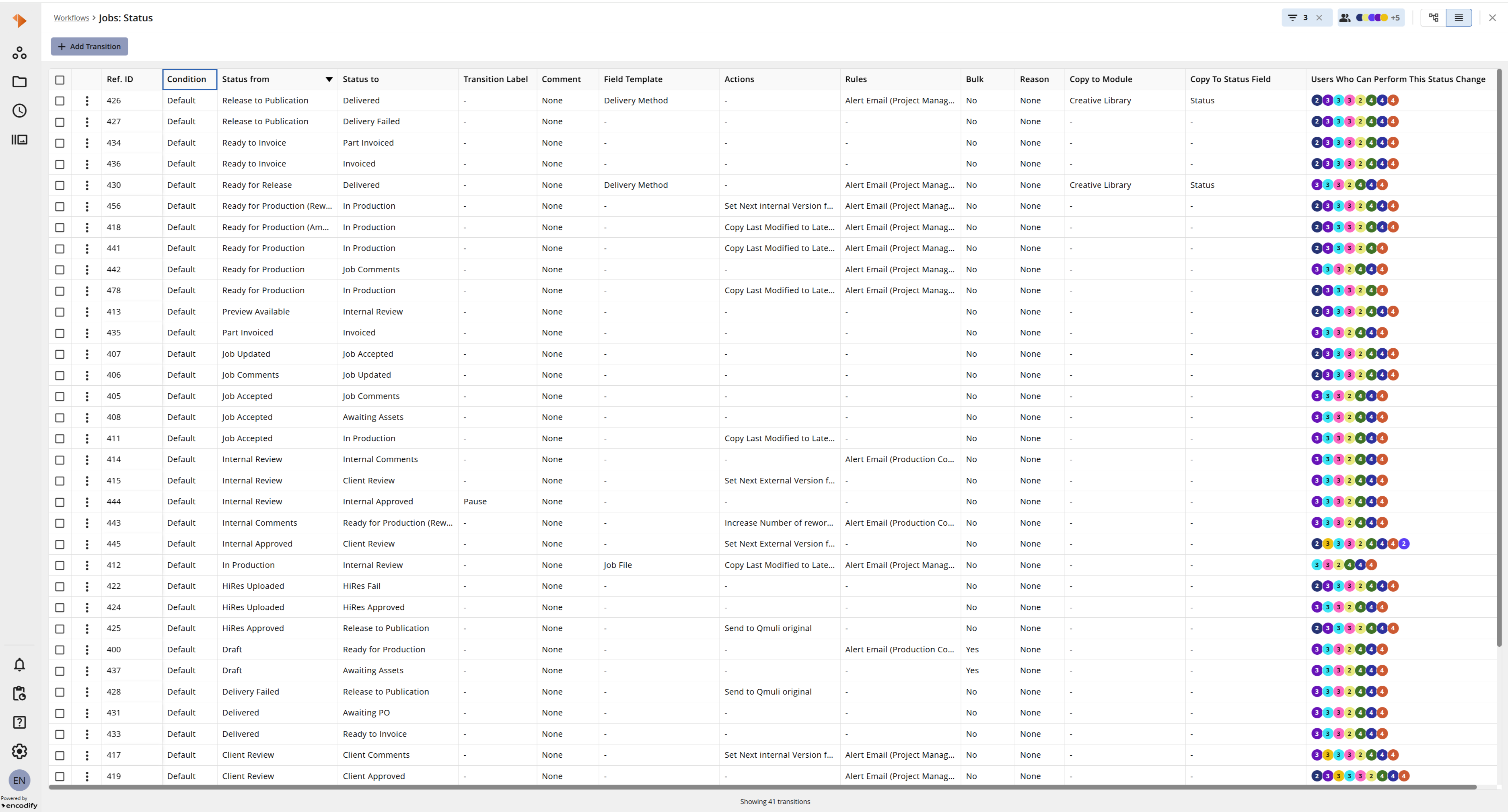
The Workflow Status View allows you to easily visualise the entire configured workflow for a specific status field from start to finish. You can view the Workflow Status View in either Diagram or List view.
Diagram view is the default view when you open Workflow Status View. The view you last selected is remembered per user, so Workflow Status View opens in that view the next time you open it.
List view is not available in the Preview Workflow modal opened from Workflow Overview. Preview Workflow always displays in Diagram view.
The table below provides a quick overview of the Workflow Status View.
Action | Visual Guide |
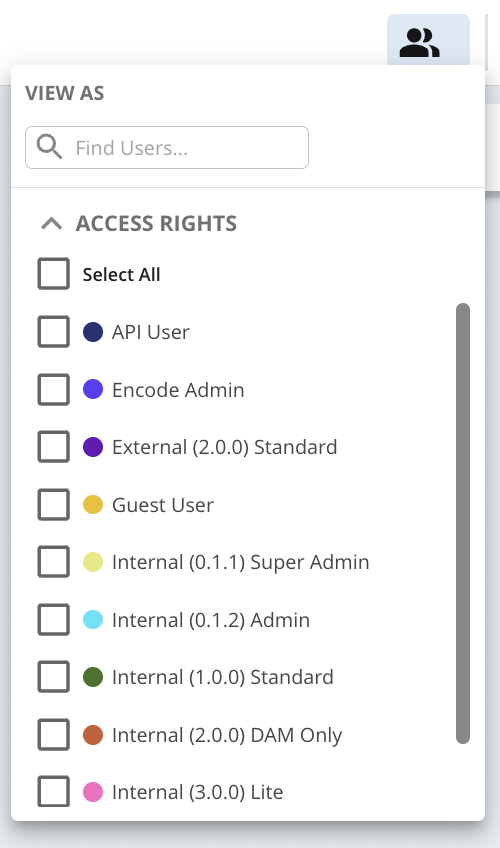
View As provides the ability to filter workflows by specific access rights or user groups, allowing for a more targeted view.
| 
|
The Workflow Info tab offers a high-level overview of the workflow configuration settings
| 
|
View in Site Configuration allows for navigation to site configuration to directly configure any workflow adjustments.
| 
|
Switch between Diagram View and List View
|
|
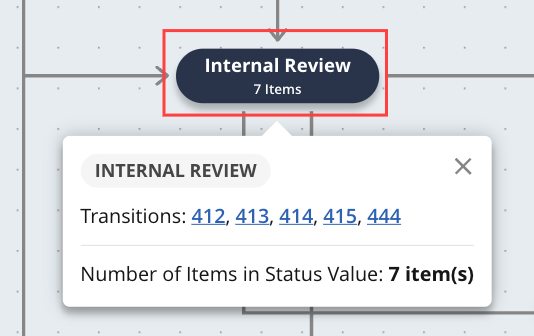
Status Value displays information regarding a specific status within the workflow, including linked transitions.
| 
|
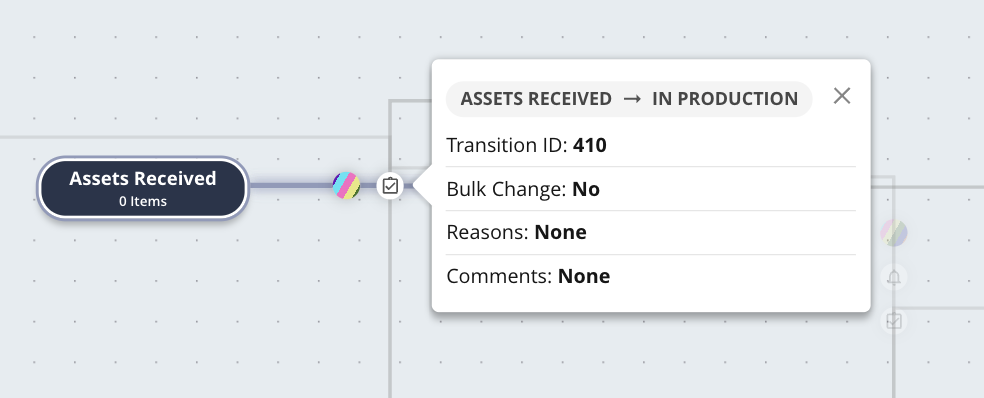
Transition highlights a configured workflow transition from the source status value to the target status value.
| 
|
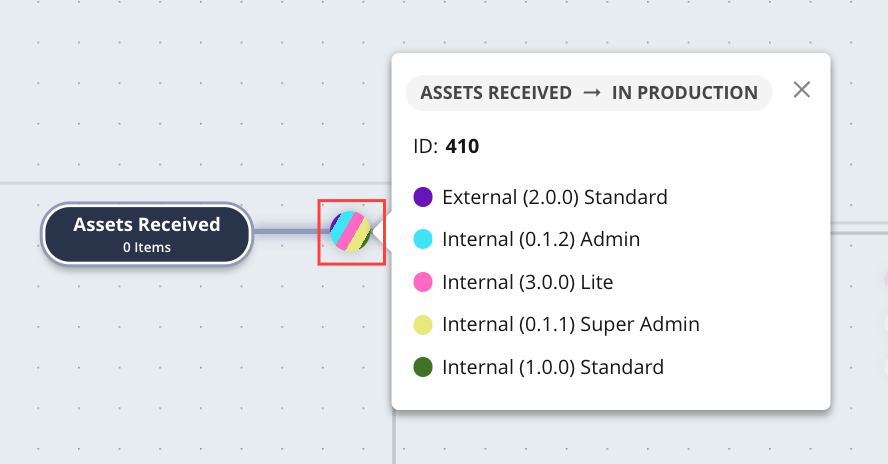
Access Rights Callout shows which access rights are involved in the workflow, ensuring clarity on permissions.
| 
|
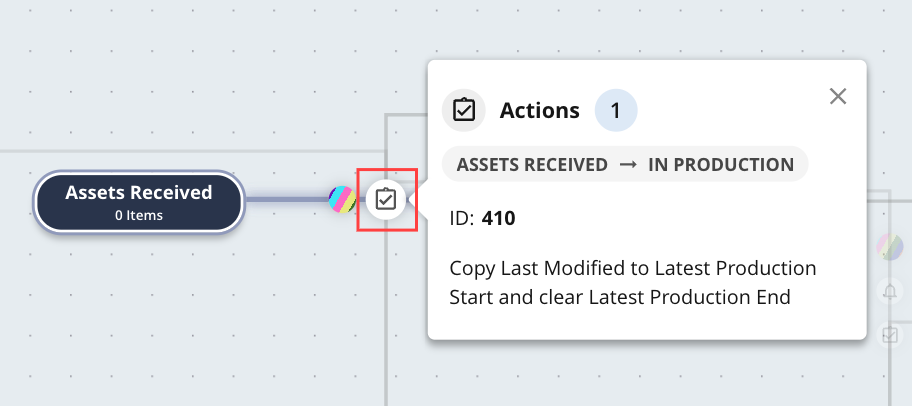
Actions Callout displays any configured actions connected to the specific workflow transition.
| 
|
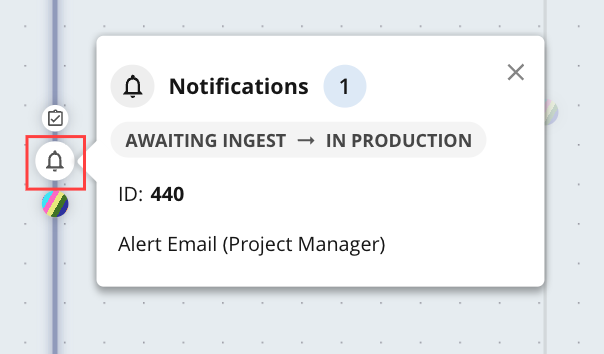
Notification Callout shows any notification rules that are linked to the specific workflow transition.
| 
|
Automation Rules Callout shows any automation rules that are linked to the specific workflow transition.
| .png)
|
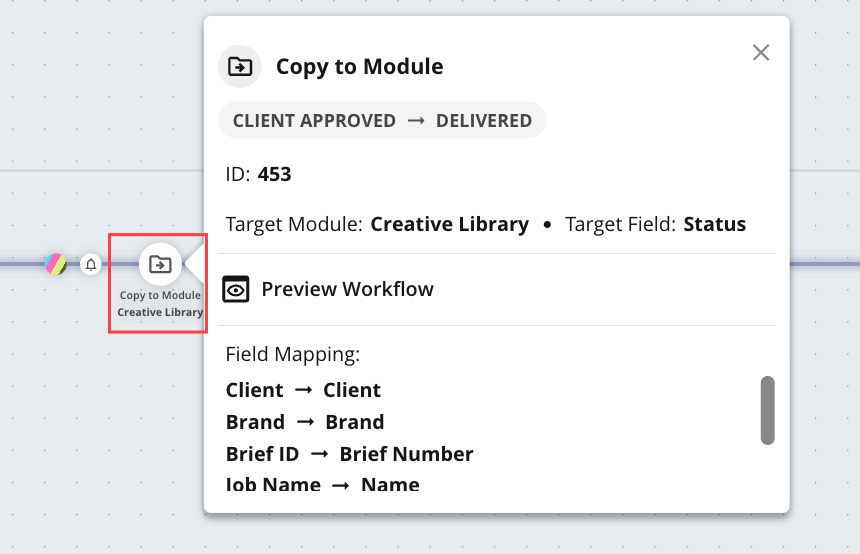
Copy to Module Callout highlighting where a workflow has been configured to copy item and file to another module. (only visible in Diagram view).
| 
|
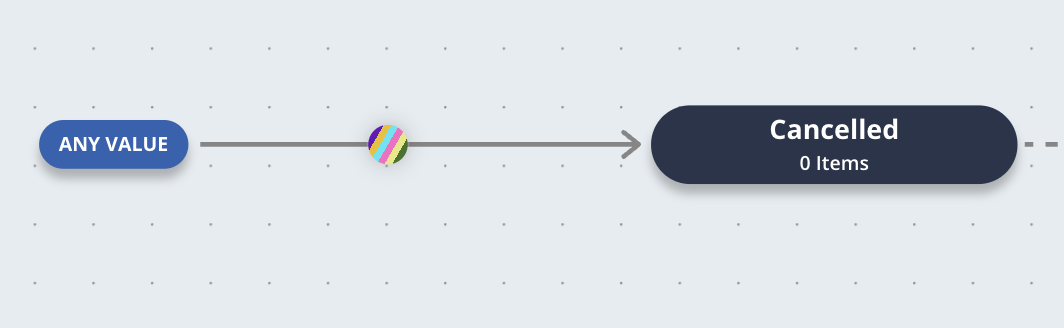
Any Value option highlights where any workflow status value can transition to a specific target value.
| 
|
The Any Value callout lists all status values of the workflow field. Selecting a status value from this list navigates the user to the respective transition in the workflow. If no transition is available for the selected status, a message "Status transition not found" is displayed
| .png)
|
Auto Layout to automatically arrange workflow elements for a clear and organised display
|
|
Zoom controls allowing the ability to zoom in and zoom out
|
|
Fit to Page adjusts the workflow view to fit within the available screen space
|
|
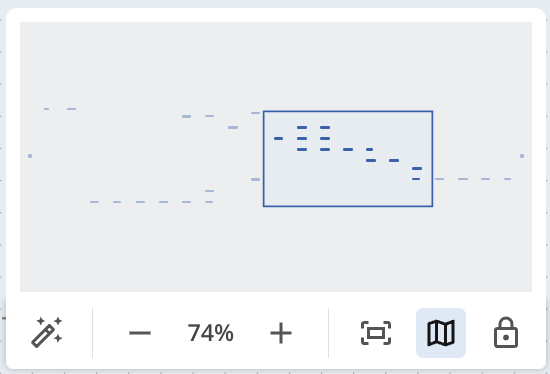
Show Flow Map provides a visual representation of the entire workflow, enhancing navigation and clarity.
| 
|
Lock Flow prevents any accidental modifications by locking the workflow structure in place
|
|
Sort Column provides the ability to sort data in List view within module groups, in ascending or descending order from the column headers, enabling easier organisation and comparison.
| .png) |
Filter lets you narrow the transitions shown by source status, target status, or condition, with support for selecting multiple values in each.
Status From filters transitions by their source status value. Supports selecting multiple values at once. Status To filters transitions by their target status value. Supports selecting multiple values at once. Condition filters transitions by their configured filter field condition. Supports selecting multiple values at once. This filter is only shown if the workflow has at least one condition configured.
Note: When a filter is applied, nodes in Diagram view that do not match the selected filters are dimmed rather than hidden, so you can still see them in the context of the full workflow.
|
|