Location: Modules > Manage Modules > {Module} > Module Configuration > Fields > Field Definition
Setting Field Definition of Calculation content allows performing various types of calculations in the system.
The calculation field can be of 3 types: Decimal, Date, Text. Depending on the type, you can use a formula that produces a result compatible with the chosen type.
Decimal Number — produces a numeric decimal value;
Date — produces the result of type Date formatted by mask, e.g. dd-MM-yyyy;
Text — produces the result of both decimal and date as text, which can be concatenated with custom text that allows to display more human-readable data.
Update setting is responsible for updating calculation fields in Edit window:
On the Fly — Calculation field will be updated immediately as one of its constituents is update
When Saving — Calculation field will be updated after Edit window is closed
Note: Setting calculation to Update: On The Fly can impact performance
When Show Calculation in “Totals” checkbox is selected for a calculation field, the calculation in total row will be performed using already calculated totals of the formula constituents.
Note: Show Calculation in “Totals” is Briefing specific and doesn’t work in plain module Search Result
If Calculation is selected for Field Content, this window will let you enter the formula according to which calculation of the field value will be performed. With the help of the formula constructor that is available under the Formula text area, it is possible to compose calculation formulas using formula syntax, fields placeholders, arithmetic operators and numeric constants. e.g. (${Integer}+${Decimal numeral})/2
Note! Only the following arithmetic operators can be used in calculation formula: / + - * ()
Note! Number format that was set for Decimal Numeral fields is not applied on the New UI. Formatting will depend on browser local.
Note! Number format that was set for Text output fields will be applied on New UI only in case if the same format (International or US) was set for all fields that are used in the formula.
Sum/SumIf calculations
To perform calculations across modules, it is necessary to have a Module Link or a reference to this Module Link Field.
For direct link Calculation (Module Link from this Module), the formula will have next form:
${fieldFromThisModule}+sum(${modulelinkFieldFromThisModule},
${LinkedModule:fieldNameInLinkedModule})
For reverse link Calculation (Module Link to this Module), formula will have next form:
${fieldFromThisModule}+sum(
${moduleWithLinktoThisModule:FieldNameOfModuleWithLinktoThisModule},
${moduleWithLinktoThisModule:fieldNameFromModuleWithLinktoThisModule})
For the second scheme, the sum of values from the Module with the Module link field will be used to perform the calculation.
It is also possible to perform calculations across modules by applying filters. For example, we need to calculate the bill for all products with ‘Shipped’ status for each order. The next configuration is possible: 2 modules, Orders and Products, are available. Module Products contains next fields:
Status — Status field with statuses available for items;
SalePrice — Decimal Numeral field with Sale Price of the item;
Name — Text, Name field;
Orders — Multi-select Module link to module Orders
The next fields will be available for Orders module:
Name — Text, Name field;
Total for Shipped items — Calculation field with next formula:
sumif( (${Products:Status} == ${Products:Status:Shipped}), ${Products:Orders}, ${Products:SalePrice})Where:
(${Products:Status} == ${Products:Status:Shipped})— filter set up to perform calculation for Products with ‘Shipped’ Status${Products:Orders}— Module link field that references to module with calculation field${Products:SalePrice}— Field that will be summed for items by applying filter
There are some basic rules you must follow to set up calculations with filtering.
SUMIF syntax differs depending on the field type of the field used as a filter
When filtering is to be set up by a single-select field (simple option or module link), syntax will have the next view:
sumif((${Products:Status} == ${Products:Status:Shipped}), ${Products:Orders}, ${Products:SalePrice})In case ‘Status’ is a field of Multi-select type
sumif((contains(${Products:Status},${Products:Status:Shipped})), ${Products:Orders}, ${Products:SalePrice})Please Note: for multi-select contains operator is used, its constituent must be placed inside brackets.
When filtering field (Status in our example) is module link field it is possible to use the next syntax as well:
sumif((${Products:Status} == 'Shipped'), ${Products:Orders}, ${Products:SalePrice})Filtering can be set up to use multiple criteria by using && (AND) || (OR) logical operators. Next example will sum field items that have ‘Shipped’ or ‘On Ship’ status
sumif((${Products:Status} == ${Products:Status:Shipped} || ${Products:Status} ==
${Products:Status:On Ship}), ${Products:Orders}, ${Products:SalePrice})
In all of the examples above — “reverse” calculation is used (when calculation is performed in module that contains module link to the current module).
sumif( (${Products:Status} == ${Products:Status:Shipped}), ${Products:Orders}, ${Products:SalePrice})But in case Orders module contains ProductsInOrder — module link of multi-select type to Products module. In such a way there is no need to specify module name for linking field:
sumif( (${Products:Status} == ${Products:Status:Shipped}), ${ProductsInOrder}, ${Products:SalePrice})Only next logical operators can be used:
&& (AND) | || (OR) | == (equals) |
contains (equals operator for multi-select) | !contains (not equals operator for multi-select) | != (not equals) |
Note!
It is also possible to use next logical operators, but we do not guarantee correct behavior where filtering by other than option fields are involved:
>(more than),<(less than),>=(equals or more),<=(equals or less)
SUM/SUMIF Doesn’t work with Multi Select fields
SUMIF DSL Calculations
The sumifdsl formula is a performance-optimised alternative to the standard sumif calculation. While both functions aggregate data based on specific criteria, sumifdsl is designed to handle large datasets by filtering data at the database level rather than loading all records into memory.
Key Differences and Performance Gains
The primary advantage of sumifdsl over the regular sumif is how it handles data retrieval:
Regular SUMIF: Loads all items from the target module and all their associated fields into memory before applying filters. This can cause significant latency with large datasets.
SUMIFDSL: Filters data at the database level. It retrieves only matching items and loads only the specific field required for the sum.
Formula Building Blocks
Formula Example
sumifdsl("FD_680=field.itemId AND FD_678=460", ${Products:Price})
         └──────────┬──────────┘ └─────┬─────┘  └──────┬──────┘
                    │                  │               │
              CONDITION              OPERATOR      FIELD TO SUM
           (Query DSL)              (optional)
A sumifdsl formula consists of two primary parts: the Condition String and the Field to Sum.
The Condition (Query DSL)
Unlike standard formulas that use field and option names, sumifdsl primarily uses Field IDs (formatted as FD_XXX) and Option IDs for option values. This ensures precision and performance.
Field IDs (
FD_XXX): Unique Id of the field definition (e.g.,FD_680for a "Link to Campaign" field).field.itemId: A dynamic placeholder representing the ID of the current item.
Option IDs: For option or status fields, you must use the ID of the specific option (e.g.,
460instead of its string value, e.g."Closed").
Field to Sum
This is the standard reference to the field value you wish to aggregate, such as the Price field in the Products module: ${Products:Price}.
Syntax and Operands
The condition must always be wrapped in double quotes.
Comparison Operators
Operator | Description |
|---|---|
= | Equals |
!= | Not equals |
> | Greater than |
< | Less than |
>= | Greater or equal |
<= | Less or equal |
Logical Operators
Used to combine multiple conditions.
AND: Both conditions must be true (e.g.,
FD_680=field.itemId AND FD_678=460).OR: Either condition can be true (e.g.,
FD_678=460 OR FD_678=461).Parentheses
(): Used for grouping complex logic (e.g.,(FD_678=460 OR FD_678=461) AND FD_680=field.itemId).
Example
To sum the "Price" of all "Products" linked to the current "Campaign" where the status is "Closed":
sumifdsl("FD_680=field.itemId AND FD_678=460", ${Products:Price})Where:
FD_680=field.itemId: Filters Products where the Link field matches the current record.AND FD_678=460: Further filters for items where the status option ID is 460.${Products:Price}: Sums the value of the Price field for all records meeting the criteria
Advanced String Searching and Escaping
For complex queries involving specific text values or field names with special characters, sumifdsl supports advanced escaping logic. This is particularly useful when searching for strings that contain quotation marks or when using the FD_NAME_ syntax for fields with spaces or symbols in their titles.
Searching with Single Quotes
To specify a single quote character within a string value, you must use a double backslash escape (\\). This ensures the DSL search parameter correctly interprets the quote rather than ending the string.
Example:
sumifdsl("FD_680=field.itemId AND FD_676='pro\\'duct_Q'", ${Products:Price})
Searching with Double Quotes
It is possible to include double quote characters directly within the string value of your condition.
Example:
sumifdsl("FD_680=field.itemId AND FD_676='pro\"duct_7'", ${Products:Price})
Using Field Names (FD_NAME_)
If you prefer using field names instead of IDs, wrap the name in backticks and prefix it with FD_NAME_. If the field name itself contains double quotes, a single backslash (\) is used to escape them.
Example: sumifdsl("`FD_NAME_Link to campaign`=field.itemId AND `FD_NAME_Special \"Membership discount\"`=12", ${Products:Price})
Limitations
For Option fields (regular and module links) used in conditions, the option ID is required; text is not supported.
Non-searchable fields cannot be used in conditions
Only ` can be used when using field definition name instead of ID. ' or ’ will not allow field definition save.
The sumifdsl calculates on ACTIVE items only. The same way as sumif.
Conditional calculations
There is a possibility to use conditional filters in calculation fields without getting a summarising value. This functionality works similarly to SUMIF, but it has some restrictions. Common syntax is:
(expression ? formula 1 : formula 2)where
expression — logical condition in which two or more operands are compared. Such logical operators can be used: && (AND), || (OR), == (equals), != (not equals), > (more than), < (less than), >= (equals or more), <= (equals or less)
formula 1 — will be chosen for calculation if the expression is TRUE
formula 2 — will be chosen if the expression is FALSE
For example, we want to calculate the expected turnover by multiplying the number of sold products by their campaign price. And if the campaign price is empty or equal to zero, the normal price value should be used in the calculation. It can be done in such a way:
(${campaign_price} != 0 ? ${number_items} * ${campaign_price} : ${number_items} * ${normal_price})Note!
There are some restriction in using conditional calculation:
Doesn’t work with Multi Select fields
Cannot be used together with SUM and SUMIF functions
Fields from other modules are inaccessible in conditional calculations, so such syntax ${LinkedModule:fieldNameInLinkedModule} cannot be used. But we still can use the direct values from module link fields
Reverse links cannot be used
Date calculations
Main functional possibilities available for date calculations:
Add days/weeks/months/years to a date
Subtract days/weeks/months/years from a date
Calculate the difference between two dates, e.g. days remaining
Calculate duration
Calculate duration respecting non-working days (Events app required)
Add/subtract dates respecting non-working days (Events app required)
Display results in days, weeks, months, years
Humanise results, e.g. “1 day remaining” instead of “1”, “1 day overdue” instead of “-1”
Possible to use date calculation results in other calculation formulas
Possible to use calculated date in conditional formatting (widgets)
Arguments can be referenced from other modules
Possible to specify display format e.g. mm-dd-yyyy, dd-mmm-yyyy (See about mask patterns)
Functions for working with dates:
Function | Result type | Description |
|---|---|---|
today() | date | Returns the current day |
dateDif(${StartDate}, ${EndDate}, ) | decimal | return the number of days between 2 dates in specified units: days, weeks, months, years |
add(${DateField}, ${NumericField}, ) | date | add a number of specified date units to a date and return a new date |
subtract(${DateField}, ${NumericField}, ) | date | subtract a number of specified date units from a date and return a new date |
''.concat(${someField}) .concat(' days remaining') | text | concatenate text with calculated result. Must be started with 2 single quotes: ''.concat().concat() |
defaultFormat() | date | displays date as “dd-mm-yyyy” |
format(, ) | date | produces date respecting the mask, e.g. “EEEE d M uuuu”. See about mask patterns |
durationDays(, , , ) | Integer | Duration expressed in number of days with possibility to define if start/end date or both should be included in duration calculation.
*Works only with Date and date-time fields. In case of date-time fields, only date is used in calculation, hours and minutes are ignored. Week-year, month-year fields may return inconsistent results. |
durationWorkingDays(, , , ) | Integer | Duration expressed in number of days excluding configured non-working days with the possibility to define if start/end date or both should be included in the duration calculation.
For the formula to work, the Events app must be configured for the site. Follow this link to access configuration guide.
*Works only with Date and date-time fields. In case of date-time fields, only date is used in calculation, hours and minutes are ignored. Week-year, month-year fields may return inconsistent results.
|
addWorkingDays(, , ) | Date | Function adds specified number of days excluding non-working days, with parameter to define if start date should be included in calculation.
*Works only with Date and date-time fields. In case of date-time fields, only the date is used in calculation, hours and minutes are ignored. Week-year, month-year fields may return inconsistent results. |
subtractWorkingDays(, , ) | Date | Function subtracts specified number of days excluding non-working days, with a parameter to define if start date should be included in calculation.
*Works only with Date and date-time fields. In case of date-time fields, only date is used in calculation, hours and minutes are ignored. Week-year, month-year fields may return inconsistent results. |
Examples
Formula Example | Explanation |
|---|---|
dateDif(${Start Date}, ${End Date}, “days”) | Range in days between 2 dates |
dateDif(today(), ${Deadline date}, “weeks”) | Range in weeks between today and a date in the future |
add(${dateField}, ${numericField}, “months”) | Add a number of months in the field to a date |
subtract(${dateField}, 5, “years”) | Subtract 5 years from a date |
--- Days to deadline ---- --- Humanised result ----
| Humanised result depending on the number of calculated days to deadline (positive, negative or zero). It is recommended to use a separate decimal calculation field to pre-calculate the number of days first and then use it as an argument inside the text calculation formula. |
''.concat( defaultFormat( add( ${dateField}, 14, “days” ) ) ).concat(' is the deadline') | Humanised result with default date formatting 9-05-2017 is the deadline |
''.concat( format( add( ${dateField}, 4, “days” ), “EEEE d M uuuu QQQQ” ) ).concat(' is the deadline') | Humanised result with date formatting by mask Friday 19 5 2017 2nd quarter is the deadline |
Current limitations
Not possible to use calculation (date) as filtering criteria (widgets, export, reporting);
Not possible to combine date calculations and SUMIF in one formula, use separate fields for this.
Duration VS DateDif
We distinguish 2 types of date calculations returning the interval between the 2 days: dateDif and duration.
dateDif
dateDif(${Start date}, ${End date}, "days")Calculation field returning the number of days between 2 date fields, excluding start date.
Example:
Project start date: 01/01/2021
Project end date: 02/01/2021
Date difference will be equal to 1.
In another example:
Project start date: 01/01/2021
Project end date: 01/01/2021
Date difference will be equal to 0.
Duration
durationDays(, , , )Date calculation field that will return the duration value based on the configuration options allowing to include/exclude start/end date in duration calculation.
Examples:
Formula: durationDays(${Start date}, ${End date}, true, true)
Project start date: 01/01/2021
Project end date: 02/01/2021
Duration will be equal to 2.
Formula: durationDays(${Start date}, ${End date}, true, false)
Project start date: 01/01/2021
Project end date: 02/01/2021
Duration will be equal to 1.
Formula: durationDays(${Start date}, ${End date}, false, true)
Project start date: 01/01/2021
Project end date: 02/01/2021
Duration will be equal to 1.
Formula:durationDays(${Start date}, ${End date}, false, false) Project start date: 01/01/2021
Project end date: 02/01/2021 Duration will be equal to 0.
Disable Time Zone Conversions for Date Calculation Fields
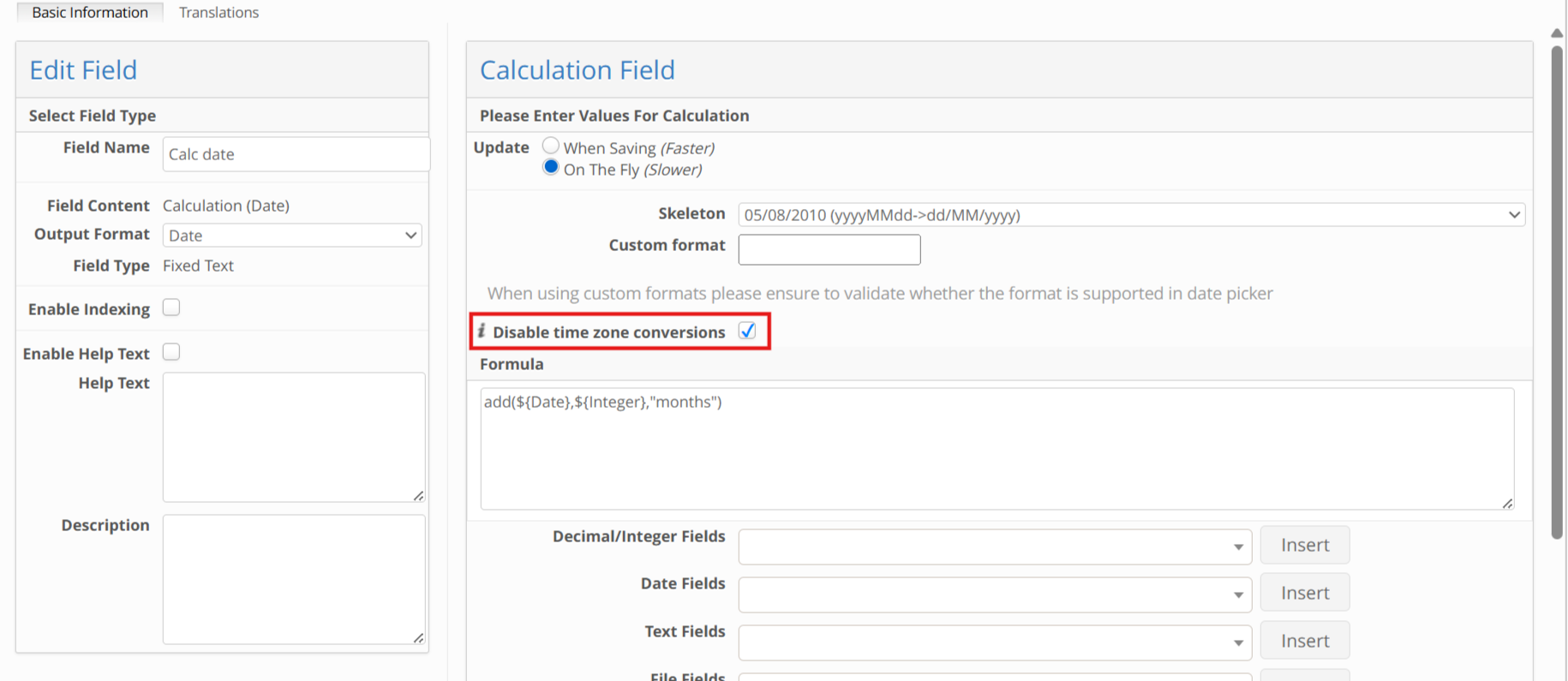
Calculation fields with a Date output type also support Disable time zone conversions, configured independently of any date field(s) referenced inside the formula. When enabled, the calculation's result is computed and displayed without time zone conversion, fixed to the same value for every viewer.
This is most relevant for formulas using date functions such as add(), subtract(), dateDif(), and durationDays() - for example, add(${Date Field}, ${Integer}, "months"). Without this setting enabled, a result near a day or month boundary can resolve to a different calendar date depending on the viewing user's time zone, since the calculation is otherwise evaluated in that user's local time. With the setting enabled, the result stays fixed to the same date and time for every viewer, since no time zone conversion is applied.
For consistent results, enable Disable time zone conversions on a Date Calculation field whenever it references a date field that also has the setting enabled.
For details on Date field formatting and the Disable time zone conversions option, see Date Fields.
Special characters in formulas
Special characters in formulas are handled fine except of two cases:
Field Definition or field option (in case filtering is performed by multi-select field) contains curly brackets
{or}— they should be simply escaped by enclosing in single quotes. For example: let’s rename Status field to — Status {shipping}sumif( (${Products:Status '{'shipping'}'} == ${Products:Status '{'shipping'}':Shipped}), ${Products:Orders}, ${Products:SalePrice} )In SUMIF formula Status is module link and we need to filter by its value that contains single quote
'. Single quote is escaped in formula with double backslash\\. E.g. filtering by Courier’s deliver option:sumif( (${Products:Status} == 'Courier\\'s deliver'), ${Products:Orders}, ${Products:SalePrice})In a conditional calculation formula, the option of Status field contains a single quote. It should be escaped by double backslash
\\(single backslash\also can be used):${Status} == 'Courier\\'s deliver' ? ${price1} : ${price2}
Optimized calculation for sum(), min(), max() and count()
The target for optimisation – aggregation operations on items from another module, linked to the current item. The formula should have a “valid“ pattern to be optimised.
Optimised aggregation operations support correct calculation when the value field is a decimal/integer multi-select (or checkboxes, or any other multi-value field type).
Optimised: Calculation (Decimal Number), formula:
sum(${Estimate Line items:Brief Name}, ${Estimate Line items:Total (Brief Currency)}count(${Products:Campaign})Not optimised: Calculation (Decimal Number), formula:
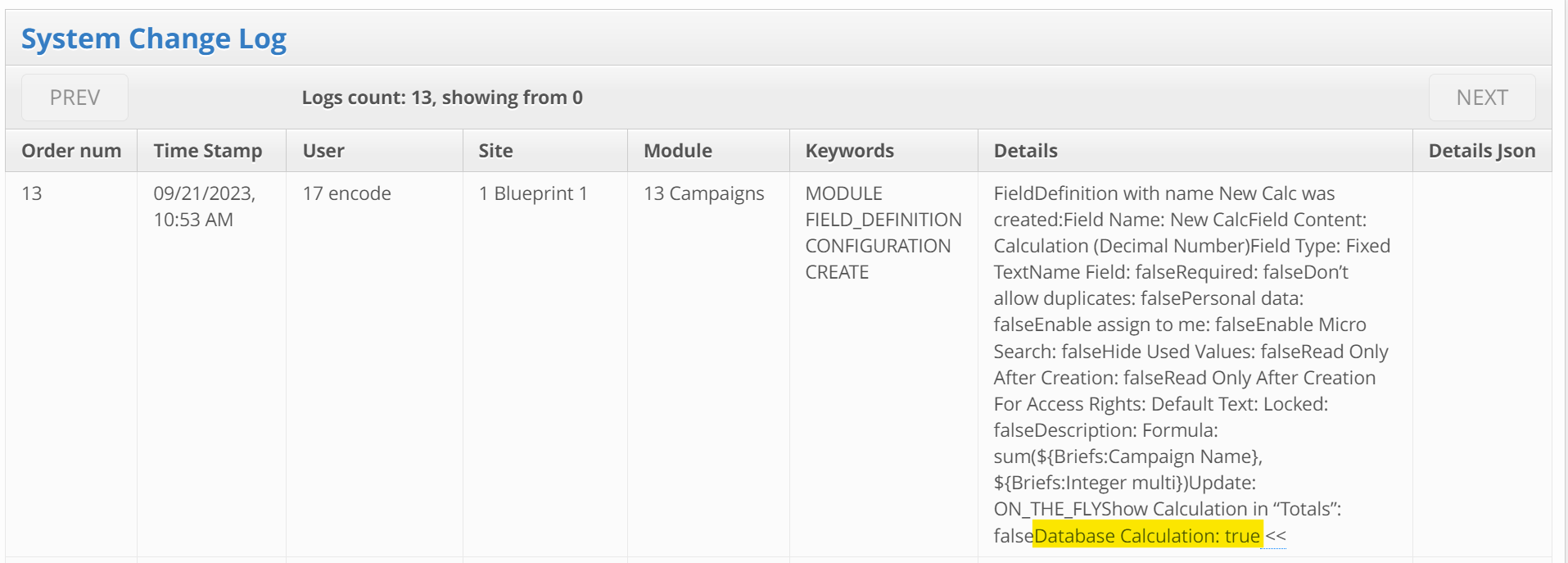
0+sum(${Job Import Validation:Brief ID}, ${Job Import Validation:Count}) count() How to determine if the new optimised calculation has been applied to the field calculation?
Navigate to System Configuration > System Status > System Change Log
Search for logs where the field definition for the calculation was created or updated
Search for 'Database Calculation:' in the 'Details' column and check that the boolean value is 'true'. If 'false' is displayed, the calculation for the field is not optimised.
Important! Changes to how multi-value fields are calculated:
The not-optimised calculation takes only the first selected option from the multi-value field and does aggregation on the first values only:
For example: 9 items from the 'Briefs' module with a multi-value field are linked to 3 items in the 'Campaigns' module
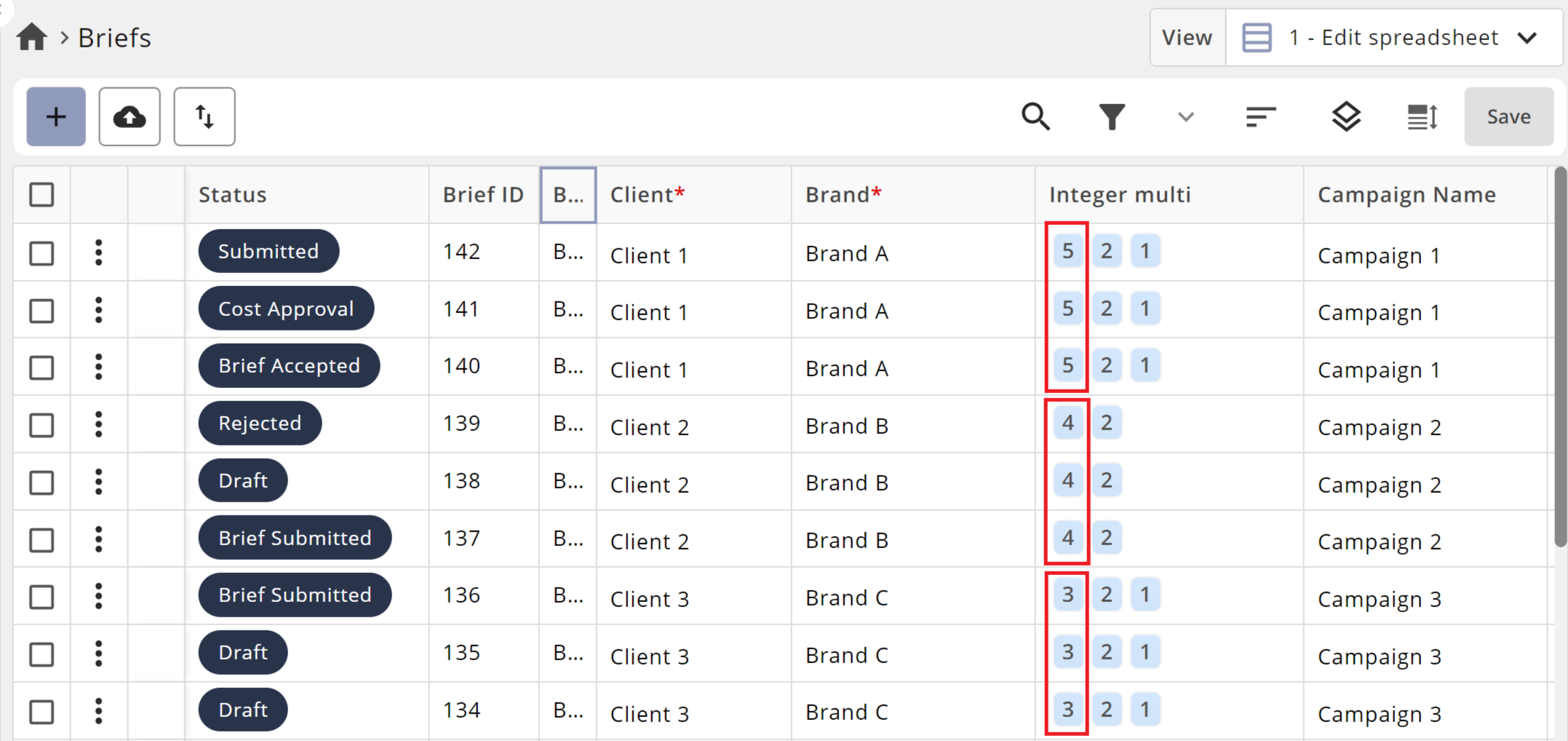
In the 'Campaigns' module, the calculation field displays the sum() of the first value of each 'Briefs' item 5+5+5 = 15, 4+4+4 = 12 and 3+3+3 =9:
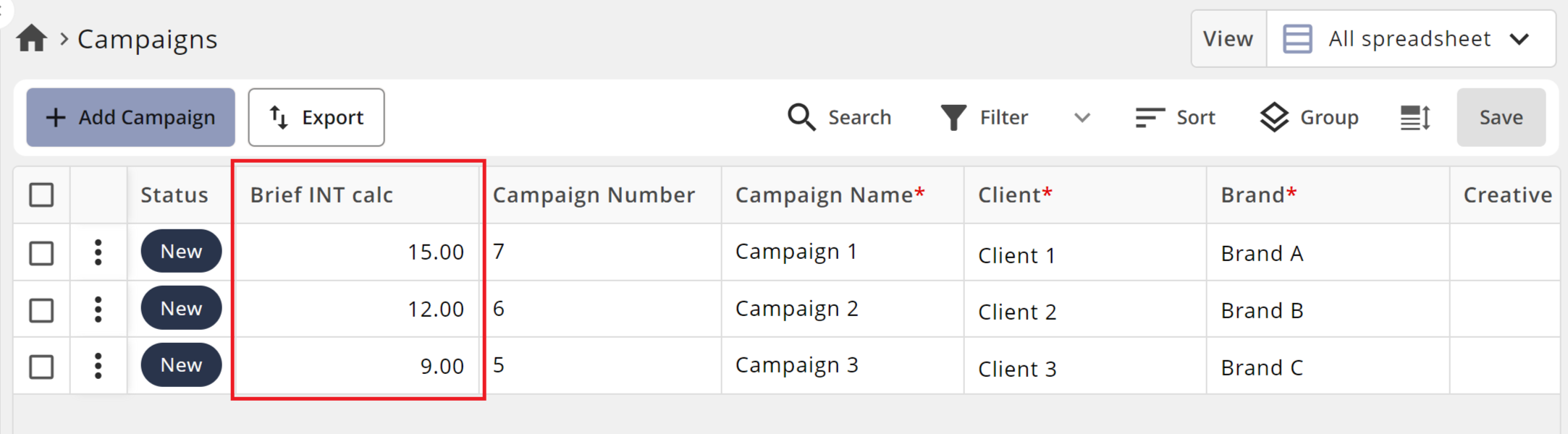
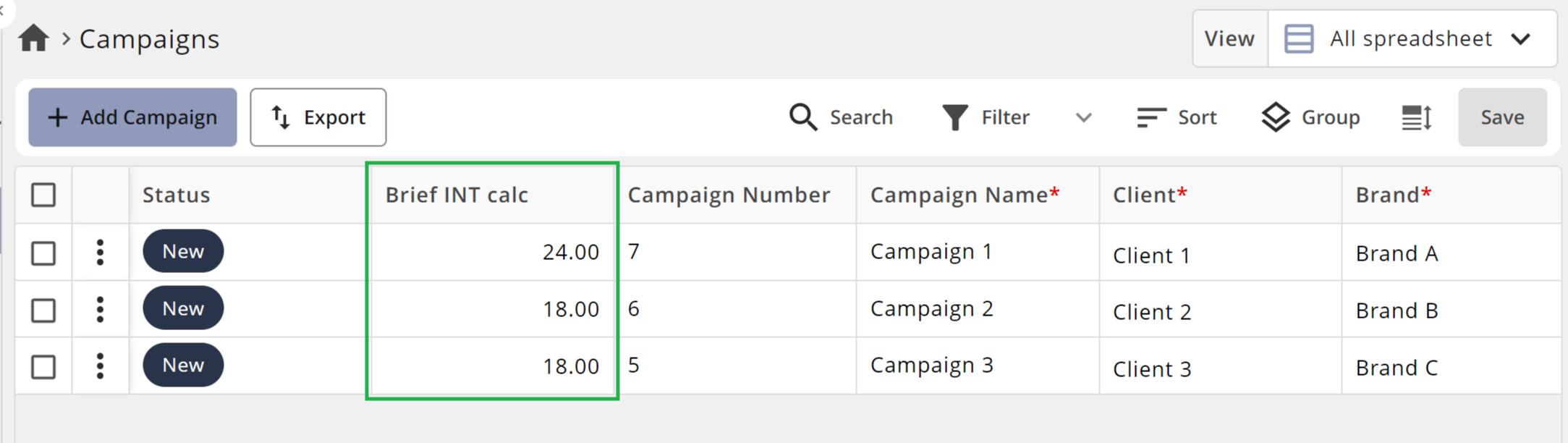
The 'optimised' calculation takes into consideration all values of each 'Brief' item from the multi-value fields:
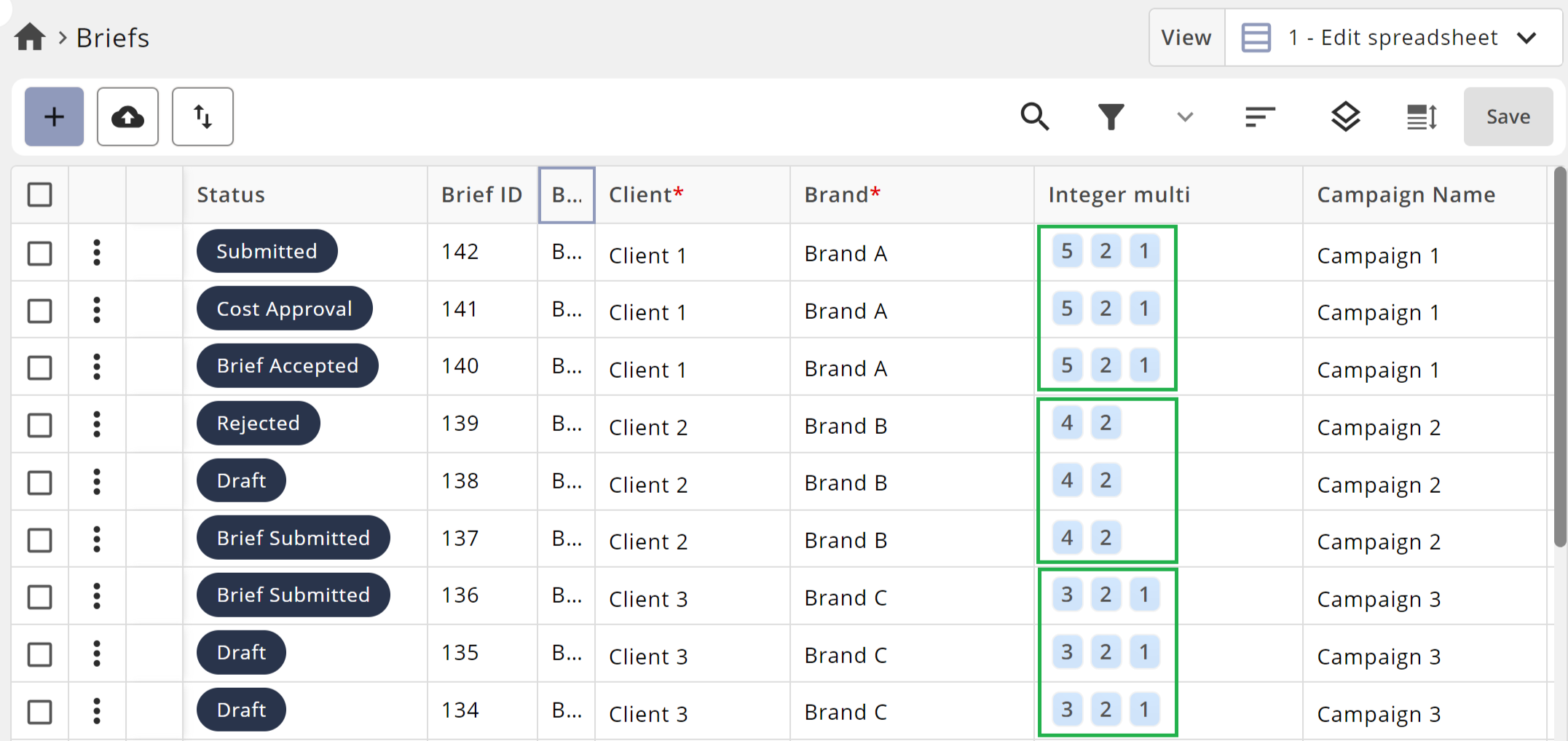
Resulting in a different total displayed for each item in the 'Campaigns' module:
e.g. (5+2+1)+(5+2+1)+(5+2+1) =24 | (4+3)+(4+3)+(4+3)=18 | (3+2+1)+(3+2+1)+(3+2+1)=18
Known Behaviour:
Does not optimise sum() if the fields are in the same module
Only optimised for field definition type: Calculation (Decimal Number) - Calculation (Date) or Calculation (text) are not supported
Currently, only standalone calculations are going to be optimised:
e.g.sum(${Products:LinkToCampaign}, ${Products:Quantity})is optimised, butsum(${Products:LinkToCampaign}, ${Products:Quantity}) + 12norsum(${Products:LinkToCampaign}, ${Products:Quantity}) + sum(${Products:LinkToCampaign}, ${Products:Quantity})will not be optimisedCurrently, for count(), optimisation covers only the formula that counts linked items:
In the module Campaigns, create a formula:
count(${Products:Campaign})This formula shows the number of Products linked to the current Campaign, by a module link “Campaign“ in the “Products“ items.