Date fields store calendar dates and times. Their display format is controlled by a "skeleton" pattern set in the field definition, which determines whether the field shows a date only, a date with time, or a week- or month-year value. This article covers configuring that format, how it interacts with locale settings, general field options, and the time zone conversion setting available on Date and Date-Time fields.
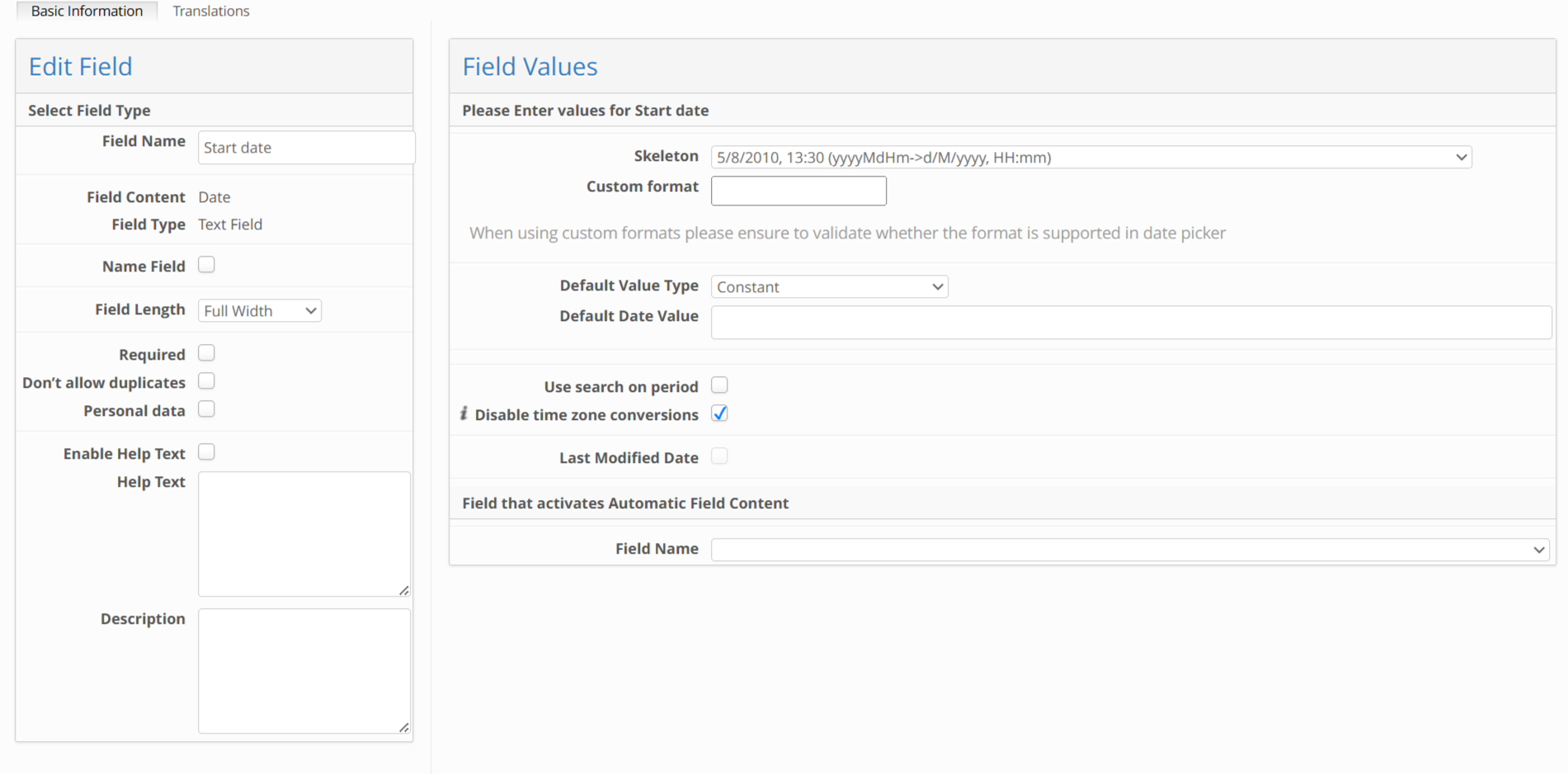
Skeleton and Format Patterns
The skeleton value selected in the field definition configuration defines the format of the date field. Available patterns include:
Skeleton | Produces |
|---|---|
| 15.05.2021 (date only) |
| 15.05.2021 21.30 (date with time) |
| 02-2021 (week-year) |
| October 2021 (month-year) |
Whether a field includes a time component depends entirely on the skeleton chosen - a pattern without an HH or mm element produces a date-only field, while including one produces a date-time field.
Locale Behavior
The formats listed in the skeleton field follow the user's locale settings. This determines the month name, localised values, and date/time separators shown to each viewer - for example, the same underlying date renders as "Jan 17, 2021" for an en-US user and "17. Jan. 2021" for a de-DE user. Locale-driven formatting is independent of the time zone behaviour described below - enabling "Disable Time Zone Conversions” (see next section) does not change how the date is formatted, only what moment in time it represents for each viewer.
General Configuration Options
Date fields support the standard field definition options:
Required - makes filling the field mandatory
Max # of Characters - limits input length
Help Text / Enable Help Text - provides user guidance
Don't allow duplicates - prevents identical values across items
Name field - automatically enabled for the first date field on a module, making it the item's identifier
Disable Time Zone Conversions
For fields where time zone consistency matters more than local display, Date and Date-Time fields have an optional "Disable time zone conversions" setting in the field definition configuration. When enabled, the field's value is no longer adjusted per viewer and is shown exactly as stored for everyone:
The field's value is displayed and entered exactly as stored, with no conversion applied for the viewer's profile time zone or the site's default time zone. Since values are stored without a time zone offset, this is normally UTC.
The date picker accepts and shows the value with no conversion applied - whatever is typed or selected is stored and displayed exactly as entered, with no shift between viewers.
The time zone label that normally appears on a date picker to indicate which time zone is in effect is hidden on fields with time zone conversion disabled, since the value is fixed and does not vary by viewer.
The setting also governs how the field behaves in module search filters, "Group by Day" aggregations, and exports (including Xero) — these are evaluated without applying the acting user's time zone, using the stored value's boundaries directly.
When left disabled (the default), the field behaves as it always has: values shift according to each user's own profile time zone, or the site's default time zone if the user hasn't set one, and the "Time zone" label is shown to indicate this.
Note: toggling this setting on a field that already contains data changes how existing values are interpreted for display, not only new entries going forward. Confirm the impact before changing it on a field already in use.
Date Calculation fields also support "Disable time zone conversions“ - see Date Calculation for details on how this affects calculated date results.
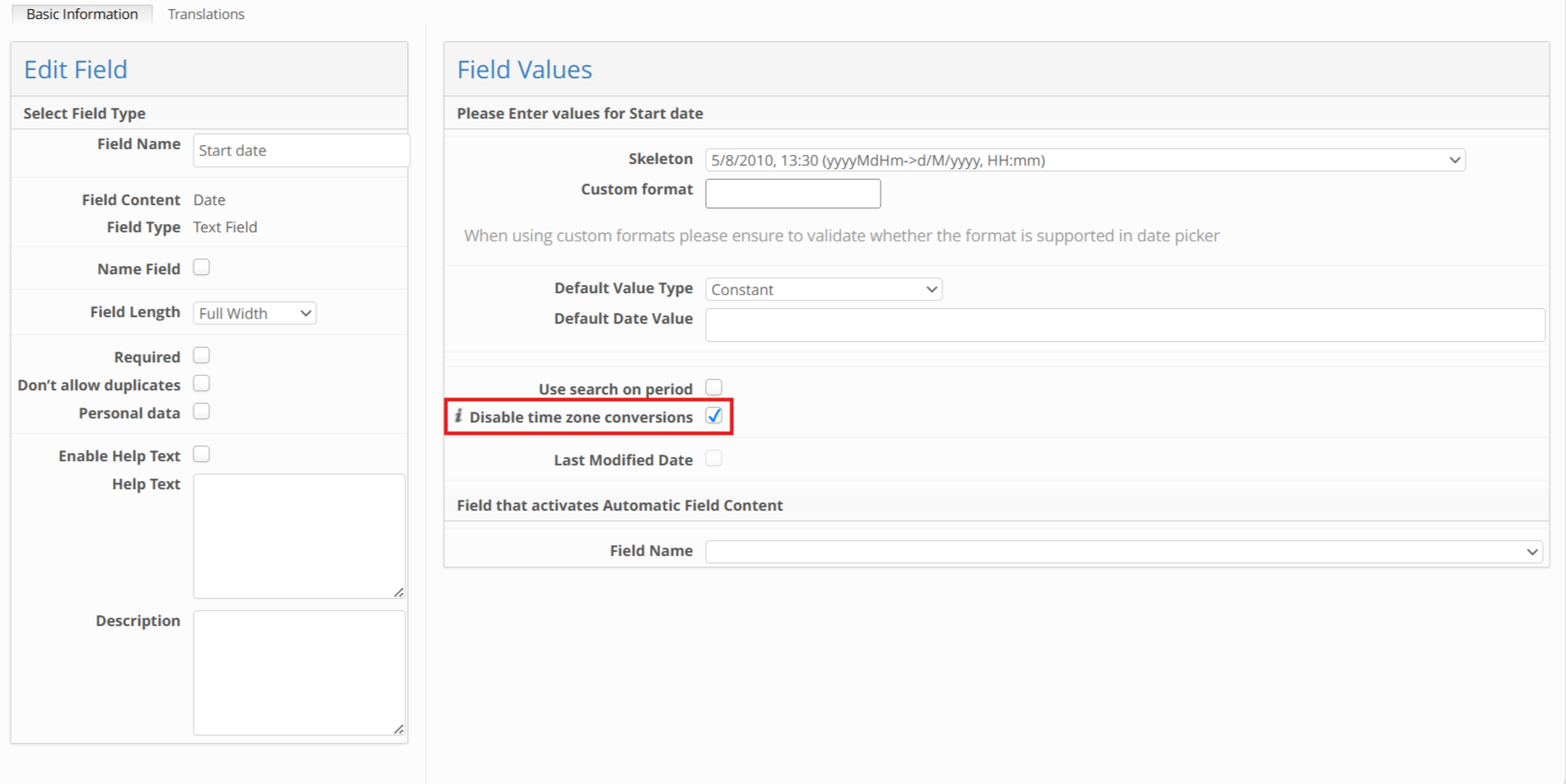
An image displaying Date field configuration with ‘Disable time zone conversions’ enabled
With time zone conversion enabled (the default), clicking Today on the date picker inserts the current date and time in the user's own time zone:
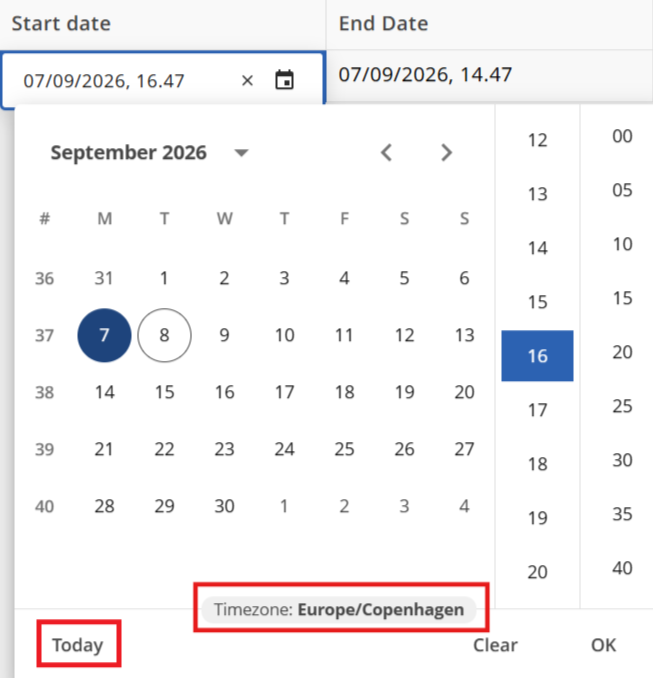
Date picker with time zone conversions enabled (default)
With time zone conversion disabled, clicking Today on the date picker inserts the current date and time in UTC, regardless of the user's own time zone.