Understanding Proofing Reviewers
It provides a data-driven overview of the file review process, detailing participant engagement and approval statuses.
Note: Before version 24, this information was found on the Insights tab. This tab has been removed.
Accessing Reviewers
The Reviewers’ data is accessed directly from the Comments tab within the Proofing Sidebar.
Reviewers Button: The Comments tab header features a Reviewers icon (User icon)
.png) .
.Reviewer Count: A badge on the icon displays the total number of unique reviewers involved with the file.
Insights Modal: Clicking this icon opens a dedicated modal containing the detailed breakdown of statistics.
Modal Data & Display
It provides a comprehensive list of all reviewers, ensuring the approval process is transparent and easy to track.
Reviewer Information
Each entry in the list includes:
User Identity: The reviewer’s Avatar, Name, and Email address.
Review Status: The current status assigned by the user (e.g., Approved, Rejected), presented with specific visual formatting.
Note: Review status is only shown when the Review module is configured.
Comment Count: The total number of comments submitted by that specific user.
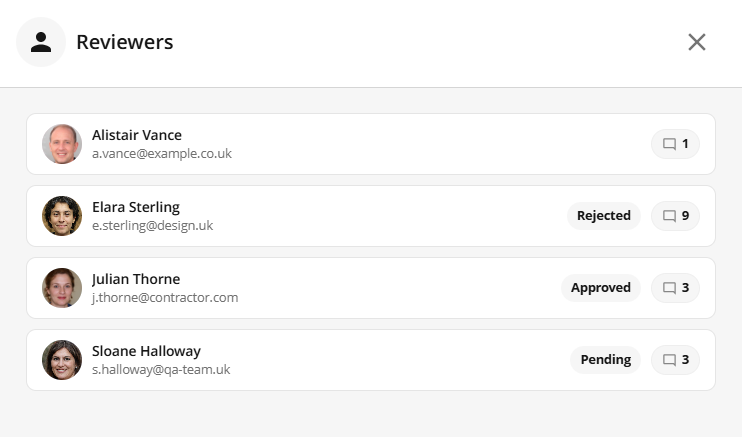
An image highlighting the proofing insights panel
Empty State
In instances where no review activity has occurred, the modal displays an empty state illustration to indicate that no statistics are currently available for the file.
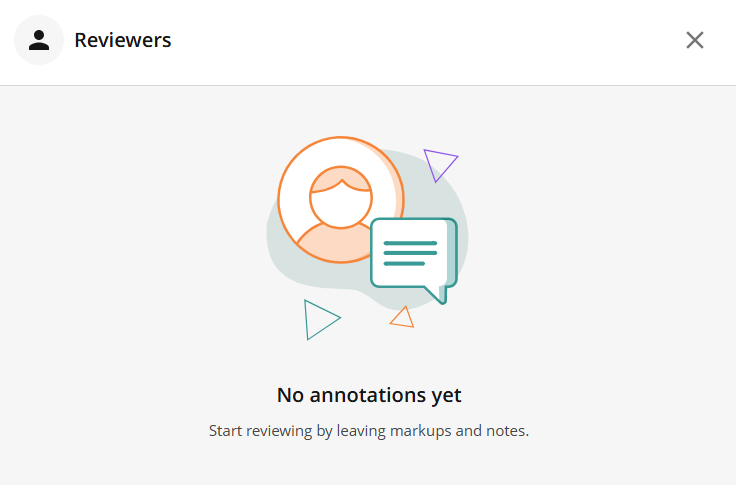
An image highlighting the proofing insights panel in the empty state