Overview
Important: Before enabling BigQuery Connected Service, an Encodify administrator must first ensure that it’s enabled within your infrastructure.
Big Query connected service allows synchronisation of Encodify module data and logs to the Google Big Query schema.
Configuration
Connected service is controlled by the corresponding feature flag.
Google Big Query connected service will be available as a service type if enabled by the feature flag.
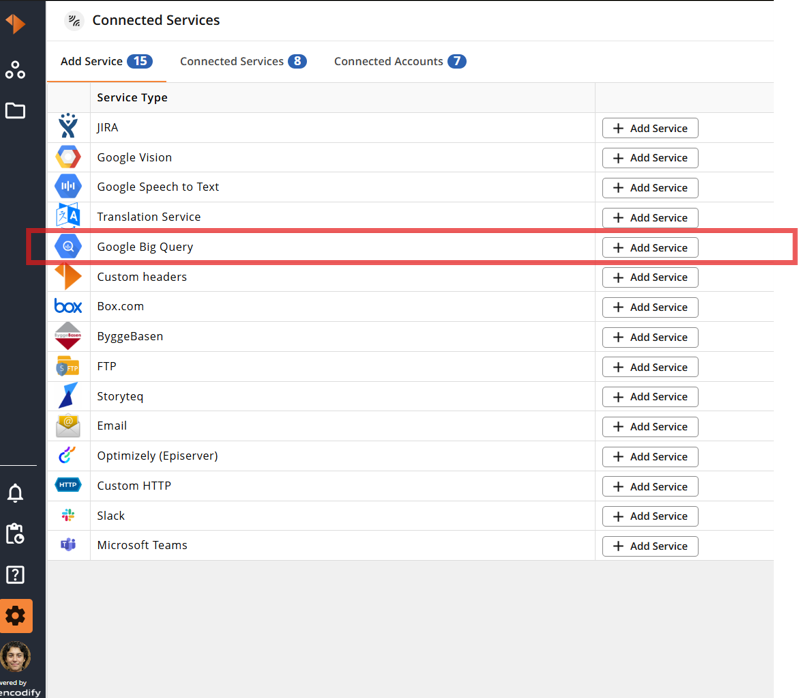
Generate an Access Key from Google Cloud
An access key is required to configure the connected service for Google BigQuery. This can be done using Google Cloud Service Account.
With the existing service account, the access key in JSON format can be created in Google Cloud >Credentials > Service account key.
Connected Account
Google Big Query connected account is created as a step in connected service configuration and requires the following settings to be specified:
Account Name | Unique name of the account. |
Private Key | Private key for the BigQuery project in Google Cloud. How to create an access key |
Dataset Name | Name of the dataset created in the BigQuery project in Google Cloud. |
Note: Dataset needs to be created before saving connected account.
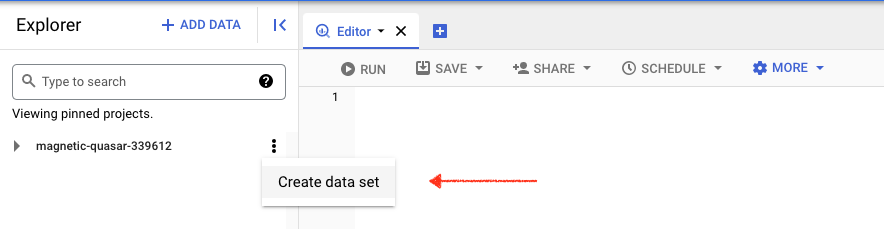
Connected Service
The following settings are required for creating a new Google BigQuery connected service:
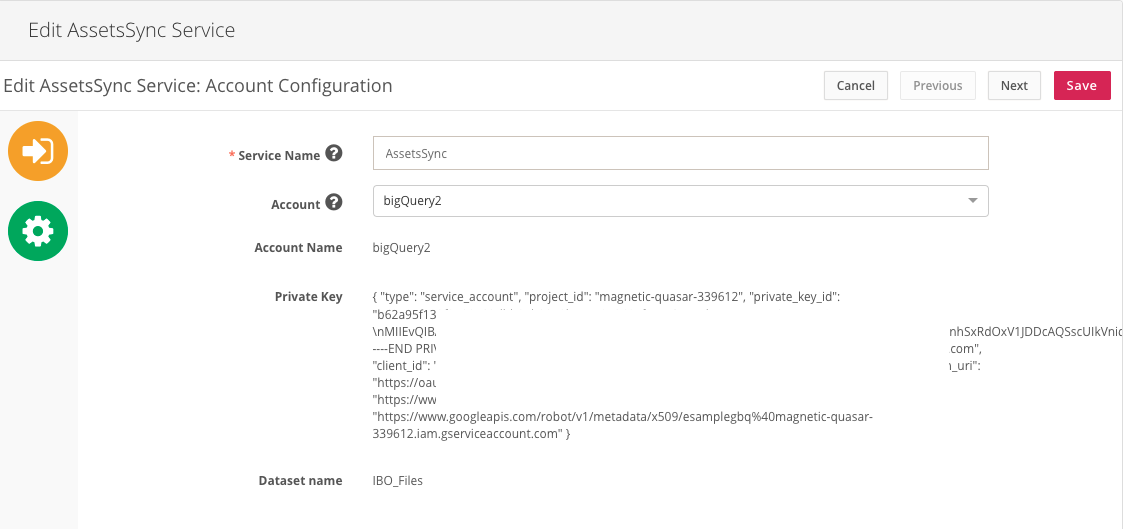
Step 1: Account selection / Configuration | |
Service Name | Unique name of the connected service. |
Account | Google Big Query Connected account: Select from the list of previously created or create new. |
Account name | Unique name of the account. Filled in automatically when a previously created connected account is selected. |
Private Key | Private key for the BigQuery project in Google Cloud. Filled in automatically when a previously created connected account is selected. |
Dataset Name | Name of the dataset created in the BigQuery project in Google Cloud. Filled in automatically when a previously created connected account is selected. |
Step 2: Service Configuration | |
Module | Module where scheduled action will be added to sync data to Google Big Query. |
Connected Modules | Module which data will be synced to the Google Big Query table. Several modules can be selected. |
Logs | Select types of logs to be exported along with the module data. Export of logs is applicable to all modules selected in the "Connected Modules" field. |
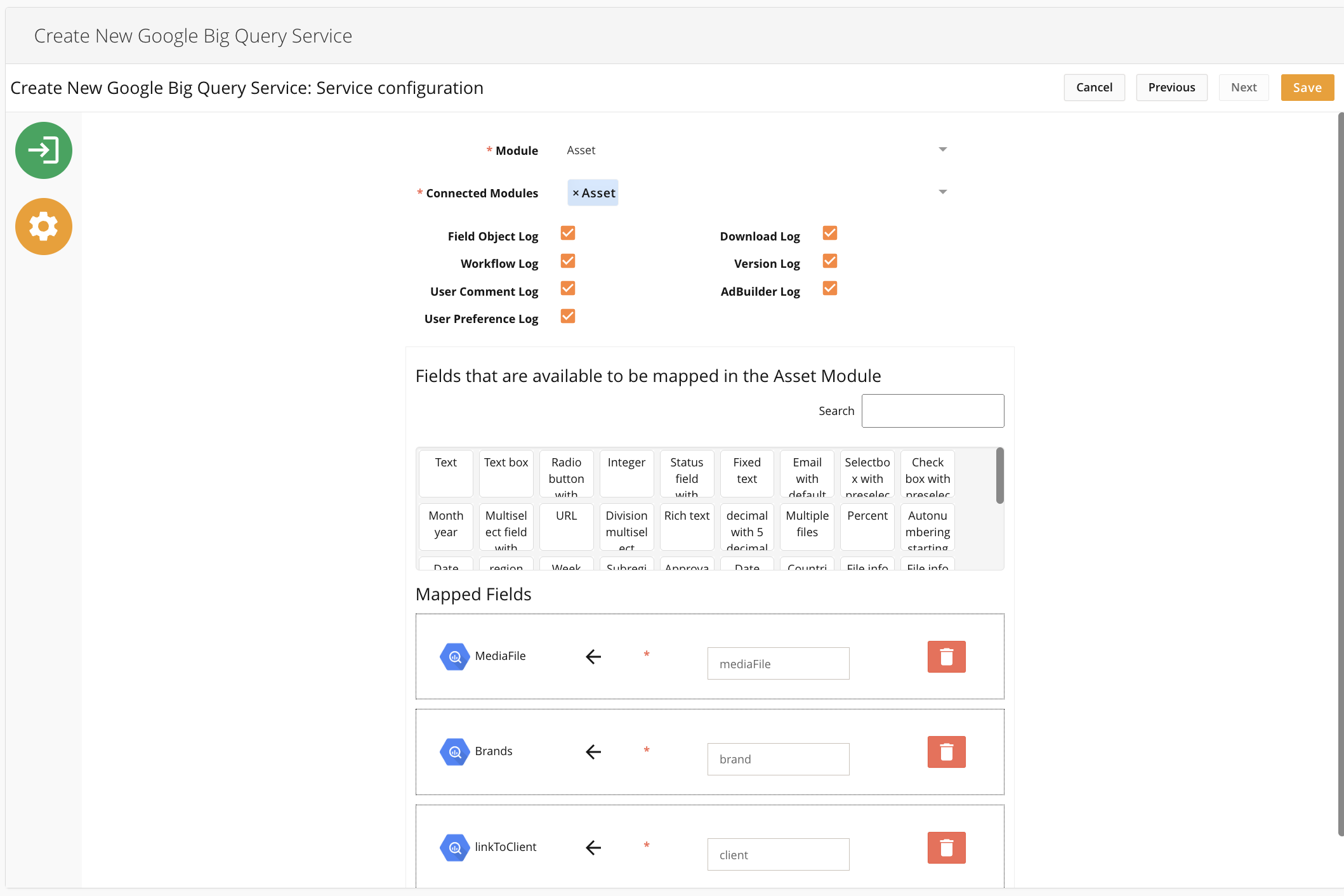
In the field mapping section, select fields that need to be synchronised and specify the mapping.
Even though righ-hand field is a free text field, note the following rules when specifying field names:
Whitespaces are not allowed
Special and national characters are not allonot use the following reserved sql key words in field names:
"add", "all", "alter", "and", "any", "as", "asc", "backup","between", "by", "case", "check", "column", "constraint", "create", "database", "default", "delete", "desc", "distinct", "drop", "exec", "exists", "foreign", "from", "full", "group", "having", "in", "index", "inner", "insert", "into", "is", "join", "key", "like", "limit", "not", "null", "or", "order", "outer", "primary", "procedure", "replace", "right", "rownum", "select", "set", "table", "top", "truncate", "union", "unique", "update", "values", "view", "where"
Action Configuration
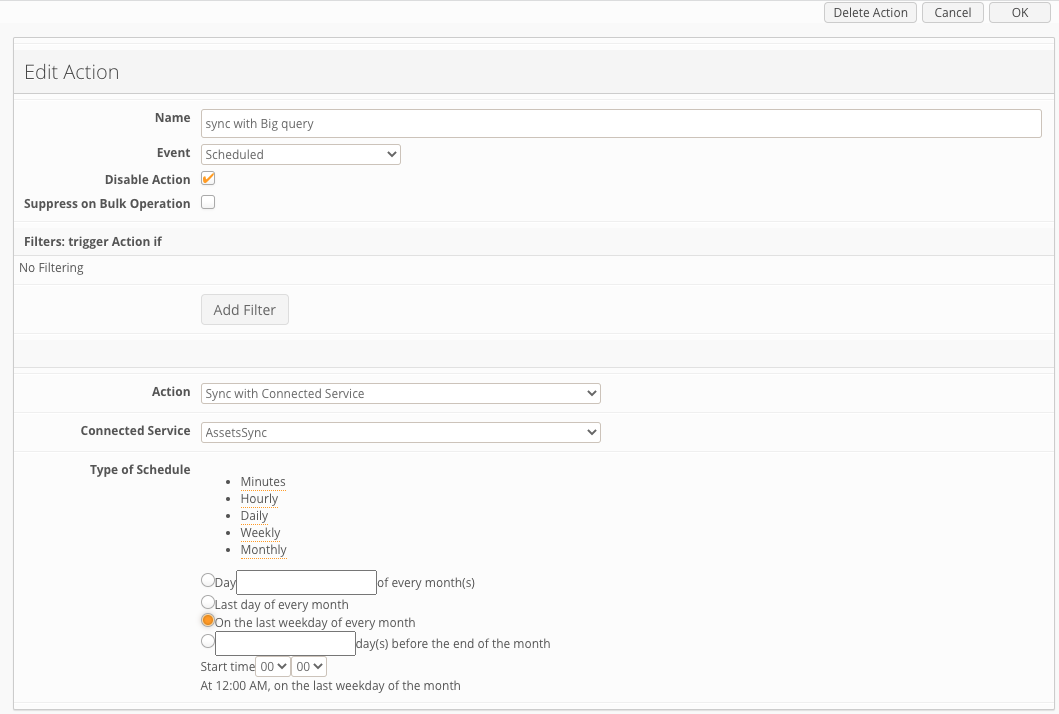
For the Google Big Query connected service to start working, a scheduled action needs to be created in the module that has been mapped in the "Module" field in the connected service configuration.
Syncronization with Google Big Query connected service is supported for "Scheduled" type of event only - other types of events are not supported.
Data Synchronization
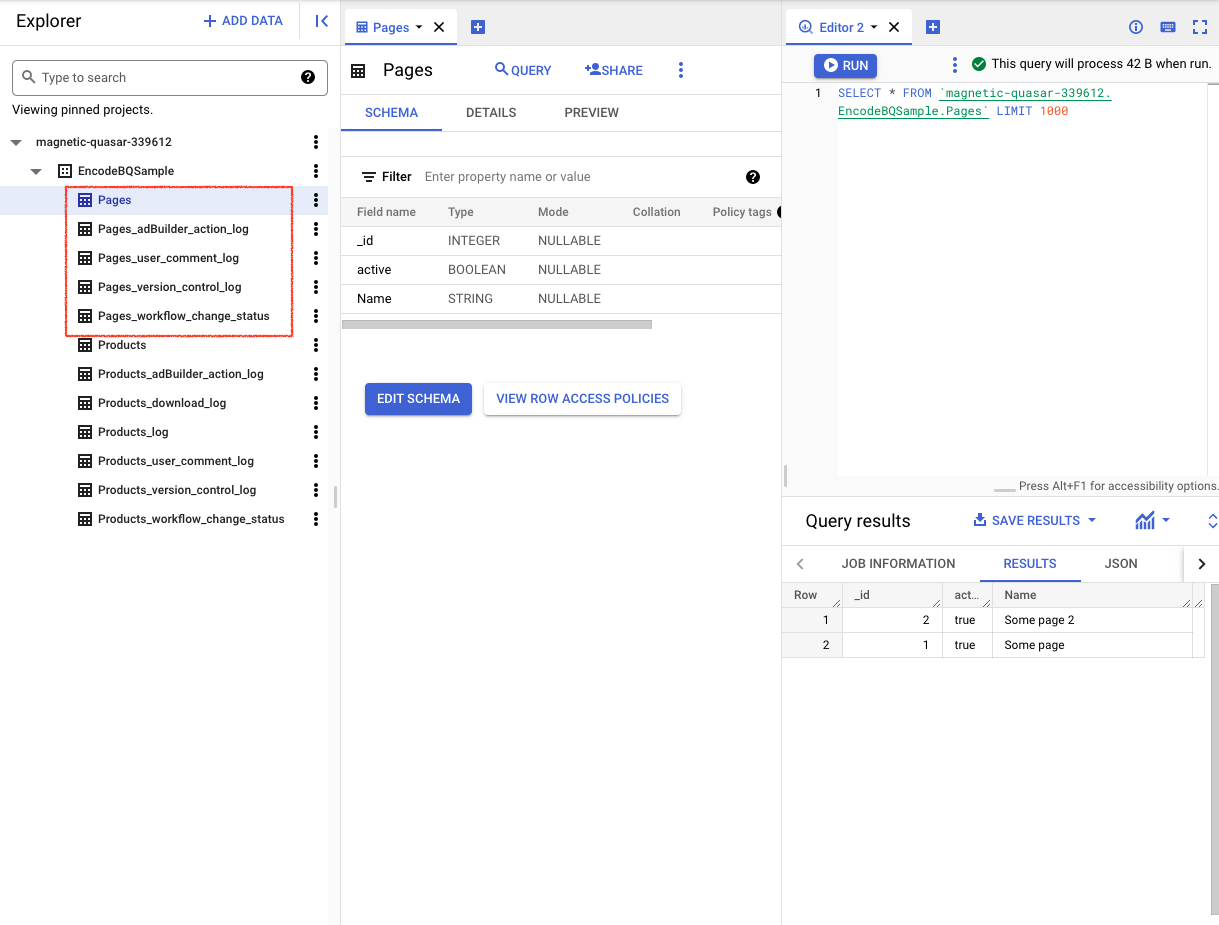
As a result of the data synchronisation by the Google BigQuery connected service, the following is created in the BigQuery schema:
Separate table with exported (synced) data for each module mapped
Separate table for each type of log selected in the connected service configuration
Synchronization Details
With every synchronisation of the module data, the table with data is re-created in Google BigQuery. Therefore, adding or deleting mappings will be reflected in the table in Google BigQuery on the next synchronisation. This should also be taken into account when setting up queries or intervals for sync, as at some point, the table with data may be unavailable while being re-created.
Tables with logs are not re-created on each synchronisation run - they are updated with new data (if any).
Required Permissions on the Google BigQuery service side
Dataset:
- bigquery.datasets.get
- bigquery. tables.create
- bigquery.tables.delete
- bigquery.tables.get
- bigquery.tables.updateData
Project:
- bigquery.jobs.create
Known Issues and Limitations
When setting up the schedule for synchronisation, take into account the volume of data and frequency. Every time module data is synced, the whole table with data is re-created in Google BigQuery. For large volumes of data (especially exporting millions of log records), synchronisation can take up to several hours.
The unmapping module in the connected service configuration does not delete the table in Google BigQuery.
Selected logs for export are applicable to all modules mapped. It is currently not possible to specify log export individually per module. As a workaround, create a separate connected service for each module.
Module and field option translations are not supported. Original (untranslated) value will be synced to the BigQuery table.
Module names are used as table names, and module names should comply with table name restrictions in BigQuery -https://cloud.google.com/bigquery/docs/tables#table_naming