Overview
A Merge PDF Rule is used within Creative Automation Print Studio to combine multiple PDFs into a single output file. This enables flexible document handling, such as repeating pages, arranging layouts, and defining output file names according to business needs.
Merge PDF Rules are created manually through Automation Rules, or automatically during migration if existing Merge PDF actions are detected on a site.
By applying merge PDF rules, you can streamline print production, control output layouts, and ensure files are generated with consistent structure and naming.
How to Create a Merge PDF Rule
To configure a Merge PDF rule, follow these steps:
Navigate to Automation Rules (see Automation Rules Overview for more details).
Click the Add Rule button.
Complete the Basic Info section:
Enter a Name and, optionally, a Description.
From the Type dropdown, select Merge PDF.
In the Conditions section, select a Module. If needed, specify Filter Criteria to configure the conditions that will trigger the rule.
Configure Actions by defining the merge settings:
Source File Field – Select the field in the specified module that contains the files to be merged.
Target Module – Select the module where the merged PDF will be created.
Target File Field – Choose the field within the Target Module where the merged PDF should be added.
Copies – Define how many times the source document should be repeated. Copies field is ignored when Fill Page is enabled
File Name Formula – Use Velocity expressions to define the output file name. For example:
If the field is empty, a default output name will be applied: mergedOutput.pdf
${ProcessedItems[0].fieldValue('name')}.pdf→ Uses the value from the field name of the first processed item.${ProcessedItems[0].fieldValue('name')}_${SiteId}_${date.get('yyyy-M-d')}.pdf→ Concatenates field value, site ID, and date.#foreach($item in $ProcessedItems)...${fileName}.pdf→ Combines values from each processed item.Conditional formulas can be used to output names depending on the number of items, for example:
#set($size = ${ProcessedItems.size()}) #if($size == 1) ${ProcessedItems[0].fieldValue('name')}.pdf #else ${ProcessedItems[0].fieldValue('name')}_${ProcessedItems[1].fieldValue('name')}.pdf #end
Field-To-Field Mapping – Select a pre-configured Many-to-One mapping.
Imposition – Decide whether to enable or disable imposition:
When enabled, connect to the Size App and specify the Size Field.
Define the Imposition Direction for how files will be arranged in the merged PDF.
Rotation – Decide whether to enable or disable rotation. When enabled, define which pages should be rotated: Odd, Even, or Odd and Even.
Margins – Specify Outer and Inner margins for the merged output.
Fill Page – Define whether Fill Page should be enabled (Yes/No). When enabled, the source document will be repeated until the page is full.
Click Save to confirm your settings and create the rule.
Notes: When using File Name Formula please note the following
All special characters are escaped and replaced with underscores in the output name.
If the output cannot fit the target size, the file will be merged without imposition.
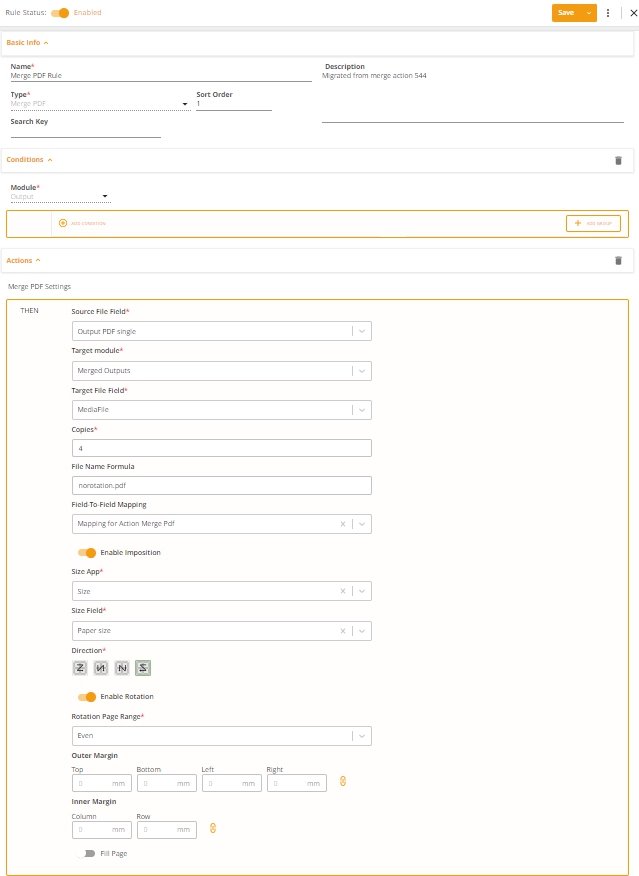
An example Merge PDF Automation Rule
Merge PDF Rule Applied
When a Merge PDF Rule is applied, the output will reflect the configured settings:
Repeating Pages – Source documents can be duplicated according to the Copies setting or until the page is filled.
Layout and Direction – Files are positioned within the PDF according to the chosen direction and size settings.
Rotation – Pages can be rotated consistently for odd, even, or all page numbers.
Naming – The final merged PDF is generated using the defined file name formula, ensuring consistent and meaningful output names.