Overview
A Generate PDF from Print Template (XSLT) Rule automates the creation of PDFs based on pre-configured print templates. When the rule’s conditions are met, the selected template(s) are processed, and the resulting PDF is automatically saved to a specified file field.
How to Create a Generate PDF from Print Template (XSLT) Rule
Rule Configuration
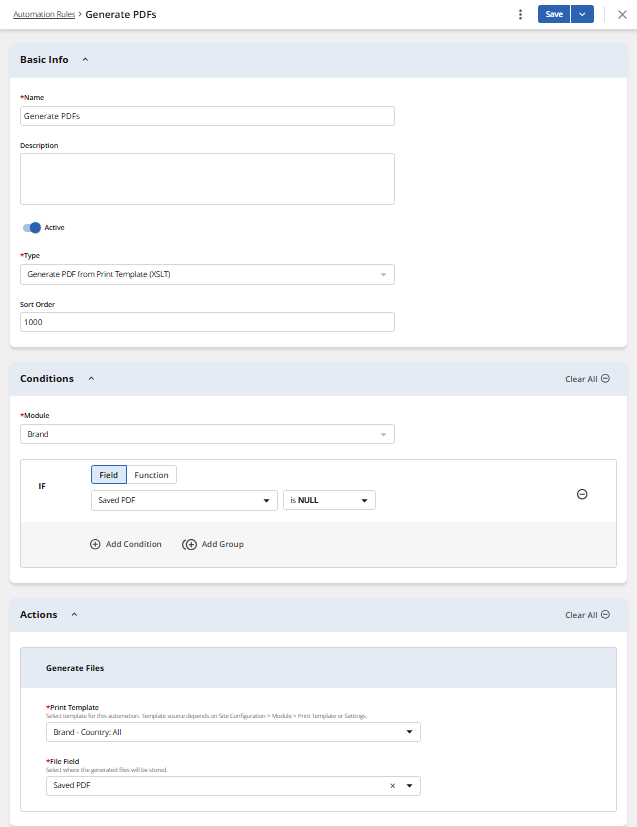
To configure a Generate PDF from Print Template (XSLT) rule, follow these steps:
Navigate to Automation Rules (see Automation Rules Overview for more details).
Click the Add Rule button.
Complete the Basic Info section:
Enter a Name and, optionally, a Description.
From the Type dropdown, select Generate PDF from Print Template (XSLT).
In the Conditions section, select a Module. If needed, specify Filter Criteria to configure the conditions that will trigger the rule.
Configure Actions
Select the Print Templates that will be generated. The template source depends on the Site Configuration → Module → Print Template Settings.
Select the File Field where the generated PDF will be stored (Only Universal File Fields (UFF) with a limit of 1 are supported).
Click Save to confirm your settings and create a rule.
Configuration of Workflow
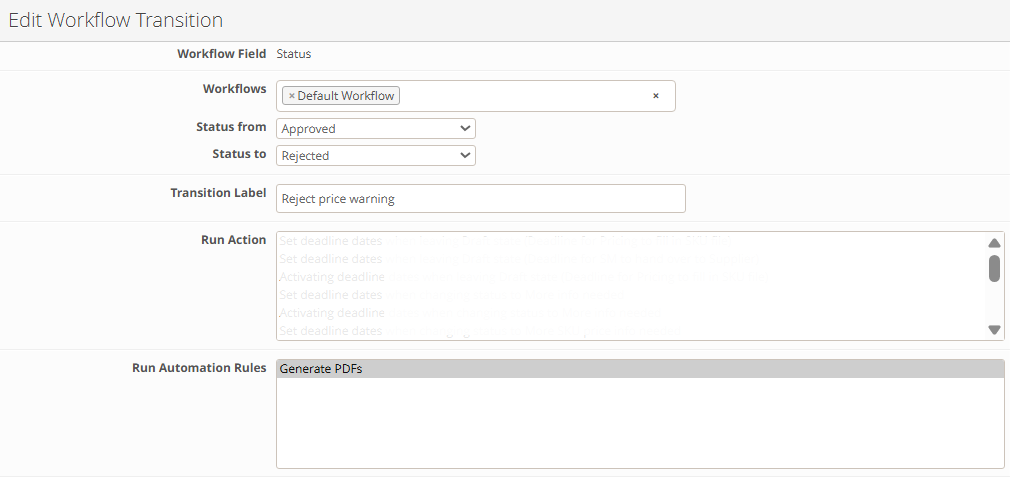
Go to Site Configuration → {Module} → Workflow
Locate the workflow transition that should trigger the rule and click Edit
In the Run Automation Rules section, select the rule you previously configured
Click OK to save your changes
Executing the Automation Rule
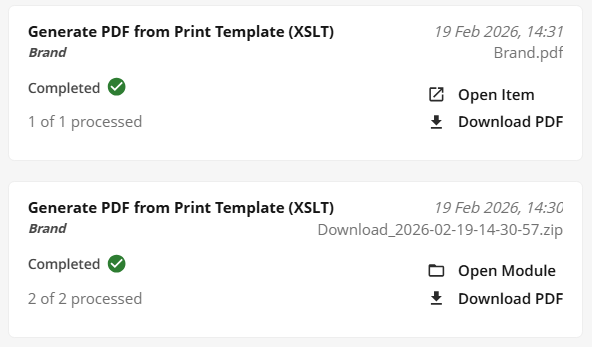
The rule can be triggered by status transitions across various contexts, including item view, bulk status updates, and transitions within the proofing view. Upon execution, the selected print template(s) will be automatically generated, and the resulting PDF will be uploaded against the chosen file field. A background job notification titled ‘Generate Print Template’ is generated and tracked for the user who initiated the status change. The notification includes an ‘Open Item’ button to access the specific item, or an ‘Open Module’ button in the case of a bulk status transition.
Key Considerations
Bypassing Restrictions: To ensure consistent automation, rules run under System Admin privileges. This means:
The rule ignores User Access Rights (e.g., "Export PDF" rights).
The rule ignores individual field-level access or module permissions.
Version Control is not mandatory for the target file field.
Note on Versioning: The "Increment Version" action is not triggered if a file is uploaded or updated via this Automation Rule.
Error Handling: There is no configuration-level validation for deleted templates or disabled "Download" permissions. If a configuration is invalid, the background job will fail with a detailed error log explaining the cause.
File Name Overwrite Logic: If an External Module is enabled, the Output File Name defined in the Module Settings will overwrite any name defined at the Print Template level. Please configure names at the Module level when using external exports.