How to enable Dark Mode
You can control how the application looks by choosing between different appearance modes. To change the mode:
Go to sidebar
Click User Profile Avatar
Select Appearance from the dropdown menu.
Choose one of the following options:
Bright – Uses a light mode with bright backgrounds and dark text.
Dark – Switches to a dark mode designed for low-light environments and reduced eye strain.
Match Browser – Automatically adjusts the mode based on your browser preference
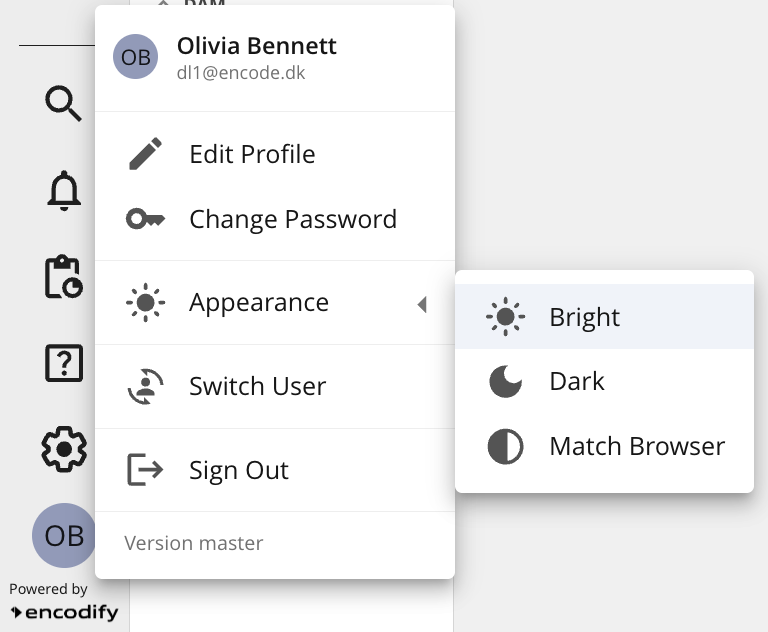
An image showing mode selection
Your mode selection is applied immediately and will remain active the next time you use the application.
Note:
“Bright” is a default mode
Client theme colours are ignored in Dark Mode - Encodify default theme is used instead(Pay attention: default Highlight Colour, Primary Button Colour, Status Colour can be adjusted for Dark Mode in Theme config.The more info how to configure theme can be found here)
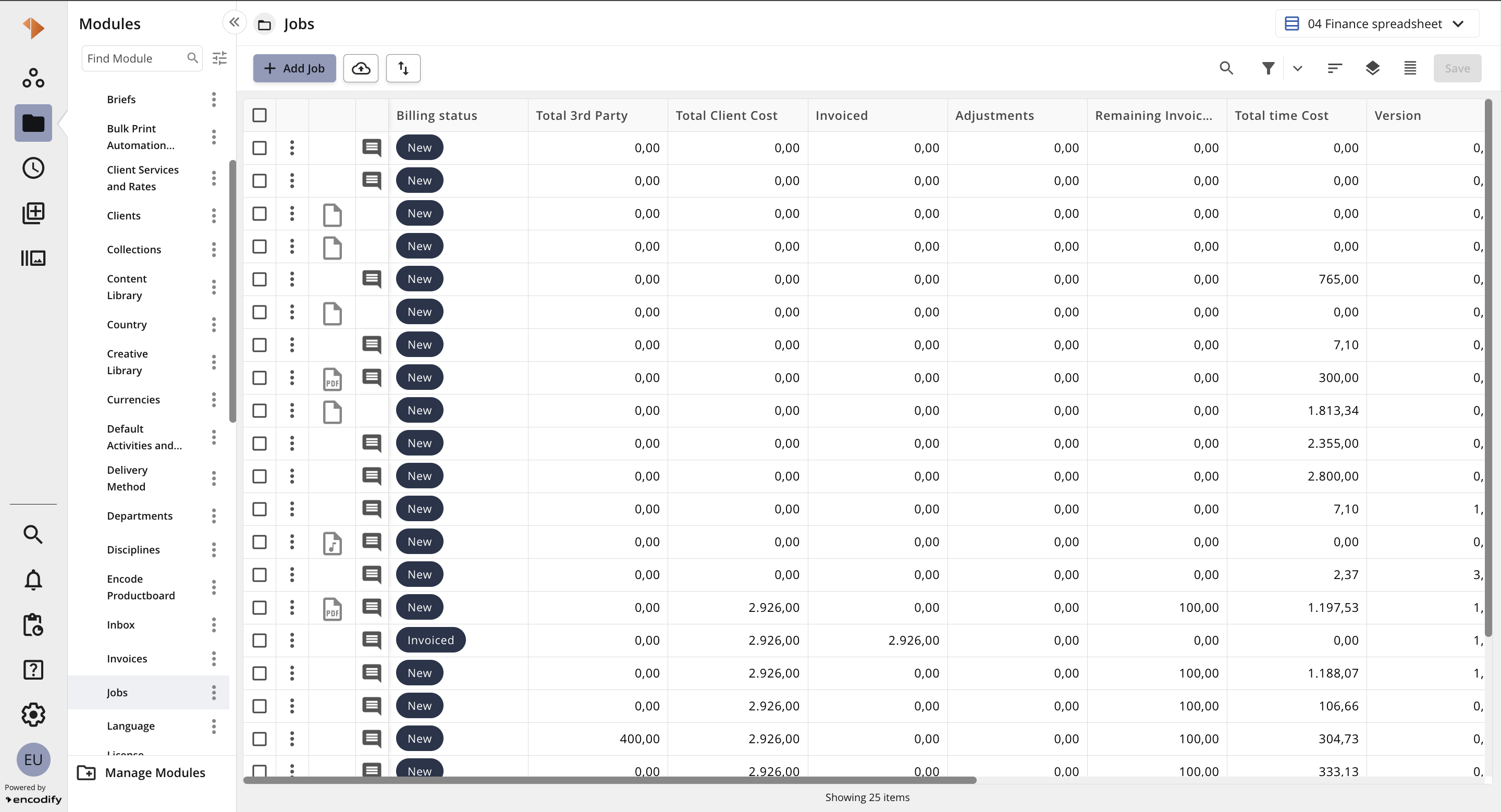
An image of the interface with enabled Bright Mode
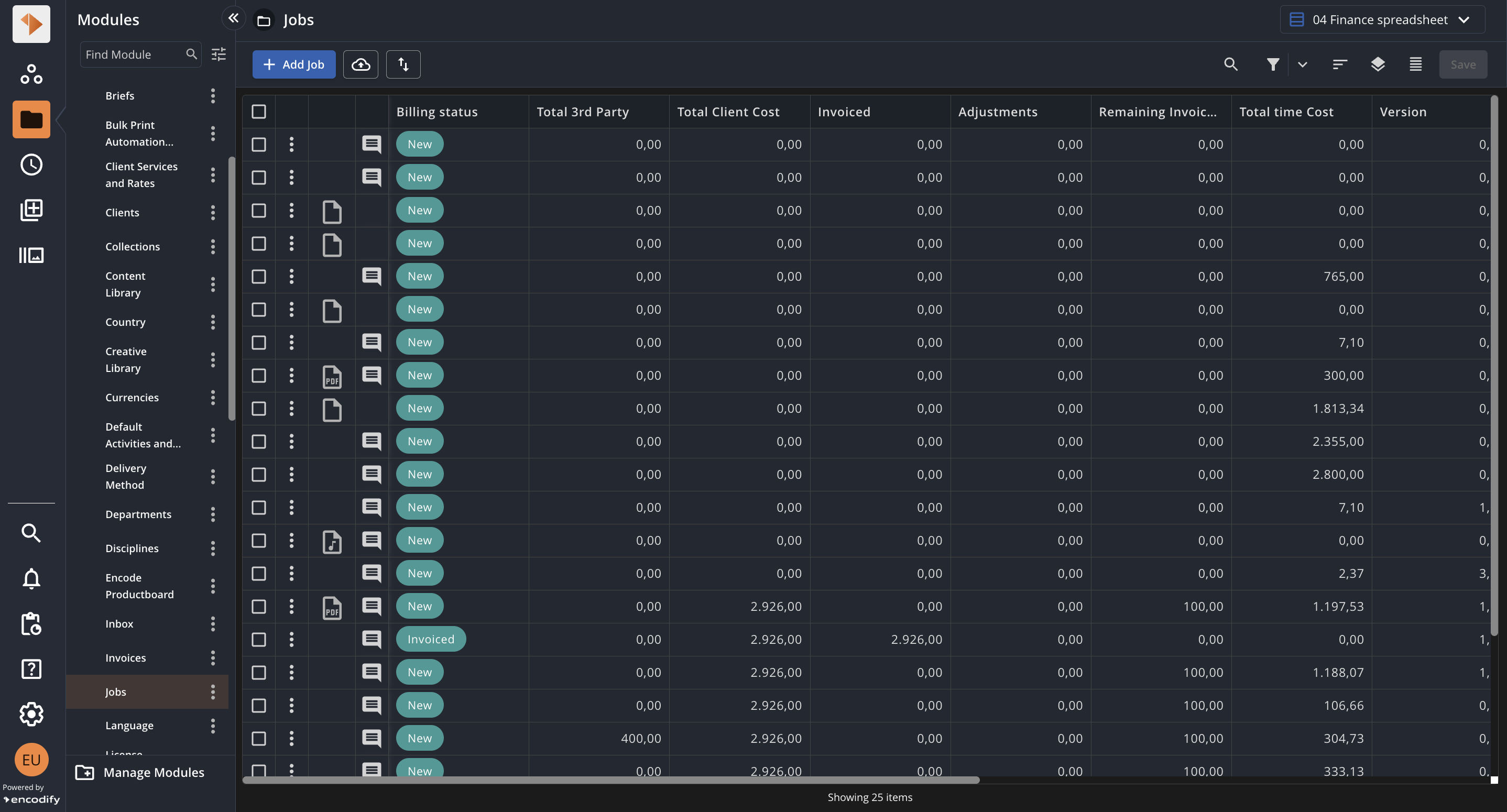
An image of the interface with enabled Bright Mode
Known Limitation: Dark Mode is not supported on JSP pages (Login, System/Site configuration, Briefing, Global Search, Reporting, AdBuilder Template), Privacy Policy acceptance and API Documentation pages.