Overview
The Bulk Paste feature allows you to bypass the manual "one-by-one" selection process in search filters. Instead of scrolling through long lists, you can now copy multiple values from external sources (like Excel or Google Sheets) and paste them directly into a filter to select them all at once.
How to Use Bulk Paste
Copy Your Data: Select a range of cells in Excel, a column in Google Sheets, or a list from a document.
Open the Filter: Click on any drop-down filter or column header filter within the application.
Paste (Ctrl+V or Cmd+V): Click into the search box and paste. The system will automatically parse the data, find matches, and select them.
.png)
How the System Reads Your List
The system uses Priority-Based Detection to identify where one item ends and the next begins. It looks for delimiters in this specific order:
Newlines (Vertical lists) — Highest Priority
Tabs (Horizontal rows)
Semicolons (
;)Commas (
,) — Lowest Priority
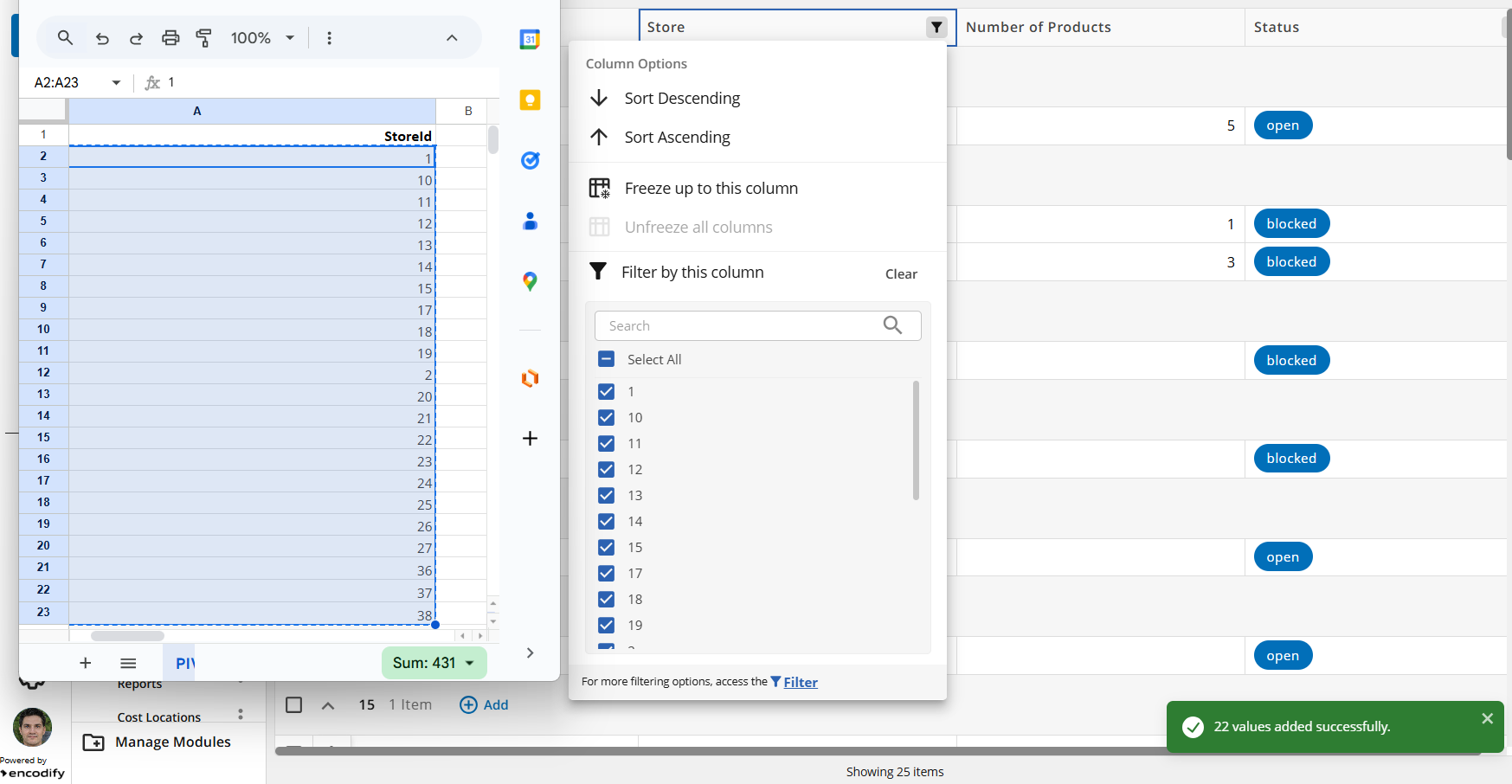
Example: If you paste a list that contains both semicolons and commas, the system will prioritize the semicolons as the "split point" and may leave the commas as part of the text string.
Note: The system automatically removes extra spaces and surrounding quotes (
'or") and is not case-sensitive.
Understanding Your Results
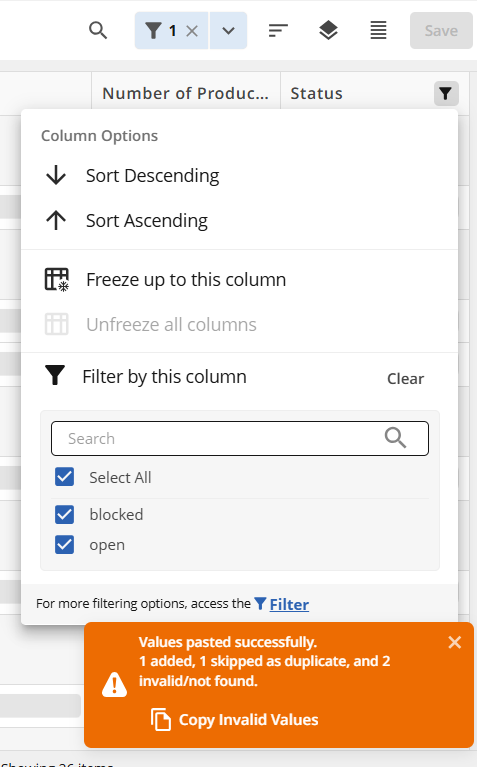
Once you paste, a notification summary will appear at the bottom of the screen.
Result | Meaning |
Added | Items found in the system and successfully selected. |
Skipped | Items that were already selected before you pasted. |
Invalid/Not Found | Items that do not exist in the database (e.g., typos). |
Handling Errors
If some items were "Not Found," click the .png) button in the notification. This copies only the failed items back to your clipboard so you can correct them and try again.
button in the notification. This copies only the failed items back to your clipboard so you can correct them and try again.
Important Limitations & Tips
Scope: This feature is specifically available for Selection Fields (dropdowns) and Module Links. It does not apply to free-text or date fields.
Entry Limit: There is a hard limit of 500 entries per paste. Any entries beyond this limit will be ignored.
"Show All Values" Toggle: If the "Show All Values" toggle is enabled, the entry limit is lower than 500 due to technical URL length restrictions.
If you see the error: "You have pasted too many options. Please try again with a smaller list," it means your list has exceeded the current character limit. Please reduce the number of items and paste in smaller batches.
Special Characters: If a filter option actually contains a comma (e.g., "Team, NA"), the system may split it into two items. To avoid this, copy that item as part of a newline-separated list instead of a comma-separated list.
Incompatibility:
Not available in TimelineV2 view.
Does not work for "Current User" filters or Automation Rules.
Numeric Filters: Be aware that the value
0is currently not supported in the filter list.