Version Control
When Version Control is enabled in the module, re-uploading the file into the file field will not delete the previous files, but store them as versions.
Versions are available from the File field context menu.
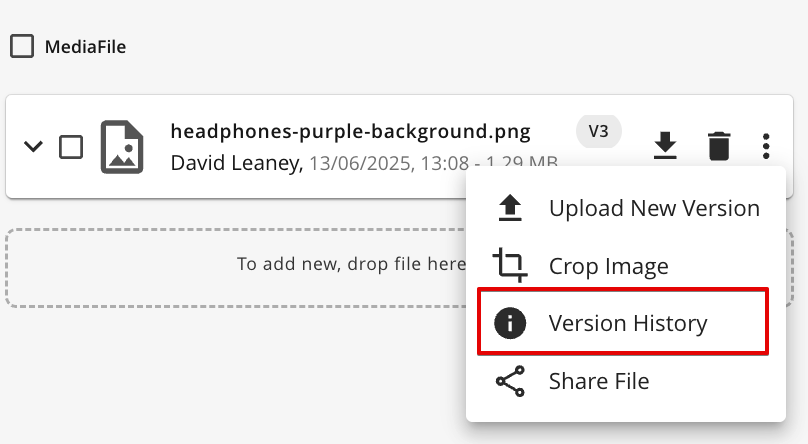
The last uploaded file is treated as the current version. Operation available for versions:
Download
Apply as Current Version
Delete
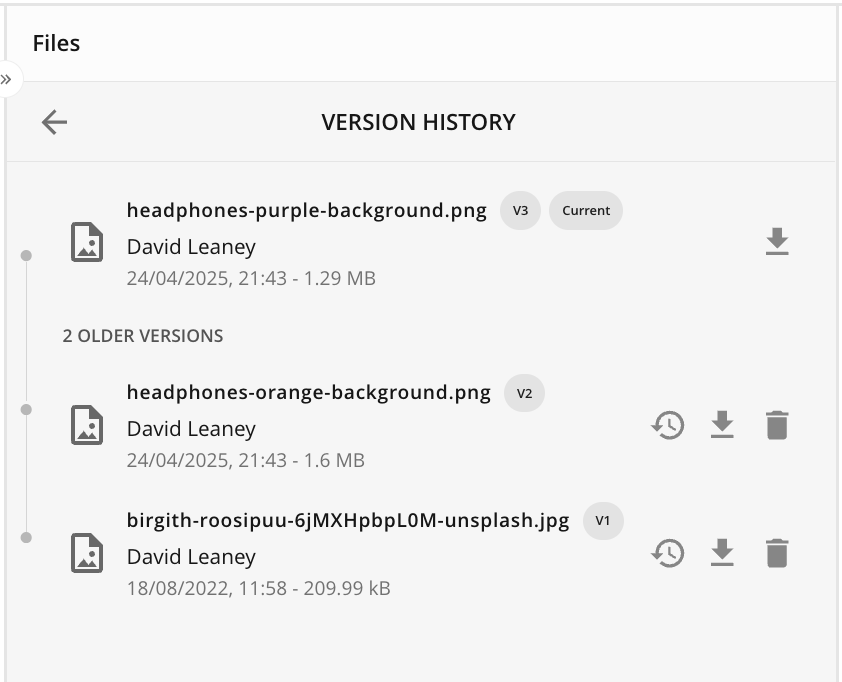
Actions | Visual Guide |
|---|---|
|
|
|
|
|
|

.png)

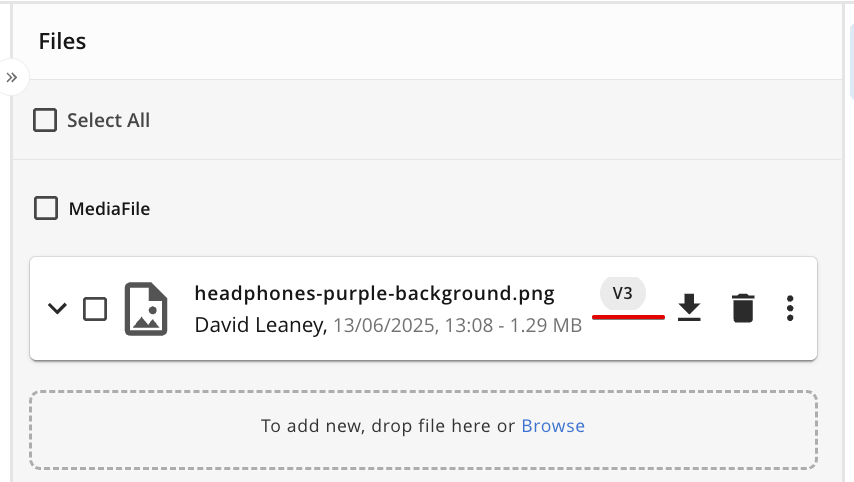
The current applied version of the upload file is displayed next to the file name.
Download and delete icons are visible in the file panel.
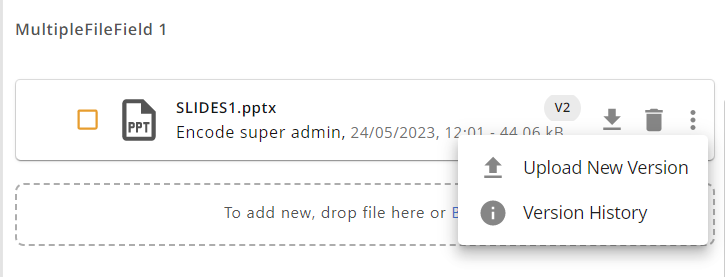
The vertical ellipsis icon contains available functions for the respective media file holder with the 'Version History' option.
.png)
'Upload New Version' options are available for multiple file fields (with or without a limit) by enabling more version uploads to the same file.
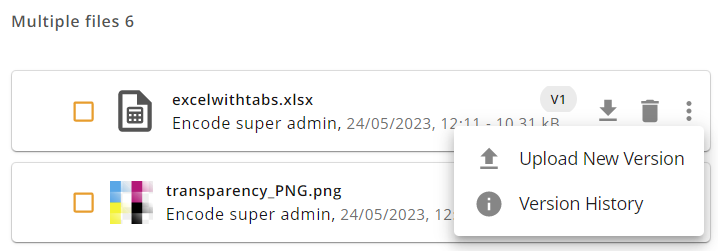
Version History displays the history of the files uploaded to the respective media holder with the version numbering applied to each file.
By default, the latest uploaded file is named as the 'Current' file and older versions are displayed at the bottom.
Older versions are displayed with the options to download, delete and Apply as Current Version.
If 'Apply as Current Version' is selected from one of the older versions, the selected file version will be mentioned as the 'current' version and the rest of the file versions are displayed as older versions.
.png)
All operations performed with versions are logged and can be viewed on the Log tab.
To enable the Version Log:
Note: Menu Elements are decommissioned for New UI in version 15 and replaced by Item Views
Create a new Menu Element with the name "Versions".
Enable "Show Version Control" in the Menu Element settings.
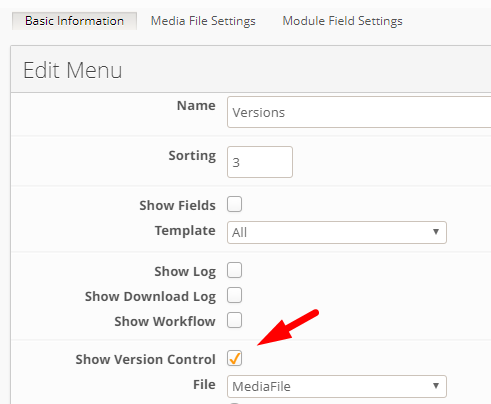
Version history logs will be displayed when you switch to the "Activity" side panel in the Item Info Sheet > 'Version Logs'
You can switch to the media file field by selecting the relevant file from the media file dropdown, and the corresponding version history log will be displayed.
.png)