Understanding the Team Time (Compliance)
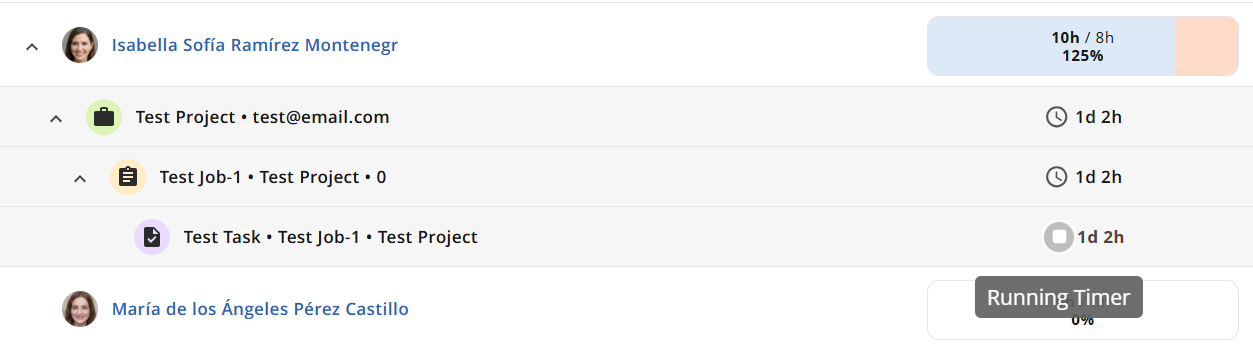
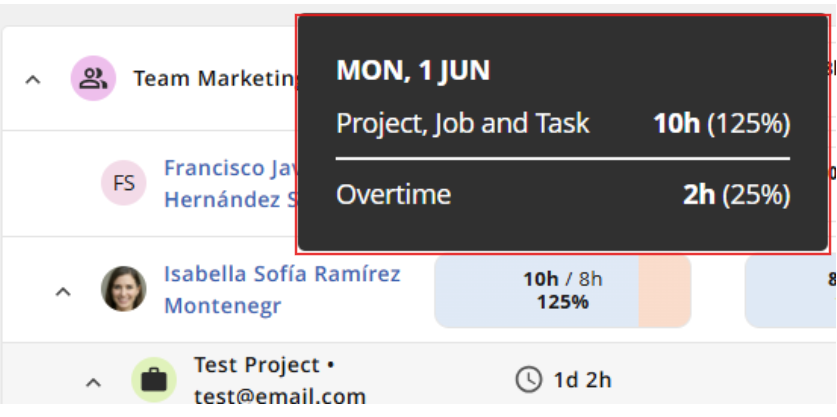
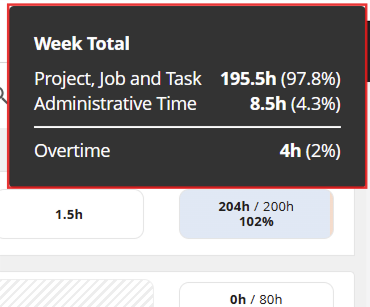
The Team Time page is available exclusively to Line Managers and provides a detailed overview of the hours logged by their team. This feature allows them to monitor time entries across projects and tasks, helping them identify who may be overworked or underutilised. By providing a clear summary of work logs, the Team Time helps ensure balanced workloads and efficient resource management within the team. Overtime is calculated for each team member against their own expected working time, based on their working schedule and office calendar. Team members without a working schedule display their logged time with no target. See Working Schedules and Office Calendar for more details.
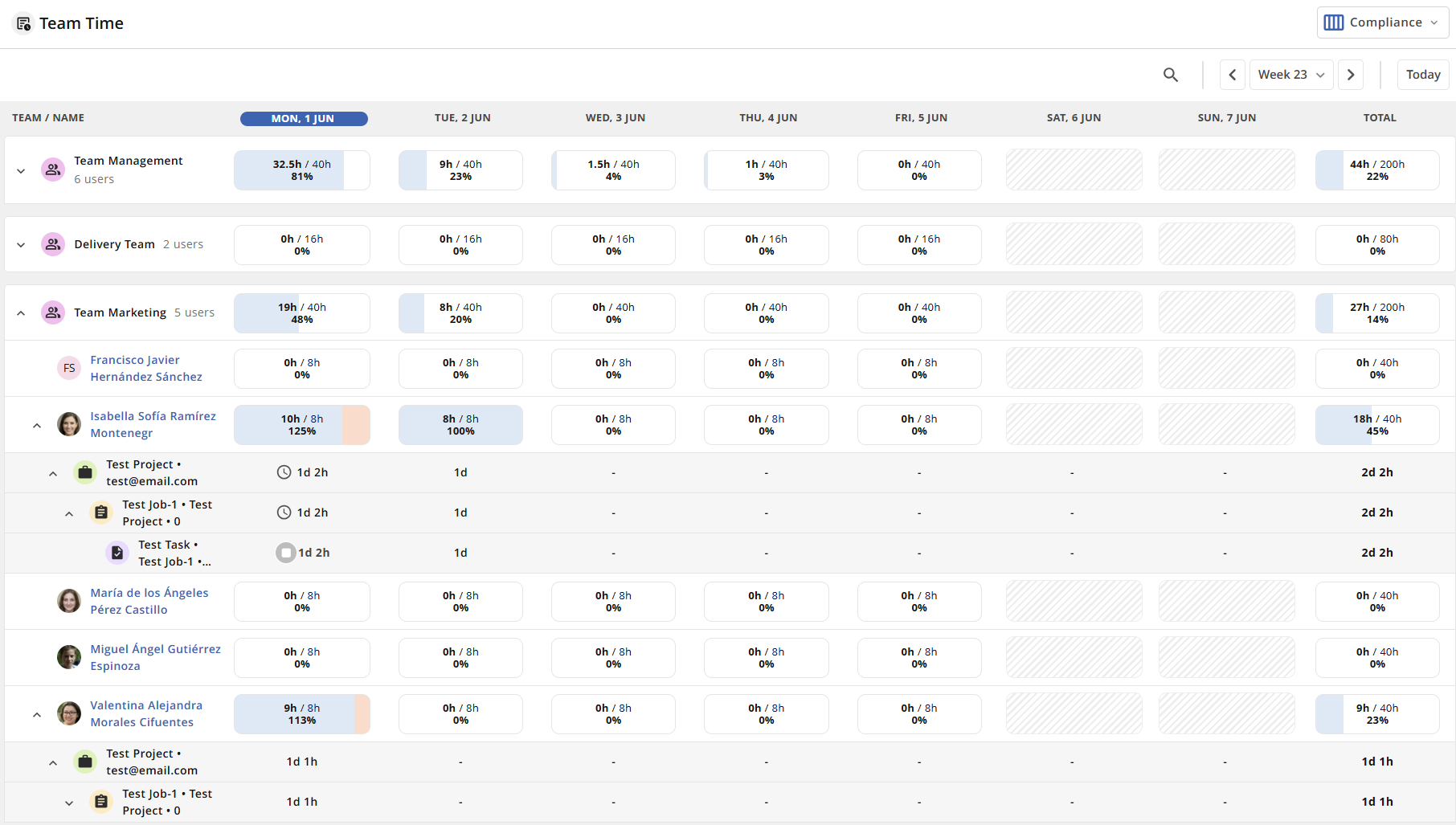
An image displaying the ‘Team Time’ view
The table below provides a quick overview of the Team Time view:
Action | Visual Guide |
|
Note: The sidebar is only available for line managers |
|
|
|
|
|
|
|
|
|
|
|
|
|
|
|
|
|
|
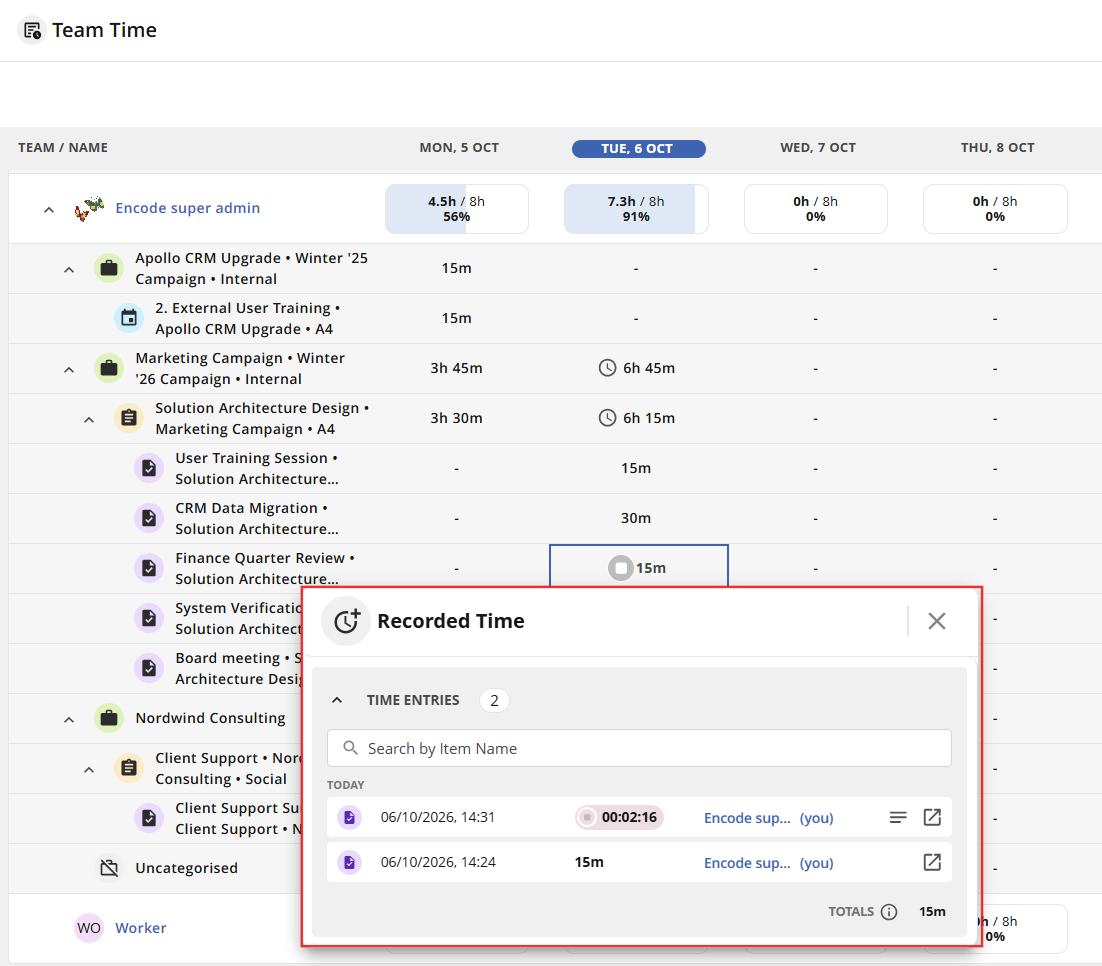
11. Clicking a day cell opens the Recorded Time pop-up in read-only mode, listing the time entries logged by the team member for that day. Running timers appear disabled, and clicking the Navigate icon opens the corresponding worklog. |
|

.png)