Overview
Maintenance Mode allows administrators to temporarily restrict normal (non-admin) users from logging into the system during code or database upgrades. Administrators always retain access, regardless of settings.
Enabling Maintenance Mode
Enable via System Configuration
To enable Maintenance Mode, follow these steps:
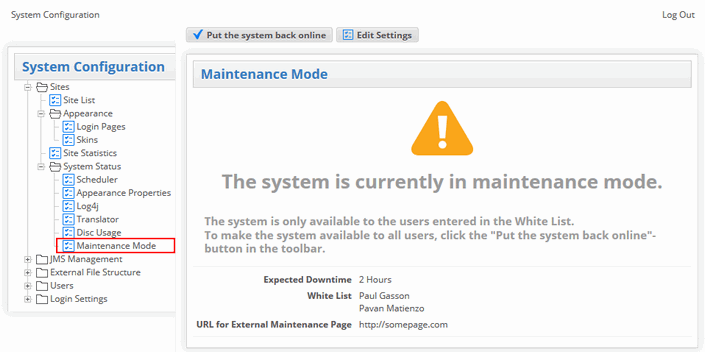
Navigate to System Configuration → System Status → Maintenance Mode
Open the Edit Settings window.
Specify the Expected Downtime – the period during which the system will be unavailable. A countdown timer is displayed to users.
In the Allow List, select users who should retain access during downtime. (System administrators always have access, even if not listed.)
(Optional) Specify a URL for an External Maintenance Page if you want to display a custom maintenance message.
Click Save Changes
Click Put system into maintenance mode.
When Maintenance Mode is enabled, users not on the Allow List will see a maintenance screen instead of the login page.
Standalone Script
System administrators can enable or disable Maintenance Mode without logging into the application by using the standalone script:
http://<serverURL>/<worker>/common/scripts/SystemMaintenanceMode.jspCustom Maintenance Pages
Custom maintenance pages can be configured in one of two ways.
Option 1: Local Pages – place a custom page in the server directory at
/web/WEB-INF/jsp/commonLegacy/custom, and specify the relative path to the page (for example,/common/custom/) in the Maintenance Mode settings.Option 2: External Pages – provide a full URL, including the protocol, to redirect users to a page on another domain. For example:
http://sitename.com.
Workaround for External Maintenance Pages
If the system does not display the expected maintenance message, you can use this URL format instead:
https://m.encode.dk/?time=<TIME>&site=<SITE_URL>
Where:
time = Expected downtime (e.g.,
10:15%2030/7-2021)site = URL to redirect users back to (e.g.,
https://SITENAME.encode.dk/)
Example:
https://m.encode.dk/?time=10:15%2030/7-2021&site=https://SITENAME.encode.dk/