Prerequisites
To share proofing content with guest users, ensure the following conditions are met:
Guest User feature flag is enabled in your environment.
User access rights are properly configured in the Guest Users app settings.
You have Read, Edit, Share, and Download rights to the relevant module(s).
You have access to both Proofing and Version Control features in the relevant module(s).
Multi-file Proofing enabled for sharing multi-file proofing in module settings.
Sharing Proofing Items with Guest Users
The  Share button will be available to any access right with the ‘Share to Proof’ permission (see Configuring the Guest Users App for more details) from the following locations:
In the workspace widget, by expanding the action menu for an individual item
In the module search view, by expanding the action menu for an individual item
In the form view, within the actions toolbar
Within Online Proofing
Within Compare Files mode
In Multi-file proofing toolbar
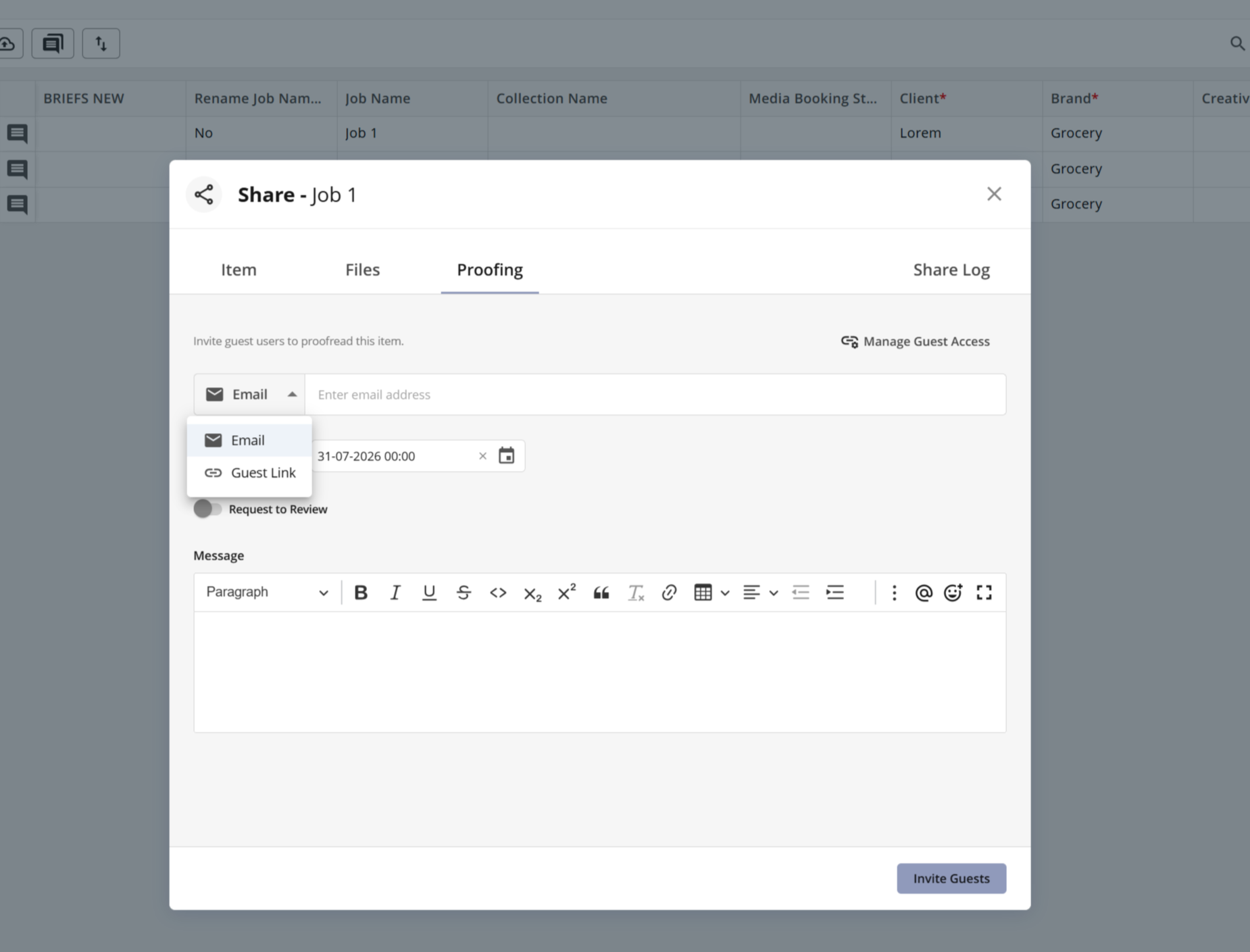
After clicking the .png) Share button, you can choose to share via Email or by generating a Guest Link. You can enter multiple email addresses (separated by commas) and set an access expiration date. When sharing via email, you can also include a custom message. Clicking Invite Guests will send an individual email to each recipient, each containing a unique share link, or generate a Guest Link that can be used for sharing.
Share button, you can choose to share via Email or by generating a Guest Link. You can enter multiple email addresses (separated by commas) and set an access expiration date. When sharing via email, you can also include a custom message. Clicking Invite Guests will send an individual email to each recipient, each containing a unique share link, or generate a Guest Link that can be used for sharing.
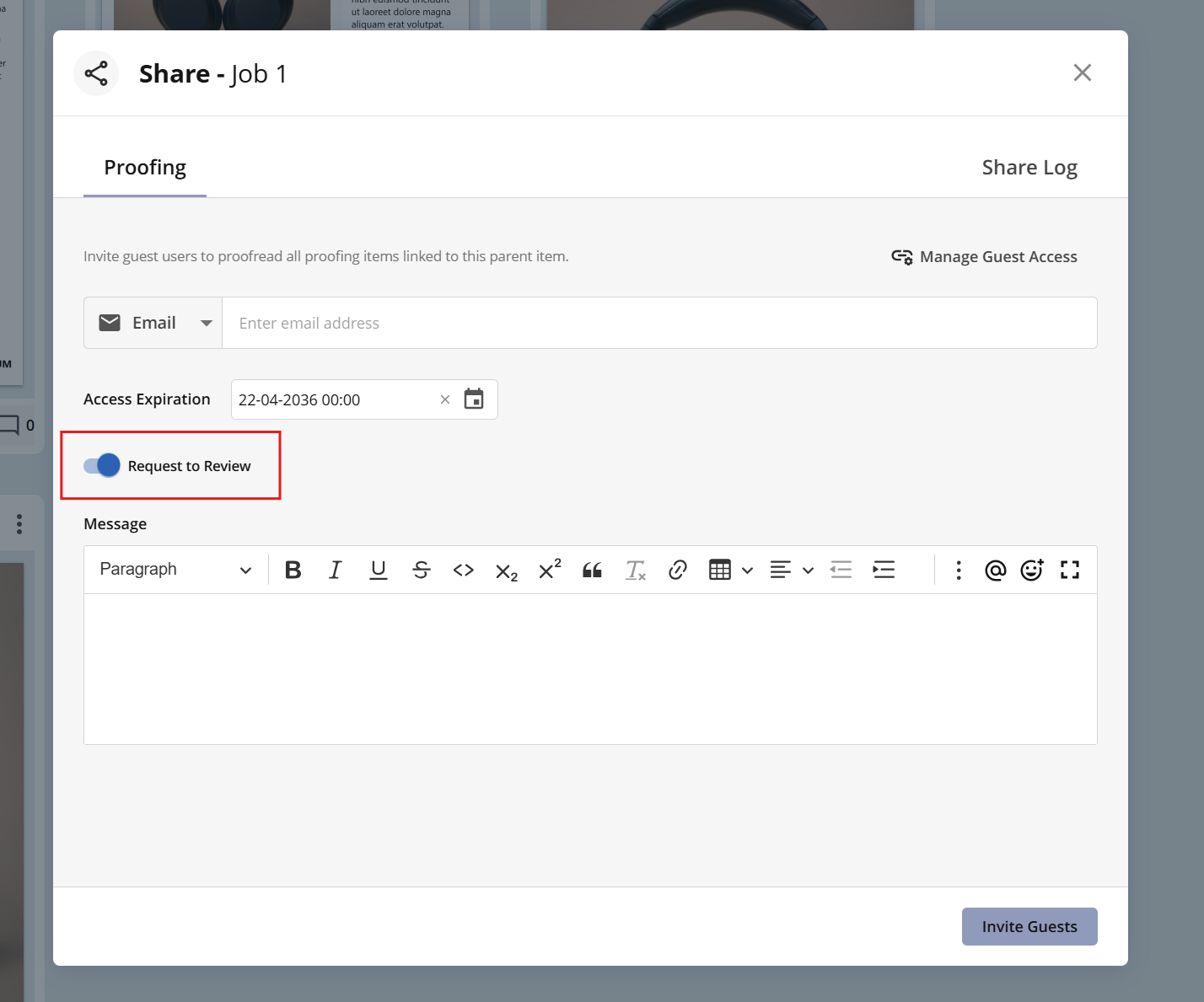
Request to Review
Guest users can be allowed to review proofing items if the Review feature is enabled. This allows assigned reviewers to make a decision (for example, Approved or Rejected) directly in the proofing view. Sending an invitation to guest users with the Request to Review option enabled automatically grants the guest users review access to the shared proofing items.
The toggle is disabled by default. Invitations sent without Request to Review enabled will share the proofing items with guest users without allowing them to change the review status.
Known Behaviour:
Review permission persists across subsequent shares for the same guest user once enabled. Once ‘Request to Review’ permission is granted, it persists across all subsequent shares sent to the same guest user - even if the toggle is disabled in later invitations - allowing them to continue reviewing the proofing child items.
create access to Review module should be granted to a user sharing the item(s).
Generating Guest Links
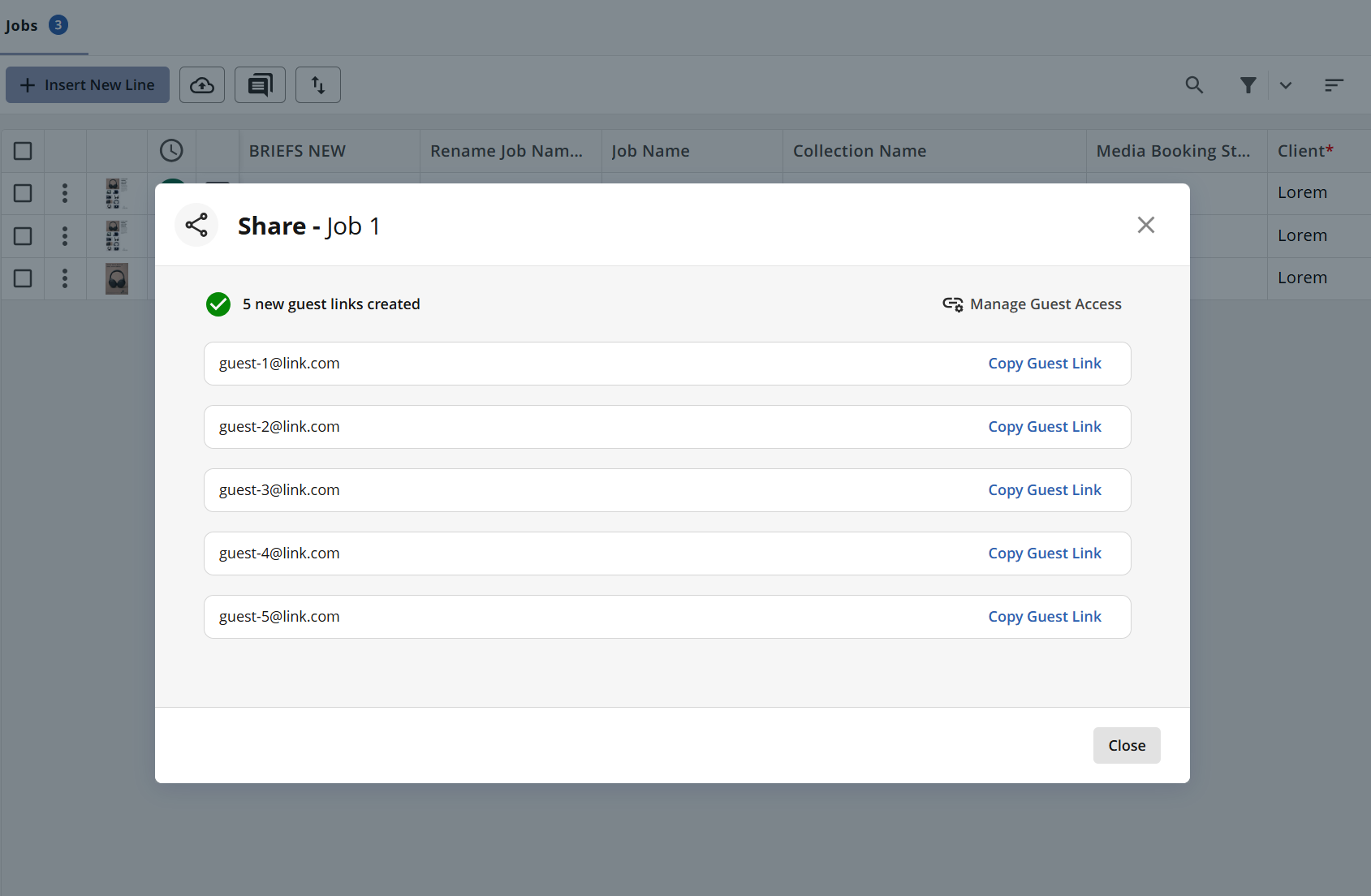
After Guest Links are created, they are displayed on the screen and ready to be copied. The links are also available in the Manage Guest Access screen.
Known Behaviour:
It is possible to share a proof that expires today, if expiration time is set before the current time.
Access expiration timestamp is updated once a day for shared link.
If a user has overlapping access (i.e. a proofing item is shared with the same user via both single-file proofing and multi-file proofing), revoking one share does not terminate the other.
Managing Guest User Access
By clicking the Manage Guest Access button, you can view both active and inactive share links associated with guest users. Both tabs provide you with the ability to manage these shares, offering full control over access to the content. Lets understand the two tabs:
In the Active tab, you can click Change Expiration to update the expiration date of an existing share, or Revoke Access to immediately remove access. For Guest Links, you can also copy the previously generated link with Copy Guest Link.
In the Inactive tab, you can click Change Expiration to modify the expiration date of a previously expired share. Entering a date in the future will reactivate the previous share link, though no additional email notification will be sent.
Single-file Proofing: It’s important to note that only one active share link can exist for a unique email address per item. If you need to reshare an item with the same email address, it can be done from the Inactive tab as specified above.
Multi-file Proofing: It is possible to share Multi-file Proofing with the same guest user multiple times. In these cases, a new Guest Link is generated for each share. All generated links are managed separately in the Manage Guest Access screen.
Additionally, It is also possible to share the same items multiple times with the same guest user via Guest Link. However, sharing the same item multiple times with the same guest user is not supported via email.
.png)
Share Log
The Proofing Share Logs provide an audit trail of all activity related to sharing with guest users. Each record captures key information such as the date of the activity, sharing type (e.g. Proofing or Multi-file Proofing), activity type, and who triggered the action.
Share Logs also shows how the content was shared (via email or Guest Link), who it was shared with, the expiration date, and whether Request to Review was enabled. All activities are stored as individual records and can be searched for easy tracking and management of guest access.
For proofing items shared via multi-file proofing, share information is available only in the multi-file proofing share window. The share log opened from the single item view will be empty, and vice versa.
.png)
.png)
Accessing the shared proof
When a guest user accesses the shared content via a direct Guest Link, opening the link will take them straight to the proofing view. No login is required to view or interact with the shared content.
When the guest user is invited via Email, by clicking the link in the share email notification, they will be directed to the login page. They will need to enter the email address associated with the share in order to gain access.
Important: A guest user will have a maximum of 5 attempts to log in successfully using email. If all attempts are unsuccessful, the guest user associated with that share link will be inactivated.
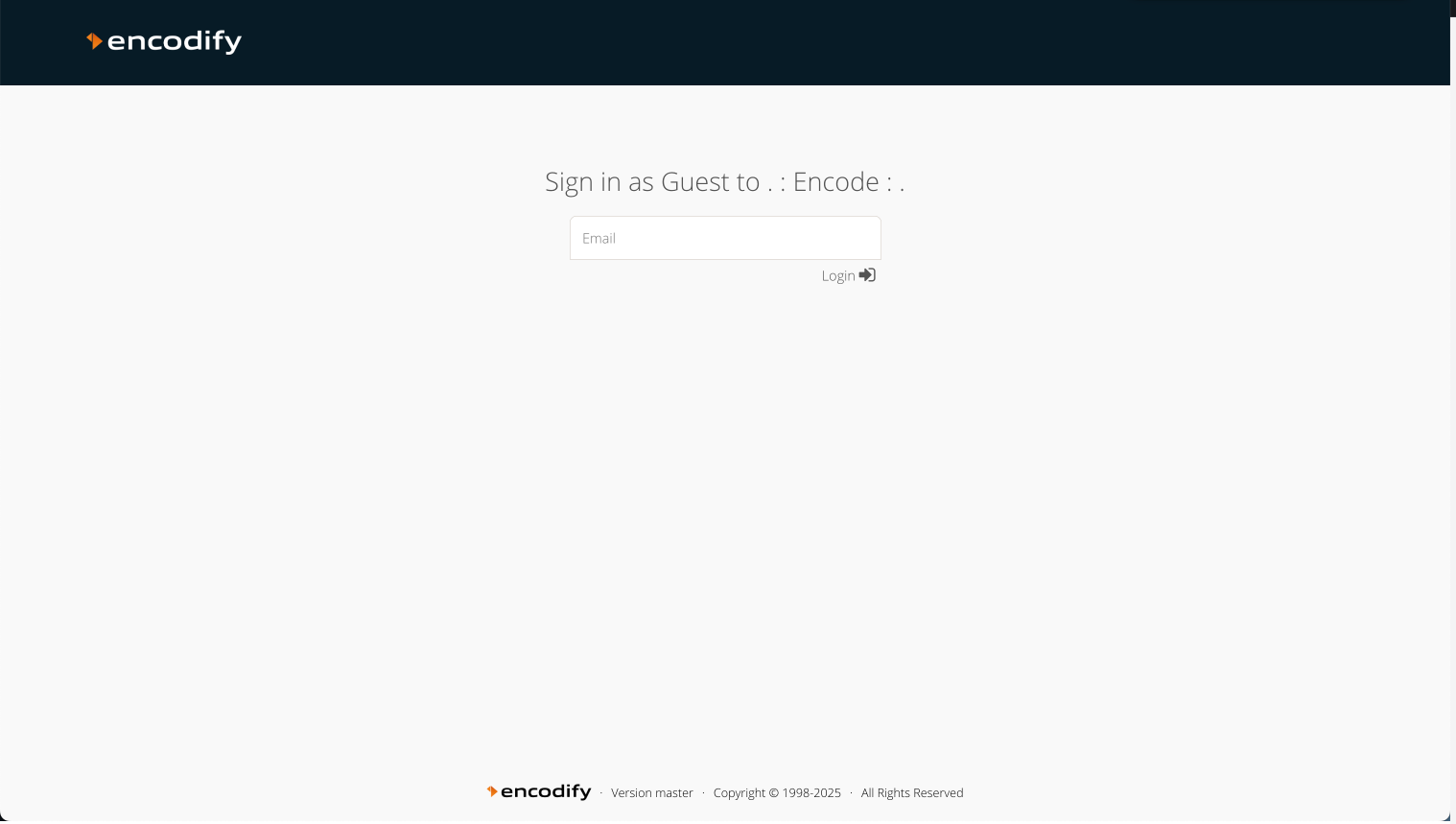
Login screen for guest user authentication with email link
Once the guest user has successfully logged in, they will be redirected to online proofing, where they can create and edit comments and annotations on the shared item. Only lavender colour notes are available to guest users with access rights.
After the file review is complete, the proofing viewer can be closed, or the Back button can be clicked to log out.
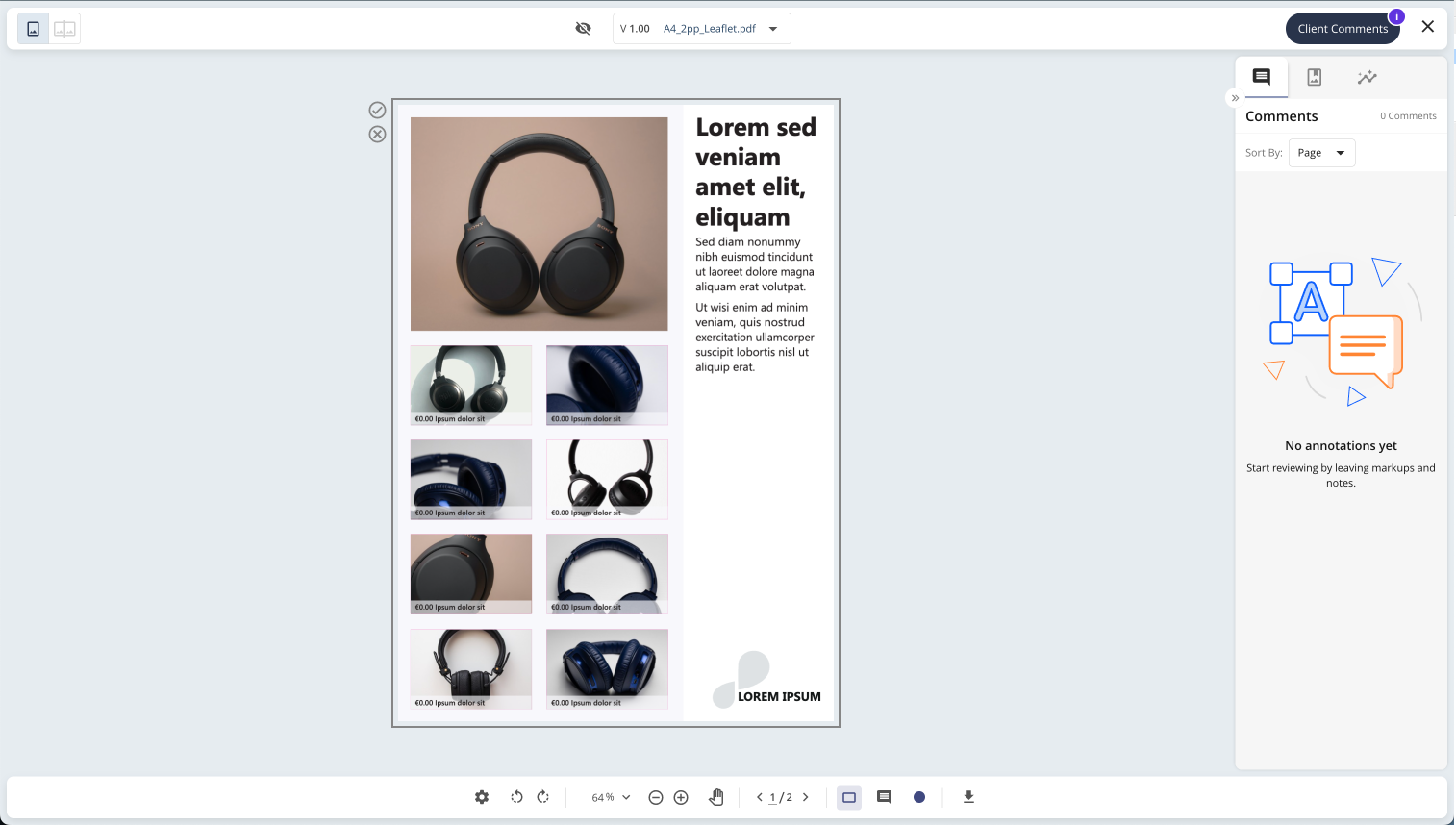
The proofing experience for guest users after authentication
Sharing Multi-File Proofing Items with Guest Users
Multi-file proofing Share button is available to any access right in the bottom toolbar in multi-file proofing view.
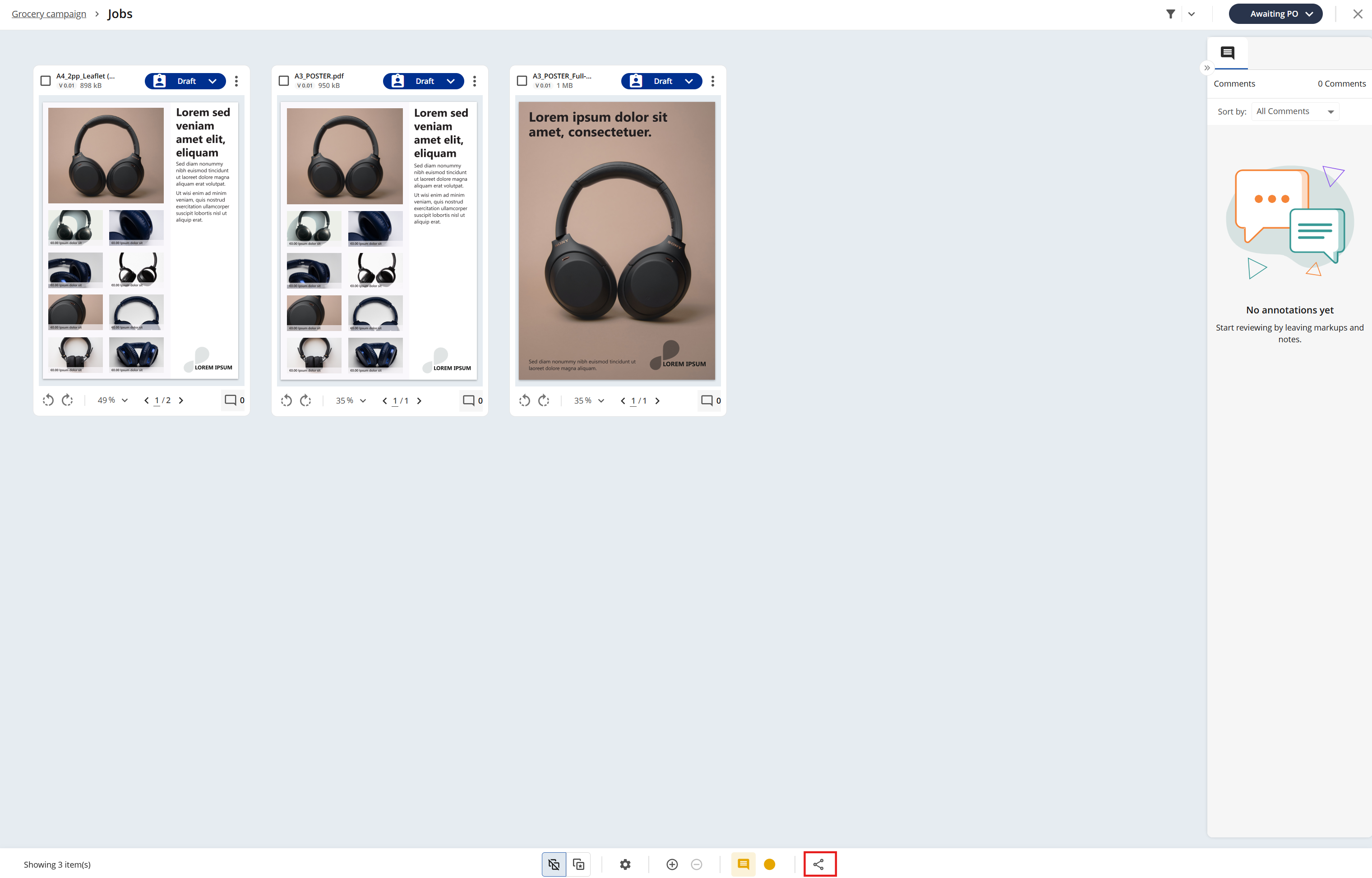
Image displaying multi-file proofing view with Share option available in toolbar
After clicking the Sharebutton, a share modal similar to single-file proofing is displayed. It allows you to share the parent item together with its related child items with guest users, either via Email or by generating a Guest Link. Guest users can access the shared content either through the link received via email or by using a direct guest link. In both cases, access behaves the same way as in single-file proofing, except that guest users are taken directly to the multi-file proofing view.
Guest Link Behaviour in Multi-file Proofing
Updating expiration does not modify items associated with a shared resource
Updating the expiration date of a shared proofing link does not alter the set of child items included in the original sharing. The content of the proofing session is determined by the sharedResourceId embedded in the guest user URL. This identifier references a fixed sharing batch created at the time of sharing.
Newly added items to the parent item are not included when the expiration is updated. The quantity of shared child items may only change if an originally shared child item is deleted.
Updating the expiration extends the validity of the existing shared resource without modifying its contents. The proofing view displays only the child items associated with the original batch at the time of sharing.