Overview
Important: The FTP Connected Service will be enabled by default within your infrastructure. It does NOT require an Encodify administrator to apply any adjustments to your infrastructure
In our system, it is possible to configure FTP, FTPS, FTPES or SFTP connections to import field and file content.
Feature flag
Property name | In webapp.yaml | Value format |
enable.connections.ftp | starting from 9.102.0 encode: webapp: connections: list: - type: FTP enabled-sites: '*' | [*] | [SiteID] |
Starting from v.19.0.0, the "FTP" feature flag is not needed to enable/disable "FTP Connected Service"!!!
"FTP Connected Service" will always be enabled for all sites by default.
FTP Service Configuration
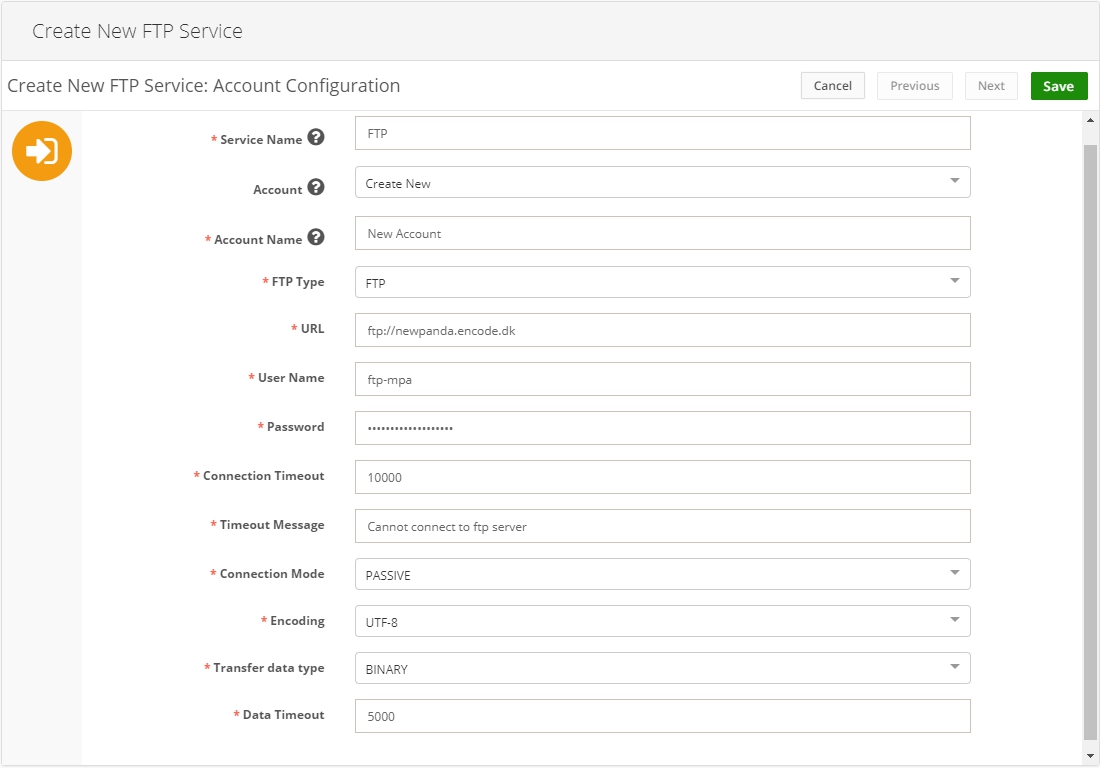
Parameter | Description |
Service Name | Descriptive name of the integration service |
Account | You can select from existing accounts or leave “Create new…” to create the new one on this step |
Account Name | Descriptive name of the connected account |
FTP Type | FTP SFTP FTPS FTPES
|
URL | URL to the FTP system you want to connect to. FTP URL scheme and FTP Type should match |
User Name | User login name |
Password | User password |
Connection Timeout | Time during which the system is trying to get a response from FTP. If the time elapsed and no response is received, the timeout message will be shown |
Timeout Message | A message to be displayed if FTP is not available during the specified timeout |
Connection Mode | PASSIVE (The client issues a PASV command to indicate that it will wait “passively” for the server to supply an IP and port number, after which the client will create a Data Connection to the server.) ACTIVE (The client issues a PORT command to the server signalling that it will “actively” provide an IP and port number to open the Data Connection back to the client.) *The field becomes hidden when the SFTP type is selected |
Encoding | UTF-8 ISO-8859-1 *The field becomes hidden when the SFTP type is selected |
Transfer data type | Binary ASCII *The field becomes hidden when the SFTP type is selected |
Data Timeout | Time during which the system is waiting to read data *The field becomes hidden when the SFTP type is selected |
On saving the service, the system validates the connection to the server. Correspondent message appears if the connection fails:
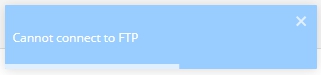
Note! Service will not be saved with a failed connection, but the account will. In this case, the account can be edited only from the Connected Accounts list.
Once the service is configured, it can be used in Scheduled Import action.