Overview
Merge PDF allows you to combine multiple files from inline records into a single, continuous PDF that is automatically downloaded. It is particularly useful for generating consolidated reports, presentation-ready bundles, or reviewing all pages in one document. Currently, this feature is only supported for Inline modules.
How to configure Download Merge PDF
To enable Download Merge PDF, follow these steps:
Navigate to the Module View Library (see Manage Views for more details).
Locate and open the Item View where you want to enable the feature.
In the Inline Module settings, enable Merge PDF.
From the Media Holder for Merge PDF dropdown, select the File field to be used.
Only files from this field will be included in the merged PDF.
Select a field in Filename Prefix for Merge PDF to define the naming format of the generated file.
Click Save to apply your changes.
.png)
An image highlighting the configuration of Enable Merge PDF from an Inline Module View configuration
Understanding Download Merge PDF
Note: A user will need to have Read, Download and Bulk Merge PDF access to be able to download a merged PDF. Additionally, Download access to the Media Holder and Read access to the file field are required.
Where to find Download Merge PDF
Bulk Operations allow you to perform actions on multiple items simultaneously, directly from a workspace or module view. To get started, select the items you want to work with. Once selected, the Bulk Operations toolbar will appear at the top of the screen.
When multiple items are selected from an inline module, the  Download Merge PDF button will become active. Selecting this option will generate a single, continuous PDF from the chosen files, which will then be automatically downloaded.
Note: If no file is present or a selected file is not a PDF (e.g. a video), those files will be ignored during the merge process.
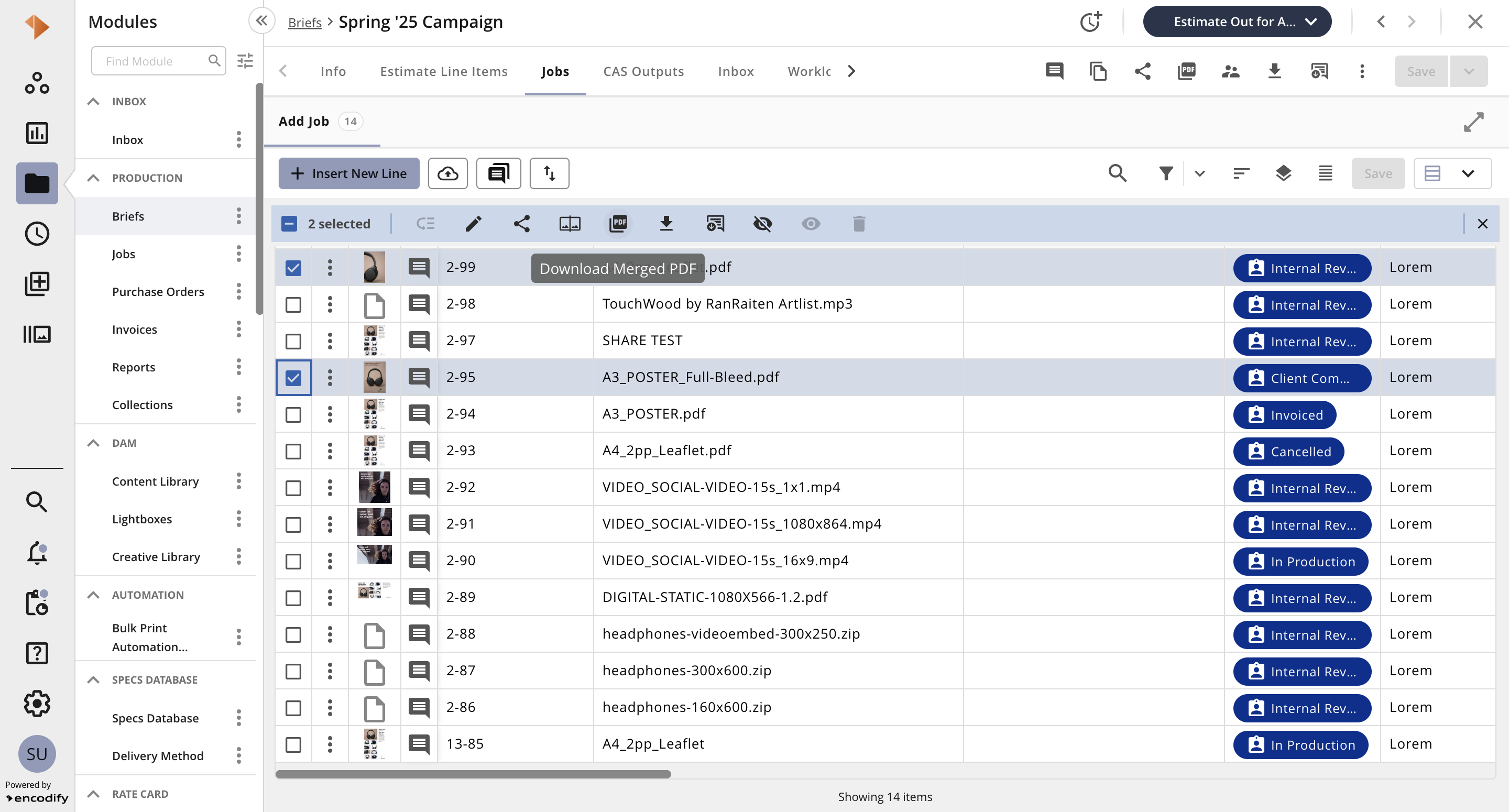
An image highlighting the Download Merge PDF button