Access Control
The Reporting Tool respects the following conditions:
No Feature Flags: Configuration is not governed by any system property or feature flag. The legacy
enableReportingToolForSitesproperty has been removed; the app is always available in the Apps Library.Administrator Exclusivity: Access to configure the Reporting Tool is strictly limited to Site and System Administrators.
Migration Logic
To ensure a smooth transition from the legacy "Add-on" to the Apps Framework, the following logic is applied:
Inclusive Migration: Configurations are migrated even if the legacy system property was disabled or the tool was hidden.
Data Validation Rules:
Misconfigurations: All missing or invalid required fields (e.g., links to deleted modules) will lead to the migration being ignored; in these cases, the app will not be created.
Missing Optional Fields: These are ignored during the process, and the app configuration will still be successfully created.
Defaulting: All migrated configurations will have the download button label set to "Download Report" by default.
Technical Specifications & Constraints
The reporting tool can be enabled, and basic setup can be performed within the Apps Library (Sidebar → Configuration → Apps Library):
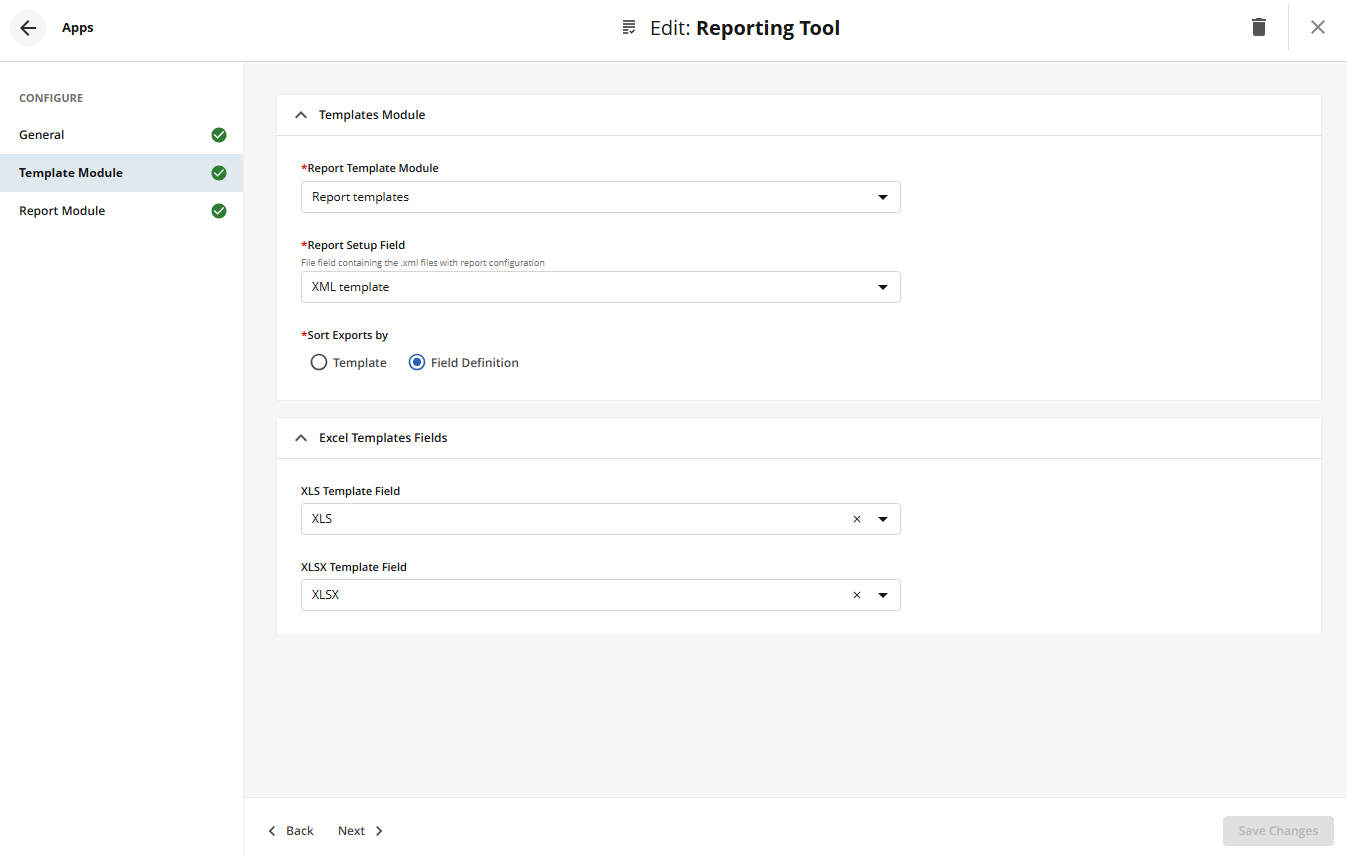
Template Module Mapping
Setting | Description |
|---|---|
Active/Inactive Toggle | Enables or disables the Reporting Tool App and all associated functionality. When disabled, all related permissions are suspended |
Report Template Module | Dropdown list to select the reporting module. The report module can be of the Module type only, so when clicking the Module containing templates dropdown field, you will see the list of all the active modules of the Module type available on the site. |
Report Setup Field | The field of the type File field that will contain the .xml files with the report setup.
|
Sort Exports By | Define Export Sort Order:
|
XLS Template Field (Optional) | The field of the type File field that will contain
|
XLSX Template Field (Optional) | The field of the type File field that will contain
|
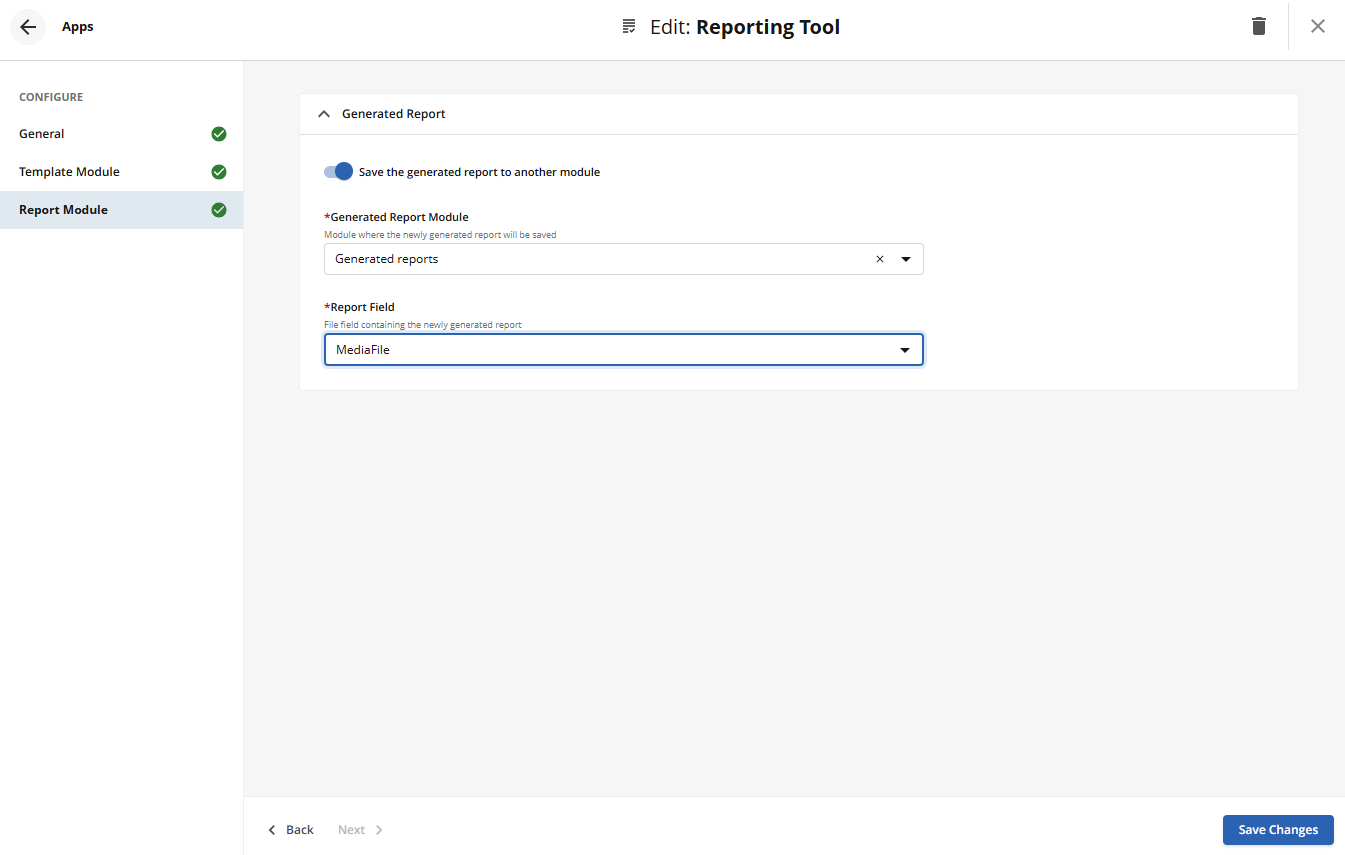
Report Module Mapping
Setting | Description |
|---|---|
Save Generated Report | A toggle that, when enabled, allows configuring the generated report to a specific module. |
Generated Reports Module | Available when "Save..." is enabled. Specifies the target module where the generated reports will be stored. |
Report Field | Available when "Save..." is enabled. The specific file field within the target module where the report is saved. Must have limit = 1. |