Overview
Location: Modules > Manage Modules > {Module} > Module Configuration > Actions
With the Actions feature, you can set up a module to carry out actions triggered by specific events. For example, you can send an email when a new item is created.
The next diagram illustrates the existing Events and Actions that can be triggered by them.
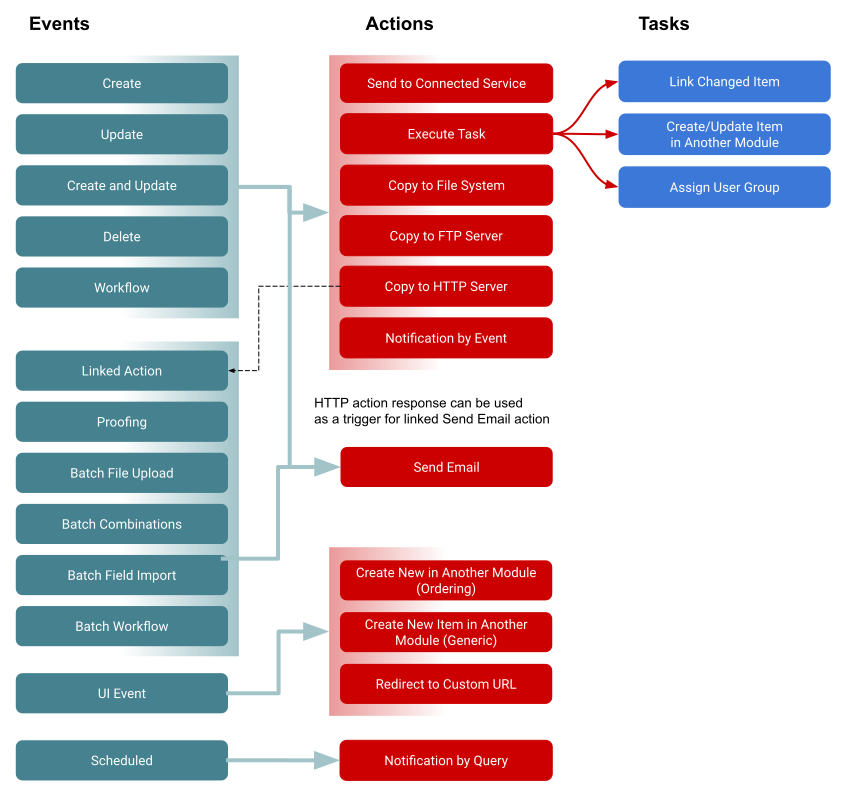
Event Types
When configuring an action, it is necessary to specify the event that will trigger it. The following events applicable to items are available:
Event | Explanation | Triggered Actions |
|---|---|---|
Create | The new item is created in the module |
|
Update | The existing item is updated | |
Create and Update | This combined event can trigger actions on both operations, whether an item is created or updated | |
Delete | The existing item is deleted or inactivated Note, once item is deleted then only metadata is able to be copied. | |
Item's status is changed using workflow transition. Note: this event will also trigger the actions configured for the Update event | ||
Linked Action | A special type of event that allows checking the response from "Copy to HTTP Server" actions which are mapped as linked. Literally, you can map the HTTP action as an event for the Send Email action. |
|
Proofing | A status is applied to a PDF page in the Proofing system | |
User clicks the related Action Button on UI |
| |
Scheduled | Periodically checks for changes in the set of tracked items |
|
Action Types
The following actions can be configured in the system:
Action | Description | Triggered on Events |
Exports item's text data and uploaded files to an external server via FTP protocol |
| |
Sends the HTTP requests to a third-party system using its API. GET, POST, PUT, DELETE methods are supported | ||
Exports item's text data and uploaded files to the file system of the current server | ||
Allows executing additional operations on items. Such tasks are supported:
| ||
Send to Connected Service | Used for integration with different third-party systems using dedicated Connected Services | |
Adds an "Order" button to the item's Action Menu. | ||
Adds a button to the item's Action Menu which allows creating an item in another module | ||
Adds a button to the item's Action Menu that allows a user to navigate to a custom link, e.g. access a third-party system with a pre-generated access token |

Actions are created and configured separately. More than one action can be triggered by a particular event. Action can be disabled if it is not needed at the moment, so it will not be executed on any event.
Creating the Action
To configure an Action, follow these steps:
On the toolbar, click Create Action.
In the dialogue box that opens, type a name for the Action in the Name box.
In the Event list, select an event that will trigger the Action.
In the Action field, select an Action.
Depending on the Action type, specify the Action's parameters.
If needed. add filters to make action executable only when item fulfills the certain conditions.
Save Action.
Actions Execution Order
It is possible to define the order of executing actions using the “Action Run Order” button. Please note that the system is designed to run Update and Workflow actions in separate threads.
When a workflow transition occurs, it triggers both Update and Workflow actions (because the system recognises changing the status field as an item update).
Actions with event type Workflow always run AFTER actions with event type Update.
For example, there are 3 actions configured:
Action Name | Run Order | Event |
|---|---|---|
Send mail | 10 | Workflow |
Set price | 20 | Update |
Link product | 30 | Update |
Uncheck the flag | 40 | Workflow |
In this case, update actions will be triggered first, respecting their order and only after that - workflow actions. The real execution order will be the following: “Set price” -> "Link product" -> "Send mail" -> "Uncheck the flag".
Suppress on Bulk Operation
To prevent triggering actions intended to be triggered only on single operation events, the Suppress on Bulk Operation option can be used.
For example:
The action on Update Event will also be executed when performing Bulk Edit on multiple items. If this is not needed, set the Suppress on Bulk Operation option to TRUE.

Action Filters
A filter can be added to make actions trigger only in certain cases, e.g., the item is in the right status. It is possible to configure filters by the field with options, by date fields or on change of field value.
Several filters can be added, and in this case triggering of the action will depend on the match criteria:
AND — trigger only if item state passes all filters.
ANY — trigger if at least one of the filtering conditions is true.
With filtering by date, it is possible to make delayed actions, which will not be triggered immediately on the action event (create, update, etc.) but when a certain date comes. It is required to have Field Object Watcher Scheduler Job running to handle delayed actions.
"Any new value" filter type will allow actions to trigger every time the content of the field changes. The filter type is applicable to the fields of the editable type: text, option, numeric, date, File.
Please note the following current behaviour and limitations related to the "Any new value" filter for File fields:
"Any new value" filter in action will react to any new file upload to the single file field, regardless of file name and file content. Namely, any new uploaded file will trigger the action even if a file with the same file name and content was uploaded to the field before.
The logic described above is not applicable to the Multiple file fields with limit 1.
Any new value filters do not work with date filters in actions. Corresponding validation message will be displayed on attempt to save such configuration in action.