Save reports as an email
Reports can be scheduled to be sent automatically via email. When the Reporting functionality is enabled, Scheduled Reports can be configured in 'Actions' of the reporting module.
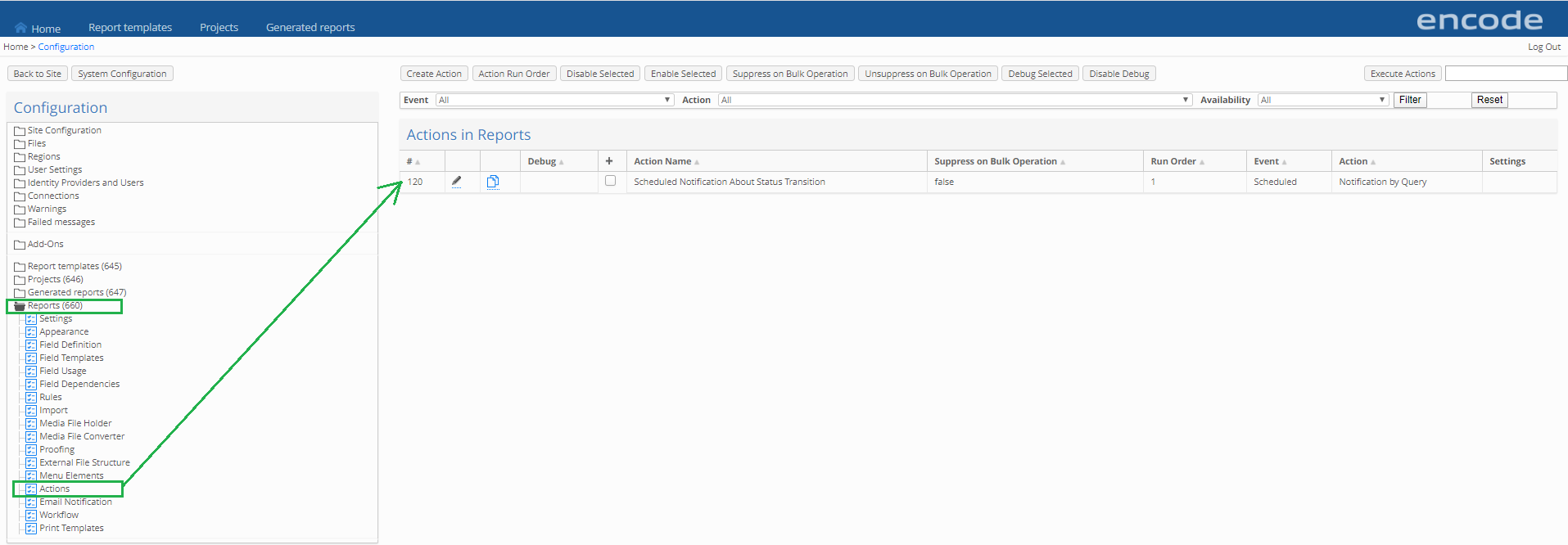
In this case, the admin user can configure which recipients will receive emails with reports and at what frequency:
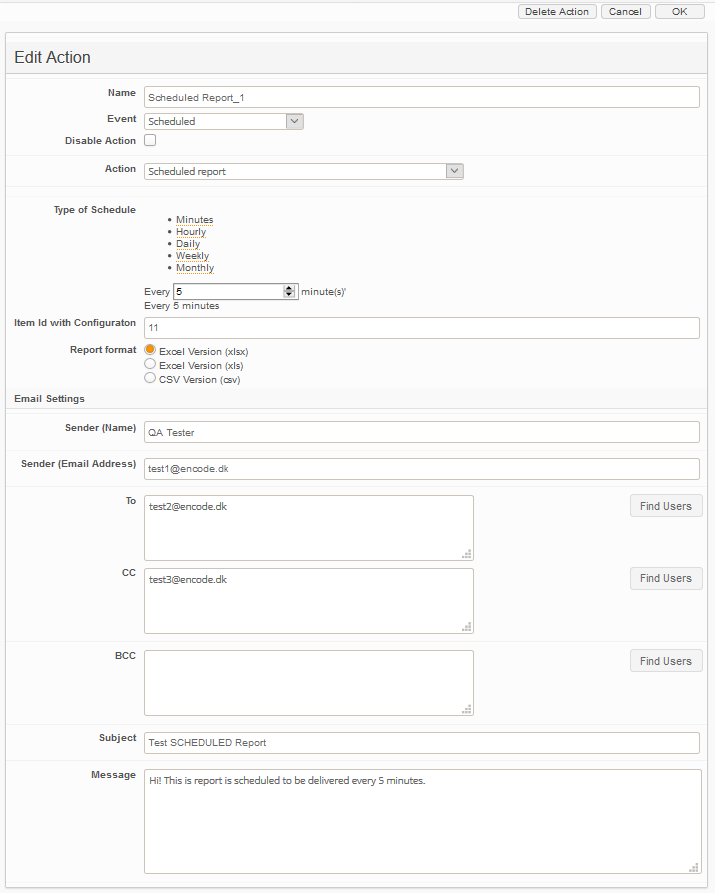
Frequency can be configured differently:
Every _ minute(s);
Every _ hour(s) at configured time;
Every _ day(s) OR every weekday at the configured time;
Every week on a selected day and configured time;
Every month on a selected day and configured time;
Every year on a selected month, day and configured time.
Also, in the Scheduled Reports, the admin user can configure:
common email fields in scheduled reports: Sender's name and email, emails of 'To', 'CC' and 'BCC' recipients, subject and text of the message;
export format: XLS, XLSX, XLSM and CSV (corresponding to the exporting rules).
To prevent issues in reporting, the 'Scheduled Report' type of the Action is enabled only for a reporting module. It is not displayed in the Action types for other modules.
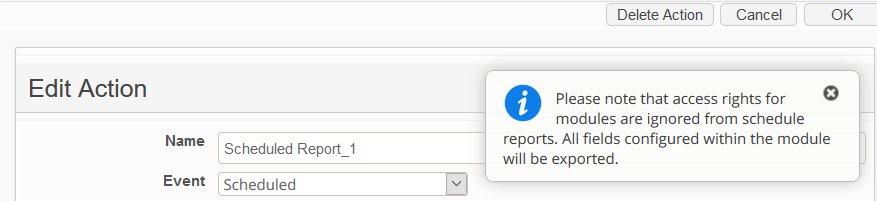
Please note that exported reports do not respect access rights! A corresponding warning message is displayed to an Admin user in each report config window:
Save report to FTP server
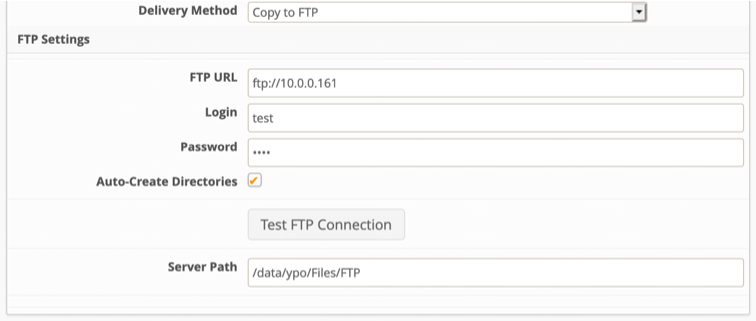
It is possible to choose the delivery method as Copy to FTP to store the report in the remote folder instead of sending it as an email attachment.
It is necessary to explicitly specify the protocol in the FTP URL field, like ftp://
Server Path must be specified as an absolute path from the root directory, like /data/ypo/FIles/FTP