Configuration Process for Dynamic Teams
The configuration of Dynamic Teams requires site and system administrators to follow several steps. Below is a detailed description of the creation and management process.
Creating Dynamic Teams
Navigate to User Management.
Select the Dynamic Teams
.png) option.
option.Click on the 'Add New Team'
.png) button.
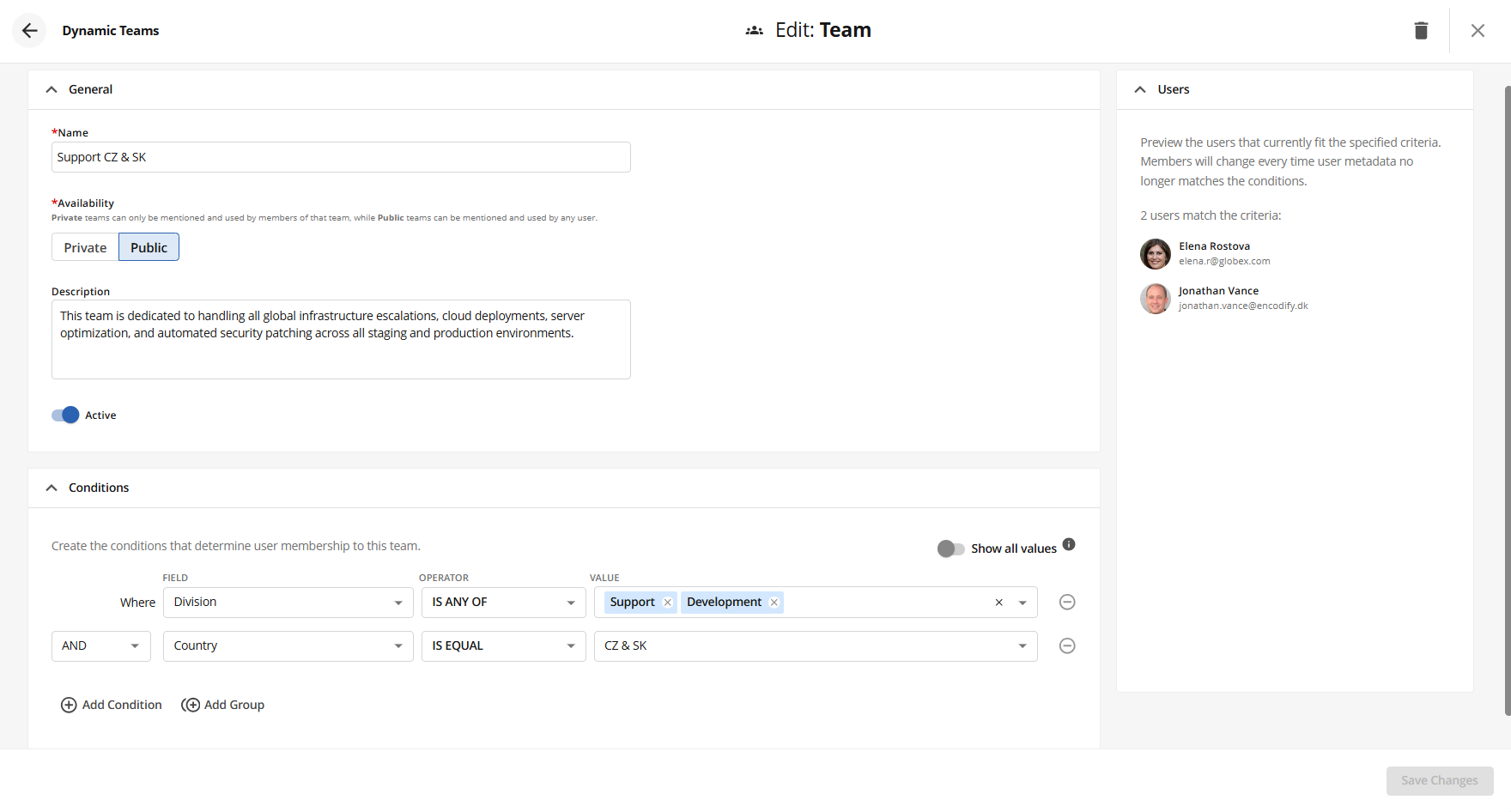
button.Complete the form as follows:
Field
Description
Name
Enter a required name for the team.
Availability
Choose between private and public settings for the team.
Description
Optionally provide a brief description of the team.
Active/Inactive Toggle
This option is active by default.
Set Conditions for user inclusion
Utilise filters similar to those in the module view.
This field is required.
Preview Users
Check the list of users who fit the specified criteria.
Editing Existing Teams
To edit an existing team, follow these steps:
Navigate to the Dynamic Teams section in User Management.
Select the team you wish to edit.
Make necessary adjustments to the General Properties and Conditions as outlined previously.
Save the changes to update the team's configurations.
Managing Team Membership
Membership management is automated based on the defined conditions. The platform will dynamically include all users that match these conditions at the time of operation execution. This feature allows the created team to be employed for various applications, such as notifications and approvals.
Public and Private Teams
By default, teams are set as private. However, administrators have the option to change the setting to public. This distinction ensures that:
Private teams can only be mentioned and utilised by members.
Public teams can be mentioned and accessed by any user, promoting broader engagement.
Conclusion
The Dynamic Teams feature within the platform fundamentally enhances user interaction by automating team management processes based on user attributes. By following the outlined configuration process, site and system administrators can effectively create, edit, and manage teams, ensuring optimal communication and user satisfaction.
FAQs
What is the purpose of the Dynamic Teams feature?
The Dynamic Teams feature enables the creation and management of condition-based teams to automate engagement with user groups that share common attributes, enhancing efficiency and user satisfaction.
Who is responsible for configuring Dynamic Teams?
Site and system administrators are responsible for configuring Dynamic Teams.
What settings can be adjusted when creating a Dynamic Team?
When creating a Dynamic Team, administrators can adjust the name, availability (private or public), description, conditions and active/inactive toggle settings.
How are team memberships managed?
Team memberships are managed automatically based on defined conditions, dynamically including all active users that match these conditions at the time of operation execution.
What is the difference between public and private teams?
Private teams can only be mentioned and used by members, while public teams can be mentioned and accessed by any user, promoting broader engagement.